If you play on a laptop, start with a monitor that can carry its video signal and supply enough USB-C power to meet its charging requirements; that combination may free a socket. For a desktop setup, a 27-inch QHD gaming monitor is a route for viewing maps without making 4K the priority. Consider 4K or a higher-refresh OLED display when those display features matter more to you, and check that your PC can run the modes you intend to use.
Who these monitors suit
Laptop players short of sockets
If your laptop supports USB-C video and charging, a monitor with suitable Power Delivery could let you leave its separate charger unplugged. Check the laptop’s requirements before treating any USB-C monitor as a single-cable setup.
Desktop players reading detailed maps
A 27-inch QHD display gives you a resolution to consider for maps and game interfaces. Match its resolution and refresh rate to the performance and connections of your desktop PC.
Players who also enjoy fast action games
If you want the same screen for historical war games and faster titles, OLED contrast and a higher refresh rate may matter more to you than charging or peripheral-switching features.
What to check before buying
Decide which need comes first: freeing a socket, reading maps, following movement or switching between devices. Then check the relevant connections and display modes against the equipment you already use.
| Concern | What to check | Who this matters to |
|---|
| Fewer powered devices |
Check USB-C video support and Power Delivery against your laptop’s requirements; consider integrated speakers if you otherwise need powered audio. |
With one usable socket, I want to know whether the monitor could take the place of my laptop charger. Around 36% of consumers put socket consolidation first. |
| Map readability |
Choose a screen size and native resolution you can use comfortably, then check your PC’s performance at that resolution. |
When unit information and maps fill the screen, I care most about seeing them clearly at my chosen settings. Roughly 29% of consumers make strategic detail their primary concern. |
| Motion in different games |
Compare refresh-rate modes and confirm that your graphics hardware and connection can drive the one you want. |
I also play faster games and want camera movement to feel responsive, not just a detailed static map. Around 21% of consumers prioritise motion. |
| Device switching |
Count the video inputs you need and check how any KVM switches your keyboard and mouse between devices. |
If my desktop and laptop share a desk, I want to change devices without repeatedly moving peripherals. About 14% of consumers put that flexibility first. |
Mistakes to avoid
-
Assuming USB-C will replace your laptop charger
USB-C power capacity differs substantially between monitors. Gigabyte specifies up to 18W for the M27Q P, while Dell specifies 90W for the U2724DE; neither figure alone establishes what your laptop needs.
Confirm that your laptop accepts USB-C charging and video, then compare its documented power requirement with the monitor’s stated Power Delivery.
-
Treating one power figure as the whole desk’s load
A monitor’s consumption figure and its maximum AC input describe different things. Electrical Safety First warns that an extension lead or adaptor can overheat if the combined load exceeds its maximum current rating.
Check the rating of the lead or adaptor and account for every device connected to it; do not use a monitor specification as permission to exceed that rating.
-
Adding extension leads instead of checking the load
More available outlets do not increase the current rating of the lead or wall socket supplying them.
Avoid chaining extension leads. Reduce unnecessary powered accessories or reposition the setup, and keep the combined load within the equipment’s rating.
-
Choosing a display mode before checking your PC
A listed 4K or high-refresh mode is only useful if the connected PC, port and game settings can support the mode you want. KTC lists separate 4K 160Hz and Full HD 320Hz modes for the M27P6, rather than one mode combining both figures.
Check your graphics hardware, available outputs and preferred game settings before choosing which resolution and refresh rate to prioritise.
Brands to consider for these features
Gigabyte
The M27Q P is relevant if you want QHD gaming alongside integrated speakers and KVM switching.
- Gigabyte lists up to 170Hz, 3W × 2 speakers and a KVM for the M27Q P.
- Its USB-C Power Delivery is limited to 18W, so check separately whether your laptop can use it for charging.
Dell / Alienware
These are distinct options: Dell’s U2724DE focuses on hub connectivity, while the Alienware AW2725DM focuses on QHD gaming.
- Dell lists QHD at 120Hz and 90W Power Delivery for the U2724DE; its AW2725DM listing specifies QHD at up to 180Hz.
- Check laptop compatibility before relying on U2724DE charging, and confirm your audio arrangements if considering the AW2725DM.
LG
The 27GS95QE-B is a QHD OLED option for players who also prioritise high-refresh gaming.
- LG specifies 240Hz and a 0.03ms GtG response time for this model.
- This display choice does not, by itself, replace a laptop charger or other powered desk equipment. LG also says disabling Smart Energy Saving can increase power consumption.
KTC
The M27P6 illustrates a 27-inch 4K route with a separate faster Full HD mode and device-switching features.
- KTC specifies 4K at 160Hz and Full HD at 320Hz; the Joybuy product listing identifies 65W USB-C and KVM.
- Check that 65W meets your laptop’s charging needs and that your PC supports the display mode you plan to use.
Joybuy monitor choices
These monitors offer different approaches to the same desk: some list USB-C or integrated audio, while others emphasise 4K detail or high-refresh gaming. Choose by the feature you need most, then check laptop charging and PC display-mode compatibility where relevant.
 No image available
Dahua 32-inch curved 4K OLED gaming monitor
Consider this if you want a larger 4K screen and are checking whether USB-C can help simplify a laptop desk.
The product name lists 3840 × 2160, 165Hz, Type-C 65W and a USB hub. Confirm USB-C video support and whether 65W meets your laptop’s charging requirement.
View on Joybuy
 No image available
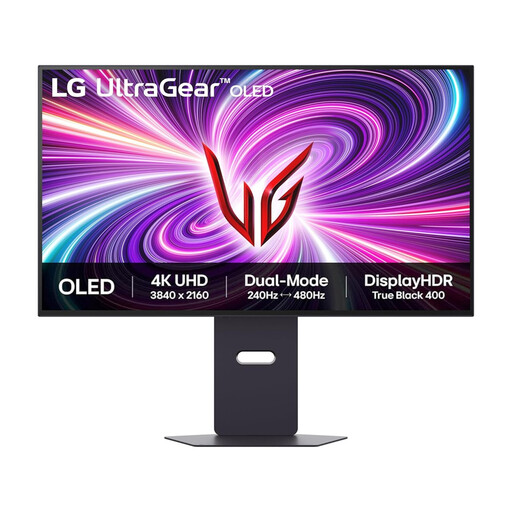
LG UltraGear 32GS95UV-B 32-inch OLED monitor
This is an option if you want 4K for maps and also play games where you would use its higher-refresh modes.
The product name lists 4K at 240Hz, a separate Full HD 480Hz mode and 7W stereo speakers. Check that your PC supports your intended mode, and take account of the listing’s caution about leaving static images on the OLED screen for long periods.
View on Joybuy
 No image available
LG UltraGear G8 27G850A 27-inch 4K monitor
Consider this model if 4K detail on a 27-inch screen and high-refresh gaming are priorities.
The product name lists a Nano IPS panel, 240Hz and a separate 480Hz dual mode, plus DisplayPort 2.1 and HDMI 2.1. Check your PC’s output and the conditions for the mode you intend to use; confirm audio and USB-C charging features separately if they affect your socket count.
View on Joybuy
 No image available
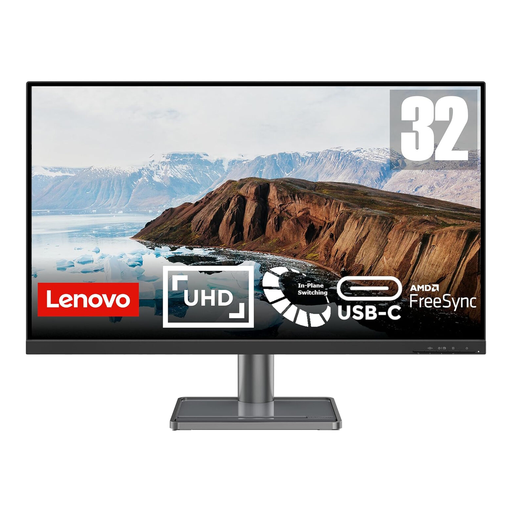
Lenovo L32p-30 31.5-inch 4K IPS monitor
This larger 4K screen may suit a desk where map detail matters more than a high-refresh gaming mode.
Its product name identifies an IPS display and USB-C. Confirm the USB-C charging capacity before counting on it to replace a laptop charger, and check whether the listed 60Hz refresh rate suits the games you play.
View on Joybuy
 No image available
Samsung Odyssey G6 S27DG612 27-inch QHD OLED monitor
This is a QHD option if you also want to use a high-refresh display for faster games.
The product name lists OLED, 240Hz and a 0.03ms response time. Check your PC’s frame-rate capability; if freeing sockets is essential, confirm charging and audio arrangements before buying.
View on Joybuy
Common questions
Can a USB-C monitor free the socket used by my laptop charger?
It can if your laptop accepts USB-C charging and video and the monitor supplies enough power for its requirements. Dell lists 90W Power Delivery for the U2724DE, while Gigabyte lists up to 18W for the M27Q P; compare the exact monitor and laptop specifications rather than relying on the USB-C label alone.
Can I chain extension leads to get more sockets?
Avoid chaining extension leads. Electrical Safety First warns that exceeding an extension lead or adaptor’s maximum current rating can cause overheating and a fire risk, so check its rating against the combined load of the devices you connect.
Do historical war games require a 240Hz monitor?
No particular refresh rate is required for this choice. A QHD monitor such as Gigabyte’s up-to-170Hz M27Q P or Dell’s 180Hz Alienware AW2725DM gives you another route; a 240Hz display is worth considering if you also play faster games and your PC can make use of the mode.
What if a monitor’s plug or cable appears damaged?
Stop using the affected equipment. The Health and Safety Executive advises seeking a more thorough check by a competent person when you are concerned about electrical equipment’s safety.


