Choose a gaming monitor around the signal your existing console or PC can deliver, not its headline refresh rate alone. For a console, check the exact HDMI resolution, refresh-rate and variable refresh rate (VRR) modes; for a PC, weigh the detail of 1080p, 1440p or 4K against the frame rates your games and graphics hardware can sustain. If the screen also serves as a workstation, desk fit, adjustment and connections may change the choice.
Who is choosing?
Console players targeting 120Hz
If you use a PS5 or Xbox Series console, the monitor’s HDMI modes need to match the output you want. PlayStation and Xbox Support provide connected-display settings that help you check resolution and refresh options; VRR and HDR also need checking for the particular setup.
PC players balancing detail and frame rate
Your choice between 1080p, 1440p and 4K depends on the frame rates your graphics hardware and games can sustain. Check the refresh rate on the input you will use and whether your graphics card and monitor share a compatible VRR connection.
Gamers sharing a desk with work or study
If one screen serves several devices, its position, available inputs and audio route matter alongside gaming specifications. Check any USB-C video, data and charging functions against the laptop you intend to connect.
What matters when buying?
Start with the output your console or PC can use, then choose a resolution and screen size that suit both your games and your desk.
1080p high refresh
Consider it when: Fast, frame-rate-led PC play matters more to you than fine image detail.
Trade-off: It offers fewer pixels for games and desktop work; the highest advertised refresh rate may also require DisplayPort rather than HDMI.
1440p
Consider it when: You want more detail and desktop space than 1080p while keeping high-refresh PC gaming in view.
Trade-off: PC frame rates still depend on the game and graphics hardware. For PS5, use its 1440p output test rather than assuming the monitor accepts every desired mode.
4K
Consider it when: Image detail or 4K console output is a priority and the chosen monitor accepts the signal you intend to send.
Trade-off: High frame rates at 4K place greater demands on a PC; a 4K panel alone does not establish 4K/120 or VRR support over HDMI.
| Concern |
What to check |
Who this matters to |
| Console HDMI modes |
Check the chosen HDMI port’s resolution, refresh, HDR and VRR combinations, plus the console and cable needed for your target mode. |
If I want my existing console to output 4K at 120Hz, I need the whole connection to support it. Around 36% of consumers would put console signal compatibility first. |
| PC frame rates and VRR |
Compare your games’ achievable frame rates with the monitor’s input-specific refresh rates; check graphics-card and monitor VRR compatibility. |
I would rather choose a resolution my PC can drive comfortably than focus on a refresh figure I rarely reach. Roughly 29% of consumers would prioritise that performance match. |
| Detail and screen size |
Compare native resolution and physical dimensions with your preferred game settings, desktop space and available desk depth. |
When I use the screen for games and other desktop tasks, I want enough detail without choosing a size that crowds my desk. About 21% of consumers would make that balance their main concern. |
| Shared-desk usability |
Check positioning options, device inputs, required USB-C functions and your intended audio connection. |
If I switch between gaming and work at one desk, I need the screen and connections to fit that routine. Around 14% of consumers would put everyday desk usability first. |
Common buying mistakes
-
Assuming every port delivers the maximum refresh rate
Dell UK lists the Alienware AW2525HM at 1920 × 1080 and 320Hz through DisplayPort, but 255Hz through HDMI. Its headline maximum therefore does not describe every connection.
Read the resolution and refresh table for the port you will actually use, then check the detected signal after connecting your device.
-
Relying on a 4K or HDMI label for console compatibility
PlayStation says PS5 VRR requires an HDMI 2.1 VRR-compatible display. Xbox Support specifies HDMI 2.1 display support for Xbox Series X gaming at 4K and 120Hz. The monitor must accept the particular mode you want.
Check its HDMI mode table for the resolution, refresh rate, HDR and VRR combination, as well as the cable path.
-
Choosing a refresh rate without considering PC output
A monitor cannot create frames that a PC game does not produce. Higher resolution also changes the workload for the graphics hardware.
Choose a resolution around the games, settings and frame-rate target you use, then confirm a compatible VRR connection if that feature matters to you.
-
Leaving desk fit and connections until last
For a standard workstation, the UK Health and Safety Executive advises placing the top of the screen at eye level and the screen about an arm’s length away. A large display or a stand with limited adjustment can make that arrangement harder at a shallow desk.
Measure the available space and check stand adjustment, mounting options, inputs and audio routing before choosing a panel.
Depending on the setup, you may need a separate arm, riser, speakers, dock or suitable cables.
Brands to consider for specific monitor features
LG UltraGear
Worth examining when a 4K monitor’s console HDMI modes and PC VRR support both matter.
- LG UK specifies 4K, HDMI 2.1 and VRR up to 120Hz over HDMI 2.1 for the 27GP950-B.
- Those modes are specific to the 27GP950-B. Check the chosen UltraGear model’s ports, audio and stand separately.
Alienware
Offers model-specific options for PC players comparing high refresh with resolution.
- Dell UK specifies different HDMI and DisplayPort refresh limits for the AW2525HM, while the AW2725QF has 4K and Full HD display modes.
- Neither example establishes the console modes of other Alienware monitors; inspect the exact model and input.
ASUS ROG
Relevant when a 1440p PC screen also needs desk connectivity.
- ASUS ROG UK specifies a 27-inch 2560 × 1440 panel, 180Hz, USB-C and G-SYNC Compatible status for the XG27ACS.
- Check the exact USB-C video, data and charging functions required by your laptop; specifications differ between ROG models.
AOC Gaming / AGON
Relevant to buyers comparing a larger 4K desk display with HDMI 2.1 and USB-C features.
- AOC UK identifies the AG324UX as a 31.5-inch 4K monitor with HDMI 2.1 and USB-C docking.
- Check the AG324UX’s exact HDMI modes and physical fit; those features do not describe every AOC Gaming or AGON model.
Joybuy gaming monitors
These 4K and 1440p monitors offer different starting points for console, PC and shared-desk setups. Match each model’s input modes and physical size to your own devices before choosing.
 No image available
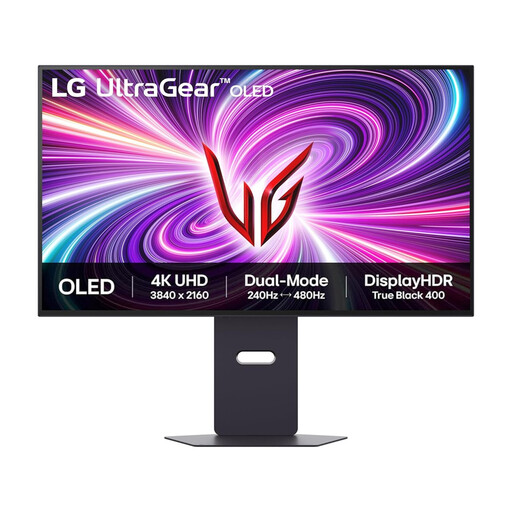
LG UltraGear 32GS95UV-B 32-inch OLED gaming monitor
Consider its dual display modes if you switch between 4K detail and Full HD gaming; check which modes your intended input and device can use.
The title specifies 4K at 240Hz or Full HD at 480Hz, HDMI 2.1, DisplayPort, G-SYNC and FreeSync Premium Pro, plus 7W stereo speakers. Check the screen’s dimensions against your desk.
View on Joybuy
 No image available
Dahua 32-inch 4K 165Hz curved OLED gaming monitor
This model may suit a 4K gaming desk that also connects to a laptop; confirm the console modes and the USB-C functions your devices require.
The title specifies 3840 × 2160 resolution, 165Hz, USB-C 65W and a USB hub. Check the curved screen’s dimensions and the required HDMI and VRR modes.
View on Joybuy
 No image available
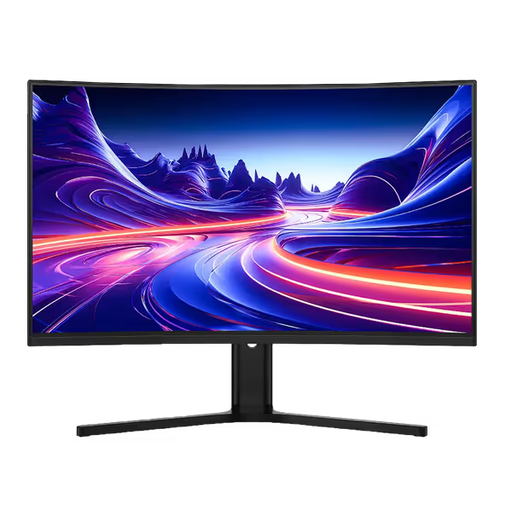
Dahua 32-inch QHD 180Hz curved gaming monitor
Consider this 1440p option if you want a larger curved PC screen; confirm the refresh rate and VRR modes available through your chosen connection.
The title specifies 2560 × 1440 resolution, a VA panel, 180Hz and two HDMI and two DisplayPort 1.4 connections. Measure the space for a 32-inch screen.
View on Joybuy
 No image available
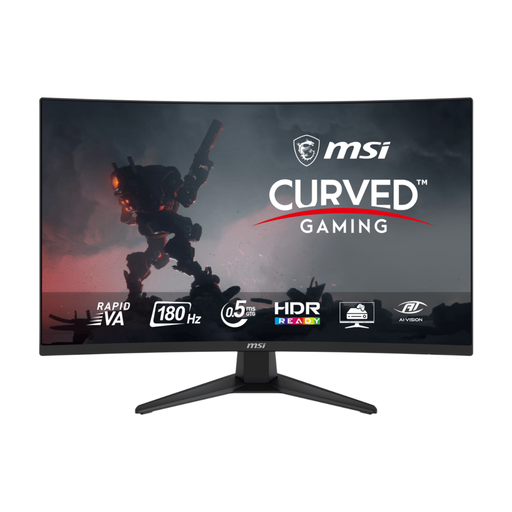
MSI MAG 321CQF E18 32-inch curved WQHD monitor
This is another 1440p route for a PC desk; check the refresh and VRR modes on the input you will use, particularly if connecting a console by HDMI.
The title specifies 180Hz and a curved WQHD screen. Check its stand positioning against your working height and desk space.
View on Joybuy
 No image available
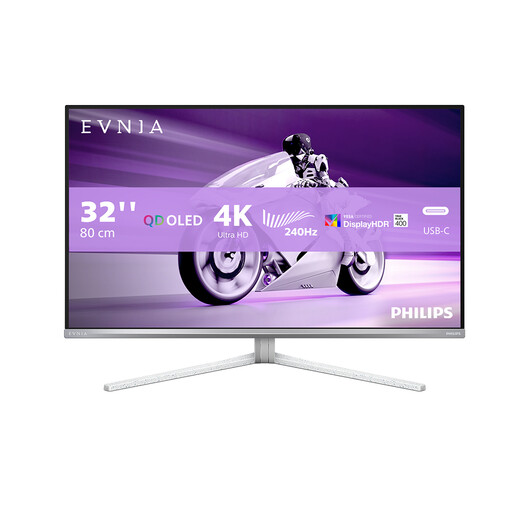
PHILIPS Evnia 32M2N8900 32-inch UHD OLED monitor
Consider this model for a 4K setup only after checking the exact variant and its input modes against your PC or console.
The title identifies an UHD OLED screen and FreeSync Premium Pro and G-Sync Compatible support. Refresh-rate and response-time figures differ across the product description, so confirm those specifications before choosing.
View on Joybuy
Frequently asked questions
What should I check before buying a monitor for PS5?
Check the monitor’s supported HDMI modes, not just its panel resolution. PlayStation’s PS5 settings show information about the connected display’s resolution, VRR and HDR; if you intend to use 1440p, run the console’s 1440p output test for the modes that matter to you.
Does Xbox Series X need HDMI 2.1 for 4K at 120Hz?
Yes, for that specific output mode, Xbox Support says the display must support HDMI 2.1. Check the monitor’s 4K/120 input mode and cable path; Xbox Support advises a certified Ultra High Speed HDMI cable if you need a longer run than the supplied two-metre cable.
Will a 320Hz monitor run console games at 320Hz?
No: a monitor’s maximum PC refresh specification does not establish a console output mode. Dell UK, for example, lists 320Hz through DisplayPort but 255Hz through HDMI for the AW2525HM at 1080p; check both the monitor’s HDMI table and your console and game settings.
Do I need built-in monitor speakers?
Built-in speakers are useful if you want audio from the screen without a separate desktop audio device. If you normally use a headset, speakers or an AV system, check how your console or PC will route sound instead; PlayStation provides separate PS5 output-device settings.


