Circuit-detail practisers
If you repeatedly study braking markers, kerbs and corner sequences, you need to judge screen detail alongside the motion settings your gaming device can sustain.


A 27-inch QHD gaming monitor with a high refresh rate is a practical starting point for learning a street circuit, provided your PC and chosen connection can deliver the resolution and refresh mode you want. If wired headphones must plug into the screen, check the exact model for a headphone output and confirm that your device sends audio through the display connection; a higher-resolution or higher-refresh model does not settle that question.
If you repeatedly study braking markers, kerbs and corner sequences, you need to judge screen detail alongside the motion settings your gaming device can sustain.
If your wired headphones will connect to the monitor rather than directly to a PC or console, the display’s audio connections are part of the purchase decision, not an accessory detail.
If you practise at a desk or wheel stand for extended sessions, screen height, mounting space and comfortable headphone listening deserve attention alongside image specifications.
Start with the display mode your PC or console can actually output, then check how you will connect your headphones and position the screen. A monitor’s headline refresh rate, panel description and audio connections answer different questions.
| Concern | What to check | Who this matters to |
|---|---|---|
| Motion while cornering | Check refresh rate at the intended resolution and port, compatible variable refresh rate, and how the stated response time is measured. | If fast-changing turn-in points are my priority, I want a display mode my game device can sustain without relying on the headline specification alone. Roughly 36% of consumers would put motion first. |
| Track detail and device fit | Compare QHD or 4K with your device’s output modes and the frame rates you expect at your chosen game settings. | When I revisit braking markers and kerbs, extra detail matters only if my system can run the mode I intend to use. Around 29% of consumers would make detail and device fit their primary concern. |
| Headphone connection | Confirm the exact model’s headphone output, if needed, and whether your source sends audio over its HDMI or DisplayPort connection. | I want to plug wired headphones into the screen without discovering that I need a different audio route. Approximately 21% of consumers would prioritise headphone routing. |
| Screen position and image preference | Check stand adjustment, VESA mounting and desk clearance; compare the actual panel and backlight specifications if HDR matters to you. | For repeated sessions at my wheel stand, I need the screen in a workable position and an image presentation I prefer. Roughly 14% of consumers would put setup and image preference first. |
For headphone listening during long sessions, Royal Free London NHS Foundation Trust advises keeping volume below 60% of maximum and taking a break of at least five minutes every hour.
The mode available can change with the input. Dell lists the G2725D at QHD up to 180Hz over DisplayPort, but up to 144Hz over HDMI.
Check the monitor’s per-port modes against the output and cable you will use.
ASUS lists an earphone jack on the VG27AQ3A and Dell lists a headphone output on the G2725D, while Dell lists no audio for the Alienware AW2725QF. A gaming display is not automatically your headphone connection point.
Check the exact model’s connections and trace where audio will travel from your PC or console.
If the display cannot provide the connection you need, you may need to use your device, controller or a separate audio accessory instead.
AOC specifies 336 Mini-LED zones and HDR1000 certification for the Q27G3XMN/BK, while its Q27G4XFAD is described with HDR10. Those labels do not describe the same backlight specification.
Compare the exact panel, backlight and HDR specifications of the models on your shortlist rather than choosing on the HDR label alone.
ASUS lists tilt and swivel, but no height adjustment on the VG27AQ3A’s supplied stand; it also lists 100 × 100mm VESA mounting. The cited AOC models list height-adjustable stands.
Measure your seated eye height, wheel-base clearance and available desk depth, then check the stand or mounting arrangement.
A compatible mount may be needed if the supplied stand cannot place the screen where you need it.
These model-specific examples show why it pays to compare connections and stands as carefully as resolution; they are not endorsements of every monitor from each brand.
The VG27AQ3A is a reference point for a 27-inch QHD, high-refresh display with an explicitly listed earphone jack.
AOC’s cited QHD models illustrate two different display specifications: the Q27G4XFAD Fast IPS route and the Q27G3XMN/BK Fast VA model with Mini-LED backlighting.
Dell’s cited models make connection and audio checks particularly relevant when comparing a QHD monitor with a dual-resolution display.
These monitors offer QHD or 4K choices for circuit practice, in 27-inch and 32-inch formats. Before choosing one for headphones, check its exact audio connector and your device’s audio route; compare refresh modes using the input you will actually use.
 No image available
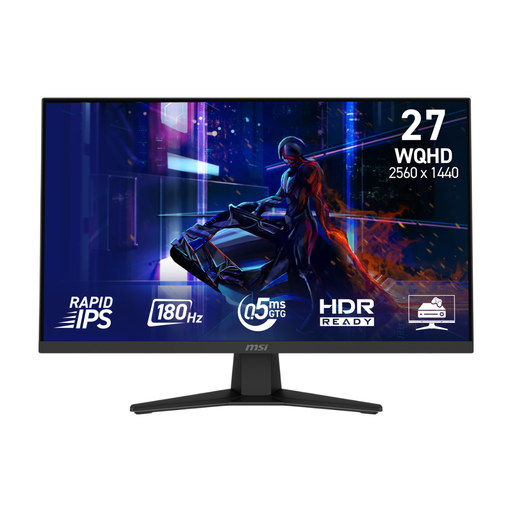
Consider this 27-inch WQHD option if you want to practise with a high-refresh mode and Adaptive Sync. Check which refresh mode your chosen input supports, and confirm that your PC or console sends audio through the display connection before using monitor-connected headphones.
 No image available
This is a 27-inch QHD option if your device can make use of a 240Hz mode. Check the refresh mode available through your intended input and confirm the audio connections before choosing it for headphones plugged into the screen.
 No image available
Consider the 32-inch 4K format if higher resolution is your priority and your setup has room for the screen. Confirm that your device can run the 4K refresh mode you want, whether variable refresh rate is available, and whether the audio connector suits your headphones.
 No image available
The 32-inch curved QHD format may suit a setup with space for a larger screen; the product name also specifies Adaptive Sync and 100 × 100mm VESA mounting. Check the HDMI mode supported by your device and cable, and confirm the audio connector if headphones must plug into the monitor.
 No image available
This 27-inch QHD option is worth comparing if a 220Hz mode fits your gaming device and settings. Check the refresh limit for your intended input, the stand adjustment you need and the audio connections before planning to plug headphones into the display.
You need one if wired headphones must plug into the display, but you can use another audio route if that suits your setup. ASUS lists an earphone jack on the VG27AQ3A and Dell lists a headphone output on the G2725D, while Dell lists no audio for the Alienware AW2725QF. Even with a jack, confirm that your PC or console sends audio over the display connection.
Not necessarily: the available rate depends on the monitor, resolution, input and source device. Dell specifies QHD up to 180Hz over DisplayPort for the G2725D, but up to 144Hz over HDMI. Check the per-port specification for the mode you intend to use.
Choose by the detail and refresh mode your device can sustain, rather than resolution alone. A 27-inch QHD high-refresh monitor is a practical starting point; a 4K option merits consideration if finer detail is your priority and your PC, connection and desk setup suit it. Dell’s Alienware AW2725QF illustrates a different choice again, with specified 4K 180Hz and Full HD 360Hz modes.
Keep the listening level moderate and make time for breaks. Royal Free London NHS Foundation Trust advises staying below 60% of maximum volume and taking at least a five-minute break every hour.