For tower-defence play and coursework on the same student-room desk, start by comparing 27-inch QHD monitors if your computer supports QHD output and the screen fits. A smaller Full HD monitor may suit a tighter desk or a player who also enjoys faster games; whichever route you consider, check stand adjustment and the refresh rate available through your computer’s connection.
Who these monitors suit
Strategy-game players who also study
If you read maps, unit menus and coursework on one screen, compare the detail and workspace offered by a 27-inch QHD display with your computer’s output capabilities. Dell UK’s G2725D specification illustrates this size and resolution combination.
Students with compact desks
Measure the space available for both the screen and its stand, then consider whether the supplied adjustment is enough. BenQ specifies its 24.5-inch EX251 at 557.70 mm wide with 100 × 100 mm VESA mounting; a separate arm would also need to suit the desk and accommodation rules.
Players who switch to faster games
High-refresh Full HD models are worth comparing if motion in other games matters to you. Check the refresh rate your computer can send through the connection you will actually use, rather than relying on the monitor’s headline figure.
What matters when choosing
Choose the screen size and native resolution you can use comfortably, make sure the monitor fits your desk, then check the refresh mode supported by your computer and connection.
| Concern |
What to check |
Who this matters to |
| Readable maps and study space |
Compare native resolution at the screen size you want, and confirm that your computer supports that output. |
When maps, upgrade menus and coursework share my screen, I want enough detail and room to read them comfortably. Around 40% of consumers put usable screen space first. |
| Desk fit and screen position |
Measure desk width and depth; check dimensions with the stand, its adjustments and any VESA mounting pattern. |
If my desk is narrow, the screen and stand need to fit without leaving me with an awkward viewing position. For around 40% of consumers, physical fit and positioning are the primary concern. |
| Motion and connectivity |
Check refresh modes for the monitor’s individual inputs and your computer’s output, including the cable you plan to use. |
I also play faster games, so I want a high-refresh mode that my computer can actually deliver. Smooth motion and a workable connection come first for around 20% of consumers. |
Buying pitfalls
-
Choosing on refresh rate alone
A high refresh-rate figure does not tell you whether the screen size and resolution suit detailed strategy interfaces or coursework.
Decide what size and native resolution you want first, then check which refresh mode your computer can supply.
-
Assuming the maximum refresh rate works over HDMI
Dell UK specifies QHD at up to 180Hz through DisplayPort for the G2725D, but up to 144Hz through HDMI. The connector can therefore change the mode available on this particular monitor.
Read the model’s input specifications and identify the output on your computer before choosing a connection.
Accessing the G2725D’s stated QHD 180Hz mode may require a suitable DisplayPort-capable device and cable.
-
Overlooking the stand and desk dimensions
BenQ lists no height adjustment for the EX251’s supplied stand, while Dell lists tilt adjustment for the G2725D. Neither detail tells you on its own whether the screen will sit at a comfortable height on your desk.
Measure the available space and check the stand’s dimensions and adjustments. If considering an arm, confirm the VESA pattern, arm compatibility and your accommodation’s mounting rules.
A riser or compatible arm may be needed if the supplied stand cannot place the screen where you need it.
Brands to consider
Dell
Dell UK’s G2725D illustrates a 27-inch QHD Fast IPS option for comparing strategy-game detail and study space.
- Dell UK specifies 2560 × 1440 resolution and up to 180Hz through DisplayPort for this model.
- Its supplied stand has tilt adjustment; Dell specifies QHD at up to 144Hz through HDMI.
LG UltraGear
LG UK’s 27GS60F-B illustrates a larger-screen Full HD IPS option with a stated 180Hz refresh rate.
- LG specifies NVIDIA G-SYNC Compatible and AMD FreeSync support for this model.
- The supplied base is described as tilt-adjustable; check whether its positioning suits your desk.
BenQ MOBIUZ
BenQ UK’s 24.5-inch Full HD EX251 offers a smaller physical screen to compare for a compact desk.
- BenQ specifies 220Hz through HDMI and DisplayPort, a 557.70 mm overall width and 100 × 100 mm VESA mounting.
- Its specification lists no height adjustment for the supplied stand.
Joybuy monitors for this setup
These monitors cover different screen sizes and resolutions for tower-defence play alongside study. Compare each one with your desk space and computer output; the listed refresh rate alone does not establish which mode your setup can use.
 No image available
Samsung Odyssey G6 S27DG612 27-inch QHD OLED, 240Hz
Consider this 27-inch QHD model if strategy-game detail and coursework share the screen. The product name specifies an OLED panel and 240Hz refresh rate; check which QHD refresh mode your computer can deliver through its available connection.
View on Joybuy
 No image available
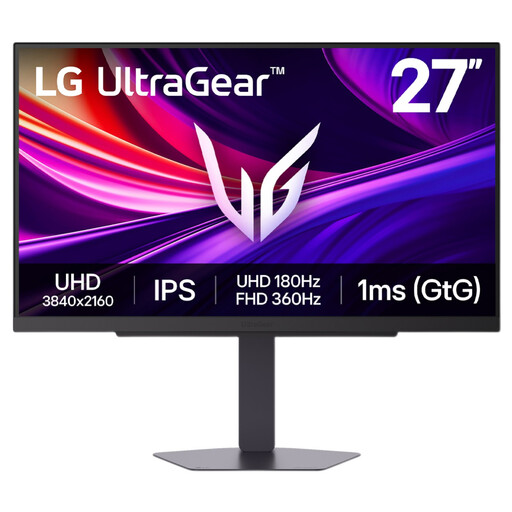
LG UltraGear 27G810A-B 27-inch IPS 4K UHD Dual Mode
This 27-inch 4K UHD option is worth considering when screen detail for games and study is a priority. Its product name describes Dual Mode with a maximum of 360Hz; check the resolution and refresh combinations supported by your intended connection, as well as the dimensions with the stand.
View on Joybuy
 No image available
HKC G27H2DPro 27-inch QHD Fast IPS, 220Hz
Compare this 27-inch QHD model if you want screen detail for tower defence and coursework alongside a high stated refresh rate. The product name specifies 2560 × 1440 and 220Hz; check the input-specific modes, stand adjustment and dimensions before deciding whether it suits your setup.
View on Joybuy
 No image available
CRUA 32-inch 1500R curved QHD monitor, 165Hz
Consider this larger curved screen only after checking that its stand and viewing distance work on your desk. The product name specifies 2560 × 1440 resolution, HDMI and DisplayPort connections, and 100 × 100 mm VESA mounting. The listing says its maximum 165Hz mode requires the supplied DisplayPort cable; HDMI may allow a lower refresh rate depending on the graphics card.
View on Joybuy
 No image available
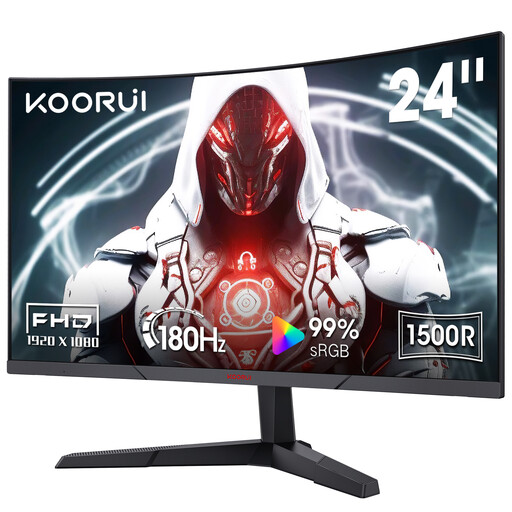
KOORUI MG24A12FV2 24-inch curved Full HD, 180Hz
This 24-inch Full HD model gives you a smaller screen to assess for a compact desk. Its product name specifies a VA panel, 1500R curve, HDMI and DisplayPort connections, tilt adjustment and VESA compatibility. Check whether Full HD offers enough detail for your study use and which refresh mode your computer can deliver.
View on Joybuy
Common questions
Do I need a 240Hz monitor for tower-defence games?
No particular refresh rate is necessary for every tower-defence setup. If you also use the monitor for coursework, compare screen detail, desk fit and connectivity; a higher-refresh option may matter more if you play faster games too.
Will HDMI give me a monitor’s advertised maximum refresh rate?
Not always. Dell UK specifies up to QHD 180Hz through DisplayPort but up to QHD 144Hz through HDMI for the G2725D; BenQ UK specifies 220Hz through either input for the Full HD EX251. Check the exact monitor, computer output and cable together.
How should I position a monitor in a student room?
Aim for a position you can use comfortably without crowding the desk. The Health and Safety Executive’s display-screen guidance describes the top of the screen at eye level and the display about an arm’s length away. Check the supplied stand before considering a riser or arm, and confirm accommodation rules before attaching equipment to furniture or walls.
Do UK workplace display-screen rules specify which monitor a student must buy?
The Health and Safety Executive’s workplace guidance does not specify a student monitor to purchase. It describes employer duties for workers who use display-screen equipment daily for continuous periods of an hour or more; rules for mounting equipment in your accommodation are a separate matter to check with the provider.


