For a long virtual-aquarium session, start with a mouse shape and desk position that let you keep a relaxed grip and straight wrist. Choose more accessible buttons and flexible scrolling if you regularly use menus, camera controls or shortcuts; favour a lighter or wireless mouse if movement and cable drag matter more. Check that the game accepts the controls you intend to assign, and do not treat weight or an ergonomic label as proof of personal comfort.
Who this choice affects
Comfort-first long-session players
If you spend extended periods monitoring or decorating an aquarium, consider how the mouse fits your hand and where it sits on your desk. The Health and Safety Executive advises keeping a mouse within easy reach, supporting the forearm and avoiding an overly tight grip.
Shortcut-heavy aquarium managers
If you often switch tools, open menus or move the camera, reachable programmable buttons may save trips to the keyboard. Scroll-wheel modes may also be worth considering if the game uses the wheel for actions you repeat.
Players who dislike cable drag
If you move the mouse frequently, its stated weight and connection type may matter more to you than the largest button count. With a wireless model, also consider how charging fits around your sessions.
What to check before buying
Check hand fit and desk position first, then decide whether your repeated aquarium actions call for extra controls or whether easier movement matters more. The percentages below express how consumers with these different primary needs may relate to the choice; they are not a measure of product performance.
| Concern |
What to check |
Who this matters to |
| Hand and wrist comfort |
Check handedness, shape and button reach. Make sure you can position the mouse close to you with forearm support and a straight wrist. |
If I am tending an aquarium for hours, I want to reach the controls without stretching my thumb or gripping tightly. Around 50% of consumers may put fit and workstation position first. |
| Shortcuts and scrolling |
Check the game’s binding options, the exact mouse’s remapping software and whether its wheel offers a mode you would use. |
When I repeatedly open menus or change views, I want those actions within comfortable reach rather than adding buttons I cannot use. For around 30% of consumers, direct access to those controls may be the primary need. |
| Movement and cable drag |
Compare stated weight and wired or wireless operation; for wireless models, check charging and receiver requirements. |
If broad mouse movements or a dragging cable interrupt my session, I would prioritise freer handling over extra shortcuts. That may be the main concern for around 20% of consumers. |
Common buying mistakes
-
Assuming an ergonomic label guarantees a good fit
A shaped mouse can still put its side buttons beyond comfortable thumb reach or encourage you to bend your wrist. The Health and Safety Executive’s mouse-position guidance also makes desk setup part of the decision.
Check the mouse’s dimensions and handedness, and whether you can use it close to your body with forearm support. Consider the applicable return terms if you cannot assess the fit before buying.
-
Choosing the largest button count without checking bindings
Extra buttons are useful for aquarium actions only if you can reach them and assign commands that the game accepts.
List the actions you repeat most, then check the game’s controls and the software for the exact mouse and operating system.
-
Treating quoted wireless runtime as your session time
Manufacturer battery figures depend on their stated conditions; settings and use can change the runtime you experience.
Check the model’s charging method, receiver arrangement and conditions attached to its battery claim before deciding whether wireless use suits your routine.
-
Trying to solve every long-session issue with a new mouse
Mouse position and the wider workstation matter alongside the device itself. A replacement alone will not correct a mouse placed too far away.
Keep the mouse within easy reach, avoid gripping it tightly and change activity periodically. Reassess your setup if using the mouse becomes uncomfortable.
Relevant brands to consider
Razer
Its Basilisk V3 and DeathAdder V3 HyperSpeed illustrate different priorities: more direct controls and scroll options, or a lighter wireless design.
- Razer specifies 10+1 programmable buttons and tactile and free-spin scrolling for the Basilisk V3.
- Razer specifies the DeathAdder V3 HyperSpeed at 55 g, but that figure does not establish personal fit or the same control layout as the Basilisk V3. Razer’s battery-runtime claim depends on its stated conditions.
Logitech G
The wired G502 X is relevant if you want several assignable controls and a wheel with two scrolling modes.
- The product information lists 13 programmable buttons, five onboard profiles and dual-mode scrolling for the G502 X; Logitech G states a weight of 89 g.
- Check that the shape and button positions suit your hand, particularly if accidental presses are a concern.
SteelSeries
The Rival 5 and Aerox 5 Wireless show wired and wireless multi-button options with different stated weights.
- SteelSeries specifies nine programmable buttons and an 85 g weight for the Rival 5. Its UK catalogue lists the Aerox 5 Wireless at 74 g with nine buttons.
- Neither stated weight establishes individual comfort. For the Aerox 5 Wireless, assess charging needs rather than treating SteelSeries’ stated battery life as a guaranteed result.
Joybuy mouse options
These wired and wireless gaming mice offer different ways to approach aquarium controls and desk movement. Choose by the actions your game accepts, the controls you can reach and the connection you prefer, rather than assuming every model will suit a long session.
 No image available
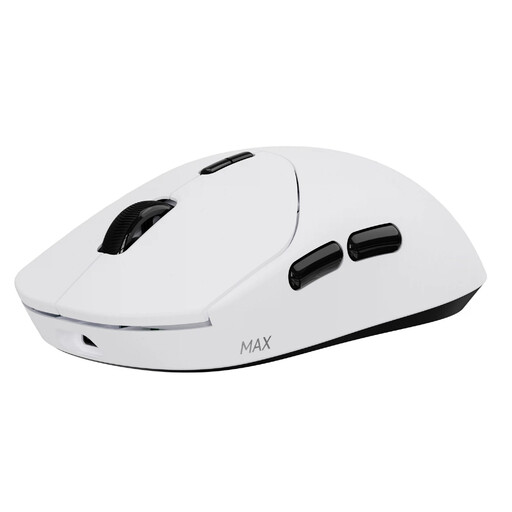
RAPOO VT2 MAX Wireless Gaming Mouse, White
Consider this if you want cable-free movement alongside buttons for actions your aquarium game allows you to assign.
The product name specifies 53 g, 10 programmable buttons and macro support. Check that its shape and button reach suit your hand before relying on those controls.
Its stated battery figure applies only with the required driver update and low-power mode at 1000 Hz; it is not a guaranteed runtime for your setup.
View on Joybuy
 No image available
AJAZZ AJ200 AI MC Wireless Gaming Mouse with Charging Dock
This is an option if you want wireless desk use and a charging dock while checking which aquarium commands you can assign.
The product name lists Bluetooth, 2.4G and USB-C connection modes. Confirm the mode and software that suit your computer and game.
Check the weight of the exact variant before making it a deciding factor, and assess the shape and button reach for your hand.
View on Joybuy
 No image available
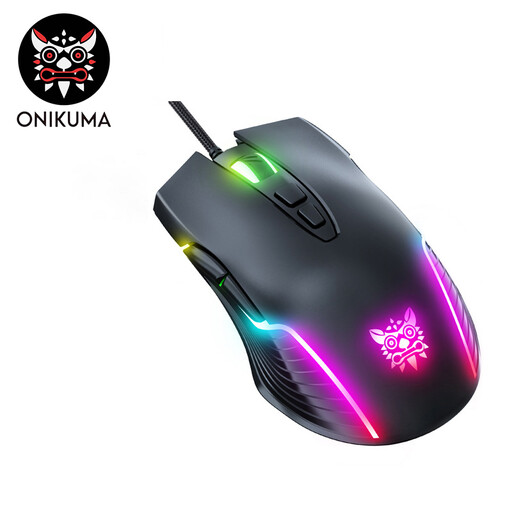
ONIKUMA CW905 Wired Gaming Mouse
Consider a wired mouse if you prefer not to manage charging and can route its cable without it pulling across your desk.
The product name identifies programmable buttons. Check which buttons you can comfortably reach and whether the game accepts your intended assignments.
View on Joybuy
 No image available
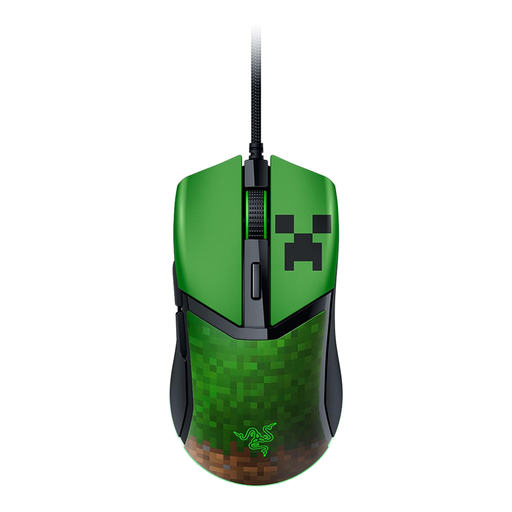
Razer Cobra Wired Gaming Mouse, Minecraft Edition
This wired option may suit you if you prefer a cable connection and want to assess mouse movement and hand fit before prioritising extra shortcuts.
Check the controls and game bindings you need, as well as whether the mouse’s shape suits your grip during a long session.
View on Joybuy
 No image available
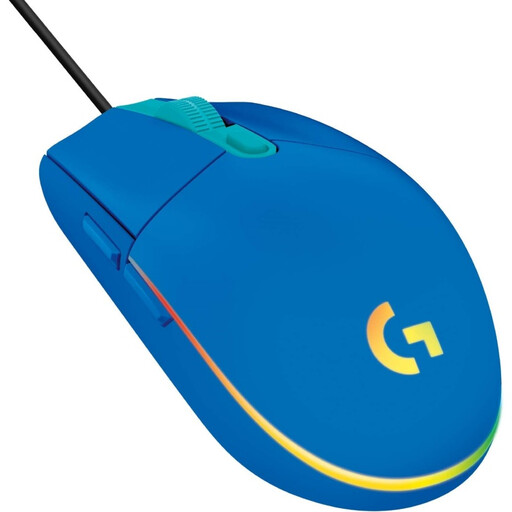
Logitech G102 USB Gaming Mouse, Blue
Consider this USB gaming mouse if you want to check whether its controls cover the aquarium actions you use most.
Confirm its software support and game bindings, and assess its dimensions and hand fit for a long session.
View on Joybuy
Frequently asked questions
Do I need a very high-DPI mouse for a virtual aquarium?
A high DPI figure need not be your first selection criterion for a long virtual-aquarium session. Start with shape, reachable controls and the actions the game supports; check sensor settings against your own preferences rather than assuming a particular threshold is necessary.
Can I assign aquarium controls to extra mouse buttons?
You can use extra buttons for the actions you want only when the game accepts those bindings or the mouse software can assign a useful command. Check the game’s control menu and software support for the exact mouse and operating system before choosing by button count.
Is wireless automatically more comfortable for a long session?
No: wireless removes a cable from the desk, but it does not establish a better fit for your hand. Choose it if cable freedom matters to you and its charging arrangement suits your routine; a well-positioned wired mouse may also meet your needs.
How should I position a mouse for a long session?
Keep the mouse within easy reach, support your forearm, use a straight wrist and avoid gripping too tightly, as the Health and Safety Executive advises for display-screen work. If the position feels uncomfortable, review the desk setup as well as the mouse.


