For long colony-management sessions, start with a mouse you can reach and hold with a relaxed grip and straight wrist, then choose controls that match the commands you regularly use. A dense thumb-button grid is worth considering if you will map enough recurring actions to it; wired models avoid charging, while wireless models need a charging routine.
Who is this for?
Long-session, comfort-first players
If you spend extended periods selecting units and placing structures, mouse reach and grip deserve attention alongside the controls. The Health and Safety Executive advises keeping a mouse within easy reach so it can be used with a straight wrist.
Shortcut-heavy colony managers
If you repeatedly use build, speed, camera or map commands, programmable buttons may put selected actions within finger or thumb reach. The useful number of buttons depends on the commands you will actually assign and remember.
Players weighing up desk flexibility
If cable routing affects your setup, compare a wired mouse with wireless connection options. A wireless model also means planning for charging and checking which connection mode you need.
What matters when choosing?
For a long colony-management session, check hand fit and desk position first, then decide how many shortcuts and connection options you would use.
| Concern |
What to check |
Who this matters to |
| Hand fit and posture |
Compare shell shape with your grip and keep the mouse within easy reach. The Health and Safety Executive advises a straight wrist and avoiding a tight grip. |
If I am placing buildings for a long stretch, I want a mouse I can reach without stretching or tensing my hand; around 34% of consumers would put comfortable fit first. |
| Programmable controls |
List your recurring commands, then check the exact model’s button positions and remapping software before choosing a control layout. |
If I frequently use build, speed and map commands, I want the ones I use most within reach; roughly 33% of consumers would prioritise shortcut access. |
| Scrolling and navigation |
Check the wheel’s available modes and whether your game lets you use them for the zoom, camera or interface actions you want. |
If I regularly move through maps or long lists, I want scrolling I can control at the pace I need; around 20% of consumers would make navigation their main concern. |
| Connection and charging |
Choose between a wired setup and the exact wireless modes offered; for wireless use, check charging arrangements and receiver placement. |
If a cable gets in the way of my desk setup, I want a connection option that suits it without an inconvenient charging routine; about 13% of consumers would put connectivity first. |
Buying pitfalls
-
Choosing the largest button count without a plan
A dense side panel gives you more places to assign commands, but buttons you rarely use still take time to learn and may be pressed unintentionally.
Write down your repeated game actions first. Consider a 12-button thumb panel if you have enough useful bindings to justify learning its layout.
-
Treating weight as proof of comfort
Logitech G states that the wired G502 X weighs 89 g, but that figure cannot tell you whether its shape suits your grip. The Health and Safety Executive also advises keeping the mouse close, the wrist straight and the grip relaxed.
Check shell size against your usual grip and position the mouse where you can use it without stretching your arm.
-
Choosing a wheel mode your game cannot use well
Tactile and free-spin scrolling offer different ways to move through an interface, but their value depends on the game’s zoom, camera and menu controls.
Check the game’s wheel bindings before paying particular attention to specialist wheel functions. If you mainly need deliberate zoom steps, a tactile wheel may meet that need.
-
Forgetting the wireless routine
Wireless use can remove a cable from your playing area, but it also brings charging and connection-mode decisions. CORSAIR’s stated battery figures for the SCIMITAR ELITE WIRELESS SE apply with RGB lighting off.
Choose wired if avoiding charging matters most. For wireless use, check the connection mode you need and where you will charge the mouse.
Brands to consider
Logitech G
The wired G502 X is a conventional multi-control option for players who want configurable commands without a full 12-button thumb panel.
- Logitech G states that the G502 X weighs 89 g and has an adjustable DPI-shift button. G HUB supports button remapping and game profiles.
- The G502 X is wired, and its stated weight and controls cannot establish whether its shape suits your hand.
Razer
The wired Basilisk V3 is a right-handed option for players interested in programmable controls and a wheel with tactile and free-spin behaviour.
- Razer specifies 10+1 programmable buttons for the Basilisk V3 and offers button customisation through Synapse.
- Its shape will not suit every grip or hand size; getting value from extra controls also requires setting up useful assignments.
CORSAIR
The SCIMITAR ELITE WIRELESS SE is an option for players prepared to assign many recurring actions to a thumb-button panel.
- CORSAIR specifies 16 programmable buttons, including a repositionable 12-button side panel, and says iCUE supports remapping and macros.
- The dense layout takes time to set up and learn, and may be more complex than necessary if you use only a few mouse shortcuts.
Gaming mice on Joybuy
These gaming mice offer wired or wireless starting points for a colony-management setup. Compare each model’s controls with the commands you want to assign, and check hand fit separately before relying on it for long sessions.
 No image available
AJAZZ AJ200 AI MC wireless gaming mouse with charging dock
Consider this model if you want to choose between wireless and USB-C connections for your desk setup. Its title specifies Bluetooth, 2.4G and USB-C modes, a PAW3311 sensor and 24000 DPI; check the button layout against your planned shortcuts and the shell against your grip. Confirm its weight if that will affect your choice.
View on Joybuy
 No image available
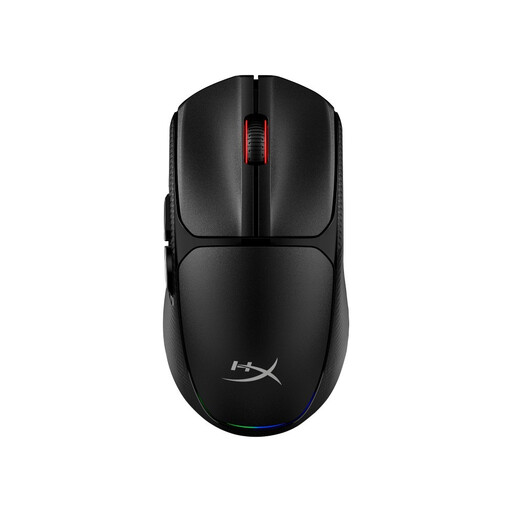
HyperX Pulsefire Fuse wireless gaming mouse
Consider this wireless model if keeping a cable off your playing area matters to you. Check which buttons you can assign to recurring commands, how its wheel works with your game and whether its shape suits your grip.
View on Joybuy
 No image available
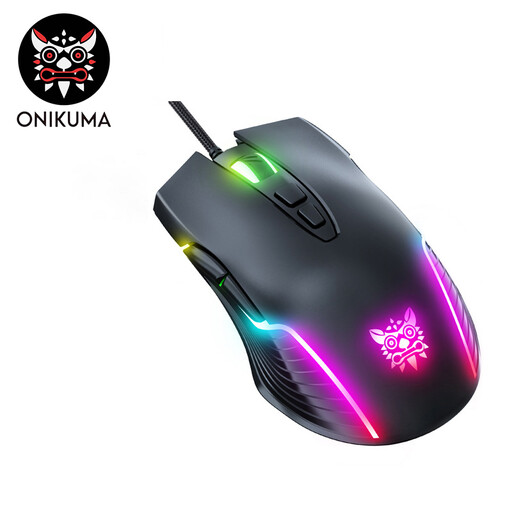
ONIKUMA CW905 wired gaming mouse
Consider this wired model if you would rather avoid charging and want to explore programmable controls. Its title also identifies RGB lighting; check which buttons can be assigned and whether their positions work for your usual grip.
View on Joybuy
 No image available
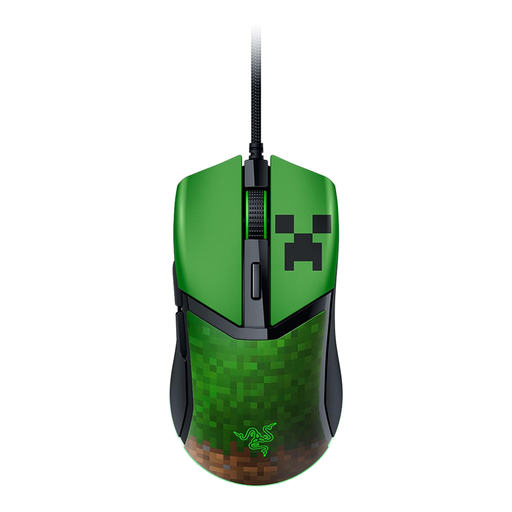
Razer Cobra wired gaming mouse, Minecraft Edition
Consider this Minecraft Edition model if a wired mouse suits your desk and you do not need wireless charging arrangements. Before planning colony-management shortcuts, check its button layout and whether its shape and wheel suit the way you play.
View on Joybuy
Frequently asked questions
For a long colony-management session, should I prioritise DPI, weight or shape?
Start with a shape and desk position that let you use the mouse within easy reach, with a straight wrist and a relaxed grip. That follows Health and Safety Executive guidance on mouse use; a stated weight or DPI figure cannot tell you whether a particular shell fits your hand.
Do I need a 12-button thumb grid for colony-management games?
Only consider a dense thumb grid if you have enough frequent commands to assign and are willing to learn their positions. Razer specifies 10+1 programmable buttons for the Basilisk V3, while CORSAIR specifies 16 programmable buttons and a repositionable 12-button side panel for the SCIMITAR ELITE WIRELESS SE. Match the layout to your command list rather than choosing by count alone.
How should I set up programmable buttons?
Begin with a few actions you use often, such as speed, map or construction commands, and add more only when their positions feel manageable. Logitech G HUB supports remapping and game profiles, Razer Synapse supports remapping and macros, and CORSAIR says iCUE supports button remapping and macros; check that the software applies to your exact mouse.


