Shortcut-focused layout builders
If you repeatedly select track tools, scenery or camera views, mouse buttons may give those commands a convenient place—provided your application accepts the bindings you choose.


For virtual railway building, start with a mouse that feels comfortable and gives you enough accessible buttons for the commands you use repeatedly; a conventional layout with roughly 10–11 programmable controls is a sensible route if you do not need a dense thumb grid. Consider a 12-button side panel when you can name many distinct bindings you will use, and check your railway title’s key-binding options and macro rules before relying on either setup.
If you repeatedly select track tools, scenery or camera views, mouse buttons may give those commands a convenient place—provided your application accepts the bindings you choose.
If you spend long sessions moving around a detailed layout or browsing lists, pay attention to scroll-wheel behaviour, grip comfort and whether you can reach controls without accidental presses.
If you use many distinct construction and interface shortcuts, a 12-button thumb panel may be worth configuring. Check that you can reach and remember its buttons comfortably.
Decide whether layout navigation, a manageable set of shortcuts or a much larger command set is your main reason for changing mice. Then check the controls in your particular railway title.
| Concern | What to check | Who this matters to |
|---|---|---|
| Navigation and scrolling | Try the wheel behaviour and grip you prefer; check whether tilt or alternative scrolling modes can be assigned where you need them. | When placing track and moving around a large layout, I want to control scrolling without losing my place; around 42% of consumers put navigation first. |
| Manageable shortcut access | List frequent commands, allow for essential clicks and wheel functions, and check whether mouse software can assign keys your application accepts. | If I keep reaching for construction tools and camera commands, I want those repeat actions close to hand without learning a thumb grid; around 33% of consumers prioritise a moderate shortcut set. |
| Many separate commands | Check your reach across a 12-button panel, profile setup and, if choosing wireless, the model’s connection and charging requirements. | For a command-heavy layout, I would rather configure many distinct bindings than return to the keyboard for each one; roughly 25% of consumers put command capacity first. |
A dense panel adds controls to learn, but offers little practical value if you use only a few repeat commands.
Write down the commands you actually use. Consider a 12-button grid if you can assign and comfortably reach enough distinct actions to justify it.
Corsair warns that some multiplayer games prohibit auto-click macros. A mouse’s ability to create one does not establish that your railway title permits it.
Start with ordinary key remaps and check the current rules for your specific game and mode before using a macro.
For the SCIMITAR ELITE WIRELESS SE, Corsair describes Bluetooth for everyday computing and gives separate instructions for its 2.4 GHz gaming connection.
Follow the instructions for the exact mouse and connection you intend to use, including its pairing and charging steps.
A sensor specification alone does not establish how comfortably you can position the cursor in your builder application.
Set a sensitivity you can control in the application, and weigh grip, accessible buttons and wheel behaviour alongside sensor specifications.
The G502 models provide examples of conventional multi-button layouts for builders considering shortcuts alongside scroll control.
The right-handed Basilisk V3 is a reference point if you want configurable scrolling without a 12-button thumb panel.
The SCIMITAR ELITE WIRELESS SE is an option to examine if your command list genuinely calls for a thumb grid.
These mice offer different starting points for mouse-side shortcuts and wireless use while building a virtual railway. Compare their controls with your own command list, particularly if wheel behaviour or extensive remapping matters to you.
 No image available
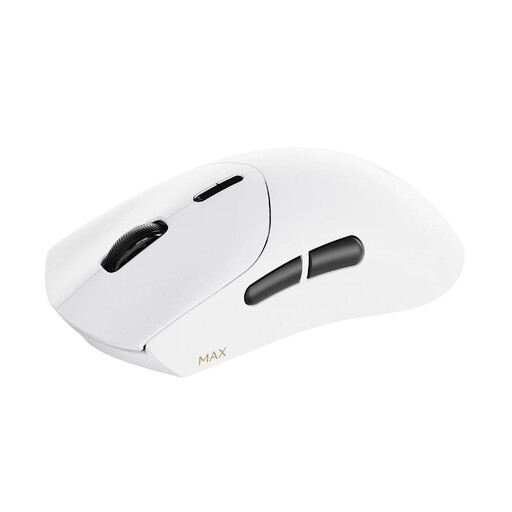
Consider this model if you want a moderate set of repeat commands on a wireless mouse. Its title specifies 10 programmable buttons and a 53 g weight; check its wheel behaviour if controlled scrolling is central to your setup.
 No image available
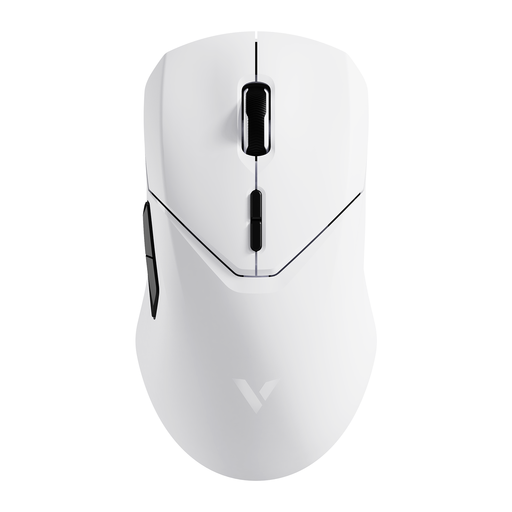
If you want shortcuts for a moderate command list, check which controls on this variant you can configure and how they are arranged. Confirm its wheel behaviour against the scrolling you do in your railway title.
 No image available
For a smaller shortcut set, check how many controls you can remap while keeping essential mouse functions available. The title lists Bluetooth, 2.4G and USB-C connection modes and a charging dock; check the wheel controls and connection setup you intend to use.
Choose by the number of commands you regularly use, not the largest available button count. Logitech G specifies 11 programmable buttons for the G502 HERO and Razer specifies 10+1 for the Basilisk V3; if you can use many separate bindings, Corsair’s SCIMITAR ELITE WIRELESS SE has a 12-button side panel.
They can work if your mouse software can assign a keyboard key and your particular application lets you bind that key to the action you want. Corsair’s iCUE guidance describes this approach; check your title’s controls menu before buying primarily for extra buttons.
Check your specific title’s current rules before using a macro, especially in multiplayer modes. Corsair notes that some multiplayer games prohibit auto-click macros; an ordinary one-key remap is a different starting point from an automated sequence.
Follow the instructions for the exact model rather than assuming its wireless modes serve the same purpose. For the SCIMITAR ELITE WIRELESS SE, Corsair describes Bluetooth for everyday computing and provides a separate 2.4 GHz gaming setup.