For virtual-zoo building, choose a gaming mouse whose buttons and scroll wheel suit the commands you repeat, rather than choosing by maximum DPI alone. Extra controls are useful only if you can reach them without shifting your grip; on a desk shared with work, physical fit and mouse position matter too. The Health and Safety Executive advises keeping the mouse in line with your elbow and arranging the workstation to avoid twisting.
Who this choice suits
Shortcut-heavy zoo builders
If you repeatedly place, edit and manage items, consider controls you can distinguish and reach without changing your grip. Check how you would set up command profiles before treating a high DPI figure as the deciding feature.
Home-office desk sharers
If the same desk serves work and gaming, check your mouse position, available space and preferred connection alongside its controls. The Health and Safety Executive advises positioning the mouse in line with your elbow.
Long-session navigation users
If camera movement and menus occupy much of your session, consider whether you prefer distinct scroll steps, free-spinning scroll or a choice between them. Check that you can control the available modes without unwanted changes.
What to prioritise
Start with the controls you would actually use, then check how the mouse fits your working position and whether its connection suits your desk. A stated weight or button count cannot establish comfort on its own.
| Concern |
What to check |
Who this matters to |
| Reachable shortcuts |
Check button placement and whether the commands you need can be configured. |
If I repeatedly switch building tools and camera controls, I want commands I can find without changing my grip. Around 36% of consumers put reachable shortcuts first. |
| Workstation fit |
Check grip and button reach while the mouse sits in line with your elbow, as advised by the Health and Safety Executive. |
When work and gaming share a desk, I need a mouse I can use in my normal, untwisted working position. For around 29% of consumers, workstation fit is the primary concern. |
| Connection and desk space |
Check the available connection modes and, for wireless use, battery conditions and receiver needs. |
If I rearrange my desk or switch devices, connection flexibility matters more to me than adding controls. Around 21% of consumers make that their first priority. |
| Simple handling |
Compare the exact model’s stated weight and control layout, then consider the cable if it is wired. |
If I mainly point, select and move the camera, I would rather avoid controls I will not use. Straightforward handling comes first for around 14% of consumers. |
Mistakes to avoid
-
Choosing mainly by maximum DPI
A high maximum sensor setting does not tell you whether the buttons, wheel or shape will suit repeated zoo-building commands.
Shortlist mice by control reach, wheel behaviour and connection first. Then check that you can adjust the pointer setting to suit your display and mousepad.
-
Counting buttons without checking their position
An extra command can be awkward if you press it accidentally or have to shift your grip to reach it. Logitech G offers a removable and reversible DPI-shift button on the G502 X, illustrating why placement deserves attention.
Inspect the layout and, where possible, try your usual grip. Assign important commands only to buttons you can reliably distinguish.
-
Expecting a new mouse to fix the workstation
The Health and Safety Executive advises placing the mouse in line with the elbow and arranging the workstation to avoid twisting. A different mouse does not replace those setup checks.
Check mouse reach, shoulder position and desk arrangement during both work and play. If you regularly use display screen equipment for your job, address workstation concerns through your employer’s assessment process.
-
Treating wireless battery life as one fixed figure
Battery claims can depend on the connection mode and operating conditions. Razer gives separate connection-mode figures for the Basilisk V3 X HyperSpeed.
Read any battery claim alongside its stated settings, then decide whether charging or battery management fits your routine.
Relevant gaming-mouse brands
Logitech G
The wired G502 X is a relevant reference if you want several configurable inputs and a choice of scroll-wheel modes.
- Logitech G lists the G502 X at 89 g, with a dual-mode wheel, programmable wheel-tilt controls and a removable, reversible DPI-shift button.
- Those are G502 X specifications, not promises of fit across the Logitech G range. Check whether its controls suit your grip.
Razer
Named Basilisk models offer different combinations of controls, scrolling and connectivity, so the exact variant matters.
- Razer lists 11 programmable buttons and selectable scrolling behaviour for the wired Basilisk V3. It lists nine programmable controls and both 2.4 GHz wireless and Bluetooth for the Basilisk V3 X HyperSpeed.
- Check the chosen model’s button placement, configuration software and, for wireless use, battery conditions rather than applying one Basilisk model’s features to another.
SteelSeries
The wired Rival 5 is a reference for consumers who want multiple side shortcuts and a stated weight to compare.
- SteelSeries lists nine programmable buttons, including a five-button side panel, and a stated weight of 85 g for the Rival 5.
- Neither the weight nor the button count establishes whether its side controls will be comfortable or easy to distinguish in your hand.
Gaming mice on Joybuy
These wireless gaming mice offer different approaches to a shared work-and-play desk, from named programmable-button options to a model with several connection modes. Compare their controls and fit against the commands you use when building your zoo.
 No image available
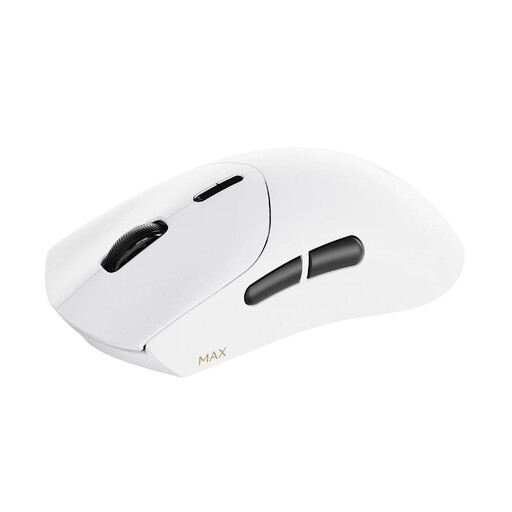
Rapoo VT7 MAX Wireless Gaming Mouse — White
Consider this model if you want to assign repeated building commands to mouse buttons while keeping your desk cable-free.
- The product name specifies 10 programmable buttons, macro support and a stated weight of 53 g.
- Check whether the button positions suit your grip and whether the wheel controls meet your navigation needs.
Joybuy
 No image available
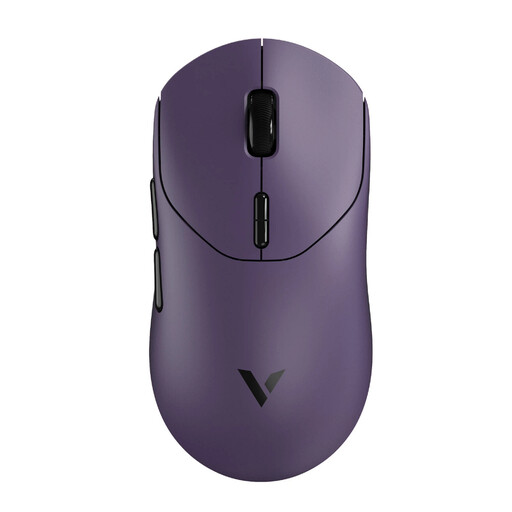
Rapoo VT2 Wireless Gaming Mouse — Purple
This is another wireless option for mapping frequent commands; assess its controls separately from those of the VT7 MAX.
- The product name specifies 10 programmable buttons, macro support, mechanical switches and a stated weight of 53 g.
- Check the side-button layout and scroll-wheel behaviour against the actions you use most.
Joybuy
 No image available
AJAZZ AJ200 AI MC Wireless Gaming Mouse with Charging Dock
Consider this model if changing how the mouse connects is more important to you than having the largest stated set of shortcuts.
- The product name lists Bluetooth, 2.4G and USB-C connection modes, plus a PAW3311 sensor.
- Check button reach and the exact stated weight before using either to decide whether it suits long sessions.
Joybuy
 No image available
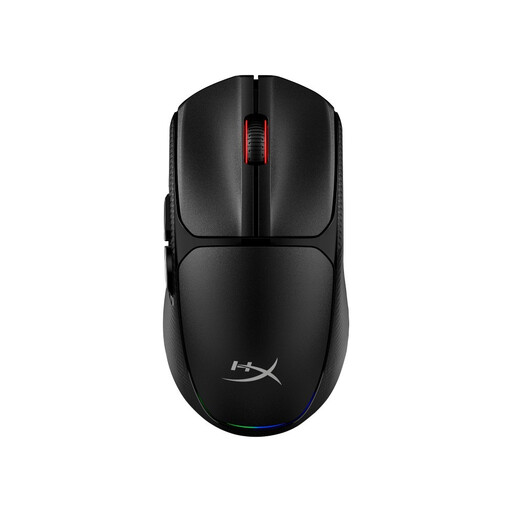
HyperX Pulsefire Fuse Wireless Gaming Mouse
For a shared desk where wireless use matters, check this mouse’s control layout against the zoo-building shortcuts you would actually assign.
- Confirm button reach, scroll-wheel behaviour and charging arrangements for your intended setup.
Joybuy
Common questions
How many programmable buttons do I need for zoo-building?
Start with the commands you use repeatedly and choose buttons you can reach without changing your grip. Razer and SteelSeries list programmable controls on the named Basilisk and Rival 5 models, but a higher count alone does not show that a layout will suit you.
Is a free-spin or dual-mode wheel useful for this kind of game?
It may be useful if you alternate between scrolling in distinct steps and moving quickly through long menus or content. Logitech G documents a dual-mode wheel on the G502 X, while Razer describes several scroll behaviours for the Basilisk V3; check how you switch modes on the exact model.
Should I choose a wired or wireless mouse for a home-office desk?
Choose wired if you want a permanently connected mouse and can route its cable comfortably; consider wireless if desk flexibility matters more and you are willing to manage its battery and connection. For example, Razer lists both 2.4 GHz wireless and Bluetooth on the Basilisk V3 X HyperSpeed, with battery claims that depend on the connection mode.
Does UK workplace guidance specify a gaming mouse for home-office work?
The Health and Safety Executive’s display-screen guidance focuses on workstation risks and positioning, not a particular gaming-mouse specification. Its guidance advises keeping the mouse in line with your elbow; if you regularly use display screen equipment for work, consider the full workstation rather than choosing by a gaming label or DPI figure.


