If you mean a tablet plus a separate monitor, Samsung UK Support documents a true dual-screen setup for the Galaxy Tab S11 Ultra using Extended Mode. A 13-inch iPad Air is worth considering for sketching and iPadOS apps, but check external-display support for the exact generation; choose a Surface Pro if your planning program requires Windows or your work is keyboard-led. Whichever route you take, confirm the app, monitor connection and accessories before buying.
Who needs which setup?
“Two screens” can mean two windows on one tablet or a tablet beside a physical monitor. That distinction changes which device features you need to check.
Tablet-and-monitor planners
If you want a garden plan or site photo visible while you work with plant information in another window, check for an extended-display setup rather than assuming a monitor will show more than a copy of the tablet screen. Samsung UK Support documents this arrangement for the Galaxy Tab S11 Ultra.
Sketch-and-photo planners
If you mainly mark out beds and paths or annotate garden photos on the tablet itself, screen size, pen support and the planning app may matter more than a permanent monitor. Apple lists Apple Pencil Pro support for the 13-inch iPad Air; Samsung describes pen-led use for the Galaxy Tab S11 Ultra.
Desktop-software planners
If your chosen program requires Windows, or you expect to make detailed edits with a keyboard and external display, consider a PC-style tablet setup. Microsoft positions Surface Pro as a 2-in-1, while noting that display connections depend on the model and connection hardware.
What matters when choosing?
Start with the planning tool you intend to use, then decide whether your second screen must be a separate monitor. A large tablet display alone does not settle either question.
Galaxy Tab S11 Ultra
Choose it when: You need a tablet-and-monitor workspace. Samsung UK Support says its Extended Mode can move apps between the two displays.
Allow for: A 14.6-inch tablet to carry, plus a monitor and a connection that suits your setup.
13-inch iPad Air
Choose it when: Your preferred planning and annotation apps run on iPadOS and you want a large touch display for sketches and photos.
Allow for: Model-specific external-display support. Apple Support lists eligible iPads for moving windows to a monitor; confirm your exact generation and Pencil bundle.
Surface Pro
Choose it when: Your required garden-design program needs Windows, or you expect to do substantial keyboard-led editing.
Allow for: A separately obtained keyboard or pen if needed, and a monitor connection matched to the exact Surface model.
| Concern |
What to check |
Who this matters to |
| A physical second display |
Check whether the exact tablet extends to your monitor rather than only mirroring it, and identify the required connection. |
I want to leave my plan visible on a monitor while using the tablet for reference material; around 42% of consumers put a physical second display first. |
| Drawing and annotation |
Check display size, pen compatibility, whether a pen is supplied and how your chosen app handles drawing. |
If I will mark paths and beds directly on photos, I need a comfortable drawing surface; around 33% of consumers prioritise pen-led visual planning. |
| Software and desk-based input |
Confirm the exact app’s operating-system support and whether your workflow needs a keyboard, stand or monitor adapter. |
My planning depends on a particular program or regular typed edits, so the working setup matters more than the screen alone; around 25% of consumers put software and keyboard-led work first. |
Mistakes to avoid
-
Assuming every tablet can extend to a monitor
Two windows on a tablet are not the same as placing windows on a second physical display. Apple’s Stage Manager eligibility is model-specific, and Microsoft says Surface display connections depend on the device and connection hardware.
Note your exact tablet model and monitor inputs, then confirm that the proposed connection supports the extended workspace you want.
-
Choosing the screen before the planning app
A larger display cannot make an incompatible tool run. Garden-planning tools differ in platform and workflow: the publisher describes PRO Landscape Companion as an iPad and Android tablet app for PRO Landscape+ users, for example.
Identify your app first. Check its current operating-system support, drawing tools and export options on the tablet you are considering.
-
Assuming pen support means a pen is supplied
Apple lists Apple Pencil Pro support for the 13-inch iPad Air, Samsung describes an S Pen supplied with the Galaxy Tab S11 Ultra, and Microsoft presents the Surface Slim Pen as a separate accessory.
Read the contents of the precise tablet bundle if you intend to sketch or annotate by hand.
-
Prioritising portability when most work happens at a desk
A touch display may suit quick photo annotations, while repeated plan edits and plant-list work may call for a keyboard and monitor. Microsoft positions Surface Pro for tablet and laptop-style use; Samsung and eligible iPads also offer external-display workflows under their respective model conditions.
Decide where you will do most of the editing before choosing the tablet size and desk accessories.
A keyboard, stand and monitor connection also add items to manage if you move the setup around the garden.
Relevant brands to consider
These brands illustrate different garden-planning workflows; the useful features and checks below apply to the named product lines, not every tablet each brand makes.
Samsung
The Galaxy Tab S11 Ultra is relevant when your plan calls for a tablet alongside a separate monitor.
- Samsung UK Support says Extended Mode on this model creates a dual-screen setup and allows apps to move between displays. Samsung UK identifies a 14.6-inch screen.
- Check your garden app’s Android support and the connection required by your monitor; Samsung’s display description does not establish app compatibility.
Apple
A 13-inch iPad Air may suit planning with sketches, photos and apps available on iPadOS.
- Apple lists a 2732 × 2048 display and Apple Pencil Pro support for the 13-inch iPad Air. Apple Support also lists specific iPad Air generations eligible to move windows to an external display with Stage Manager.
- Check that your chosen generation appears in current external-display guidance, that your planning app works on it and that the bundle contains any pen you need.
Microsoft
Surface Pro is relevant when garden planning calls for a Windows program or more keyboard-led editing.
- Microsoft describes Surface Pro as a 2-in-1 for creative work and multitasking.
- Microsoft says external-display connections depend on the Surface model and cables or adapters used. Check accessory compatibility for the exact model; keyboard and Slim Pen accessories are sold separately.
Joybuy tablet choices
This tablet is a choice for planning with a separate monitor while retaining a large screen and pen for work on the tablet itself. Check that your garden-planning app and monitor connection suit your setup.
 No image available
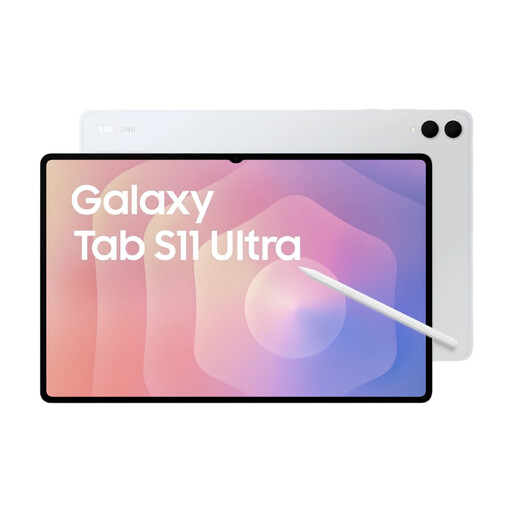
Samsung Galaxy Tab S11 Ultra X930 WiFi, 12GB/256GB, Silver
Consider this model if you want to keep a garden plan on one display while working with reference material on another; Samsung UK Support documents an extended tablet-and-monitor setup for the Galaxy Tab S11 Ultra.
14.6-inch display, 12GB RAM and 256GB storage. Samsung describes an S Pen supplied with this model.
Confirm that your planning app works as needed on Android and that you have the right connection for your monitor. Consider whether a 14.6-inch tablet suits work away from the desk.
View on Joybuy
Common questions
Do I need a monitor to plan a garden on two screens?
You need a monitor if you mean two physical displays; two app windows on one tablet are a different setup. Samsung UK Support documents a tablet-and-monitor Extended Mode for the Galaxy Tab S11 Ultra. Apple Support lists specific iPads that can move windows to an external display, so check the exact model rather than assuming all iPads behave alike.
What should I check before connecting a tablet to my monitor?
Check the monitor input, the exact tablet model and the cable or adapter the connection needs. Microsoft says Surface external-display capability depends on the device model and connection hardware; also confirm that your intended setup extends the workspace if that is what you need.
Will the same garden-planning app work on any tablet?
No: choose the app before assuming a tablet platform will suit it. PRO Landscape describes its Companion app as an iPad and Android tablet app for PRO Landscape+ users, while the Royal Horticultural Society describes a Garden Planner within RHS Grow. Check the current requirements of the particular tool you intend to use.
Which accessories should I check for garden layout work?
Check for a pen if you will draw, and for a compatible cable or adapter if you will use a monitor; desk-based editing may also call for a keyboard or stand. Samsung describes an S Pen supplied with the Galaxy Tab S11 Ultra, while Microsoft sells Surface keyboard and Slim Pen accessories separately. For an iPad Air, check the contents of the exact bundle rather than assuming an Apple Pencil is supplied.


