Shared-office booking coordinators
If you maintain availability, calendars and attendee details through browser tools, email and documents, focus on a device that supports the whole booking process and can be handed between authorised coworkers.


Choose the laptop only after confirming the booking platform, calendar tools, sign-in method, printers and room-display connections it must use. A conventional Windows laptop is the clearest route when the workflow requires Windows desktop software or existing Windows peripherals; a Chromebook, MacBook or Windows-on-Arm laptop needs its complete workflow checked before purchase. For a shared device, plan separate accounts, updates and encryption alongside the physical connections.
If you maintain availability, calendars and attendee details through browser tools, email and documents, focus on a device that supports the whole booking process and can be handed between authorised coworkers.
If your organisation relies on Windows desktop tools, managed accounts, Teams or established printers and docks, check the proposed laptop against those specific applications and devices.
If bookings and documents run in web applications, a managed ChromeOS device may be an option. Confirm printing, sign-in and any work that must continue offline before choosing it.
Confirm the complete booking workflow first; then decide which security arrangements, meeting-room connections and carrying needs the shared laptop must meet.
Choose when: Booking software, add-ins or existing office peripherals require conventional Windows.
Allow for: IT must still configure accounts, updates and any required encryption; a Windows label alone does not establish that the office setup is ready.
Choose when: The booking process is confirmed to work through ChromeOS-supported web tools and the organisation can manage the device.
Allow for: A Windows-only add-in or incompatible printer workflow may prevent the team from completing bookings.
Choose when: The office wants this Windows device type and has tested its booking applications and peripherals on Arm.
Allow for: Microsoft notes that application compatibility does not remove the need for Arm-compatible peripheral drivers.
Choose when: The booking workflow supports macOS or runs in suitable web applications, and the office can use compatible display connections.
Allow for: Check printer drivers, identity tools and calendar add-ins rather than assuming that browser access covers every task.
| Concern | What to check | Who this matters to |
|---|---|---|
| Booking software compatibility | Confirm the supported operating system and browser, then test required add-ins, printing and sign-in. | If a calendar add-in or office printer is essential, I need bookings to work from start to finish on this laptop. Around 31% of consumers would make compatibility their primary concern. |
| Booking-data protection | Agree how separate accounts, screen locking, updates and encryption will be managed. | When several staff use the device, I need attendee details and account access protected between handovers. Roughly 25% of consumers would put that protection first. |
| Calls and room displays | Match the camera and audio setup to calls; check the actual screen input, dock and laptop output together. | If I take calls and connect to a hall screen, I need both arrangements to work with the equipment already in the room. For around 25% of consumers, meeting-room collaboration would be the main priority. |
| Movement and upkeep | Consider carrying weight, charging arrangements and who will manage operating-system updates. | Moving between reception and meeting rooms makes carrying and routine upkeep matter to me. Around 19% of consumers would place portability and low day-to-day administration first. |
Calendar add-ins, printing or access-control tasks may still depend on desktop software or peripherals.
On the proposed operating system, test sign-in, creating and changing bookings, calendar synchronisation, printing and connecting to the room display.
An incompatible step can mean additional IT time or continued access to another suitable device.
Microsoft explains that applications may run through emulation, but driver-dependent equipment needs compatible drivers.
Ask IT to test the exact laptop with the office printer, dock and any specialist access-control equipment before adopting it for booking work.
A shared laptop may retain booking records and access to organisational accounts after one person finishes a shift.
Set up separate managed accounts, multifactor authentication, screen locking, updates and an organisation-approved encryption and recovery process.
Display connections differ: the specified Acer Chromebook configuration has HDMI, while Apple lists Thunderbolt 4 USB-C display connectivity for MacBook Air.
Check the room screen, cable and dock against the exact laptop before ordering.
A compatible adapter, cable or dock may be needed for the existing room setup.
The ThinkPad E14 Gen 6 Intel is a 14-inch conventional Windows business-laptop route.
The Chromebook Plus 514 is a ChromeOS route for a booking process confirmed to run in the browser.
The 13.8-inch Snapdragon Surface Laptop for Business is a Windows-on-Arm option.
MacBook Air is a macOS route when the booking applications support it or the complete workflow runs in suitable web tools.
These models offer Chromebook, conventional Windows and Windows-on-Arm routes for a shared booking desk. Match the operating system and connections to the office workflow before comparing the individual configurations.
 No image available
Consider this Windows-on-Arm route only after checking the booking software, printer drivers and docks on Arm.
Its product name specifies a Snapdragon X processor, 16GB RAM and a 512GB SSD. Confirm the exact room-display connections and organisational security setup before purchase.
 No image available
This Chromebook is a candidate when the complete booking, calendar, identity and printing workflow works in ChromeOS.
The product name specifies an Intel Core 5 120U processor, 8GB RAM, a 512GB SSD and a 1920 × 1200 display. Check its connections against the room screen and the organisation’s device-management arrangements.
 No image available
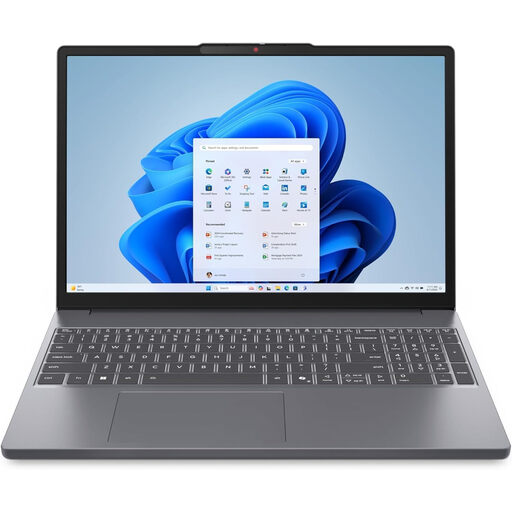
This Windows 11 Home model is worth considering when the booking applications support that edition and the office setup suits its connections.
Its product name specifies an AMD Ryzen 5 7535HS processor, 24GB DDR5 RAM and a 512GB PCIe SSD. Check the exact external-display ports, printer compatibility and security configuration with IT.
 No image available
This Windows 11 Home 2-in-1 may suit a booking desk that also wants a convertible laptop, provided its software and peripherals work together.
The product name specifies 16GB RAM and a 1TB SSD. Confirm the exact ports with the seller before planning a room-display connection, as the connection descriptions differ.
 No image available
Check this model’s Windows edition before choosing it for booking software that must be installed locally: the product information differs on whether Windows 11 Home is supplied in S Mode.
Its product name specifies an Intel N150 processor, 8GB DDR4 RAM and a 128GB SSD. Check whether that storage and the stated 8GB maximum memory suit the office workload.
Not necessarily: the booking platform and its connected tools determine whether Windows is required. Microsoft says Teams is available through desktop applications and a browser, but that does not establish support for a separate booking system, printer or calendar add-in.
Yes, if the entire booking workflow works in ChromeOS and the organisation can manage accounts, updates and connected devices. Confirm printing, sign-in and any offline tasks with the booking supplier or IT team before choosing a Chromebook.
Use separate organisational accounts, screen locking, multifactor authentication, managed updates and an approved encryption and recovery process. Microsoft describes BitLocker as Windows full-volume encryption, but its availability and configuration must be checked for the chosen device.
Check the room screen’s input and the exact laptop’s output before relying on a direct connection. A model with HDMI may connect differently from one using USB-C or Thunderbolt; test the intended cable or dock, including any charging arrangement.