Checking a loose SATA drive
If your spare drive is a 2.5-inch or 3.5-inch SATA HDD or SSD, a dedicated SATA dock lets you access it without installing it inside the computer. StarTech.com specifies its SDOCK2U33HFW for these drive formats.


For a loose 2.5-inch or 3.5-inch SATA drive and two external monitors, choose a compatible SATA drive dock for the drive and a separate display dock for the screens. An integrated M.2 storage hub is an option only if the spare drive is a supported M.2 SSD and its display output meets your screen arrangement. Check the computer’s display capability before buying either display solution.
If your spare drive is a 2.5-inch or 3.5-inch SATA HDD or SSD, a dedicated SATA dock lets you access it without installing it inside the computer. StarTech.com specifies its SDOCK2U33HFW for these drive formats.
Choose the display connection separately from the drive connection. StarTech.com and Belkin specify dual-monitor docks, but the computer’s supported display mode still matters.
If the spare storage is an M.2 SATA or NVMe SSD, an integrated hub may cover storage access and one external screen. Sabrent specifies one HDMI output on its HB-6PNV, so it does not by itself cover two external monitors.
Identify the spare drive’s physical connection first, then decide whether “two screens” means two external monitors or the computer’s screen plus one monitor.
Choose when: You have a loose 2.5-inch or 3.5-inch SATA drive and need two external monitors.
Trade-off: This uses two accessories. StarTech.com says its DK30A2DH display dock does not provide USB-C Power Delivery for the laptop.
Choose when: The drive is already in a USB enclosure or connected through a separate drive dock.
Trade-off: The hub does not replace a bare-SATA dock, and its display output depends on the computer’s compatibility.
Choose when: Your drive is a supported M.2 SATA or NVMe SSD and one external monitor is enough.
Trade-off: Sabrent specifies one HDMI output for its HB-6PNV, not two external display outputs.
| Concern | What to check | Who this matters to |
|---|---|---|
| Drive fit | Read the drive label for 2.5-inch or 3.5-inch SATA, M.2 SATA, or M.2 NVMe; check the dock’s supported formats. | If I have a loose internal drive, I need it to fit the connector before I can inspect its files. Around 36% of consumers put drive fit first. |
| Screen compatibility | Confirm the number of external monitors, their required connections and display modes, and the computer’s video support. | When I need both external monitors working while I check files, the computer-to-dock display connection is my priority; around 29% of consumers share that primary need. |
| Drive handling | Choose access suited to repeated connections, and eject external storage before disconnecting it. | If I will reconnect the spare drive to inspect or copy files, I want a practical way to handle it without an abrupt disconnection. That is the main concern for around 21% of consumers. |
| Desk simplicity | For an integrated hub, check the supported M.2 type and length and whether its display count is sufficient. | I would rather use fewer separate devices, provided the hub fits my SSD and screen arrangement; around 14% of consumers place that need first. |
The connectors differ: Sabrent specifies M.2 SSD support for the HB-6PNV, while StarTech.com specifies 2.5-inch and 3.5-inch SATA drive support for the SDOCK2U33HFW.
Check the drive’s label and physical format before choosing a dock; a general “SSD dock” description is not enough.
A hub with one external display output may suit a laptop screen plus one monitor, but not a requirement for two external monitors.
Write down which screens you intend to use, then check the product’s outputs and supported display arrangement.
Anker says a hub relying on DisplayPort Alternate Mode cannot provide an external display if the computer’s USB-C port lacks that capability.
Check the computer’s port specification and the dock’s host-connection requirements before choosing a USB-C display hub.
Disconnecting external storage abruptly risks data loss. Microsoft advises safely removing external hard drives before unplugging them.
In Windows, eject the connected drive and wait for the safe-to-remove indication before disconnecting it.
Offers separate products for loose SATA drive access and a dual-monitor desk setup.
Its HB-6PNV combines access to a supported M.2 SSD with a display connection.
Its INC002vfBK is a dual-display laptop dock for a setup where the drive connects separately.
Its 553 A8380 is a dual-HDMI USB-C hub for use alongside a separately USB-connected drive.
Its range includes M.2-expansion and multi-display docking options to assess model by model.
These USB-C display docks address the screen connection when the spare drive connects through USB, either in an enclosure or via a separate drive dock. Check the computer’s display support and the drive’s connection separately.
 No image available
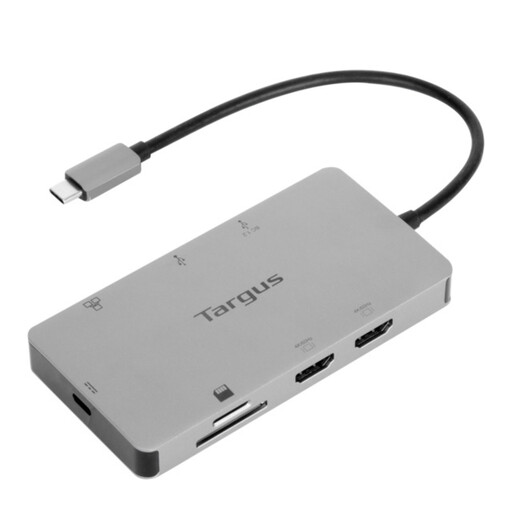
Consider this for the display side of a setup where the spare drive already connects through USB. The product name specifies dual HDMI 4K and 100W Power Delivery Pass-Thru; check the computer’s USB-C display compatibility and the display modes you need. A loose SATA drive requires a separate compatible connection.
 No image available
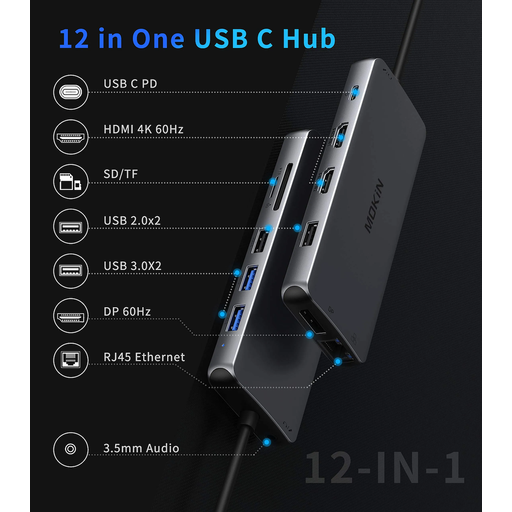
Consider this for a workstation that needs the listed display connections while the spare drive is connected separately. Its name lists two HDMI outputs, DisplayPort and USB ports; confirm the simultaneous display modes, computer compatibility and how your particular drive will connect before buying.
Only choose one for both jobs if its own specifications confirm your drive interface and two external display outputs. StarTech.com specifies its SDOCK2U33HFW for SATA drive access and its DK30A2DH separately for up to two monitors; neither specification establishes those two functions in one unit.
Check the required display count and modes against both the dock and the computer’s video capability. Anker says a hub that needs DisplayPort Alternate Mode cannot output an external display through a computer port that does not support it; Belkin also directs buyers to check their device’s display capability.
It will accept the drive only if its interface and size match the hub’s supported M.2 formats. Sabrent specifies its HB-6PNV for M.2 SATA or NVMe SSDs in 2242, 2260 and 2280 lengths, not for a loose 2.5-inch or 3.5-inch SATA HDD.
Eject the connected drive and wait until Windows indicates that it is safe to remove. Microsoft advises safely removing external hard drives before disconnecting them to help avoid data loss.