What to prioritise when choosing backup storage
Start with whether you need archive capacity, frequent large-file transfers or a copy stored away from your computer; then check that your files can be recovered and that the drive works with your devices.
| Concern |
What to check when buying |
Who this matters to |
| A copy you can restore |
Keep another copy separate from the original, decide where it will be stored and test that sample files can be restored. |
If I lose access to the computer, I want another copy I can recover rather than just another place where files are stored. Around 28% of consumers put recovery first. |
| Room for a growing collection |
Measure the folders you plan to back up and allow for future files. For Time Machine, Apple says a backup disk should ideally have at least twice the Mac’s storage capacity. |
If my photo library and computer files keep growing, I want enough room for the collection and future backups. Around 22% of consumers prioritise archive capacity. |
| Connections and file formats |
Check the computer and phone ports, cable and any adapter, plus the format supported by your devices and backup software. Microsoft lists FAT32’s maximum individual file size as 4 GiB; Apple says a Windows-formatted disk cannot be used for Time Machine without reformatting. |
If I need to move photos between a phone, computer and drive, I want the whole connection and file-format workflow to work. Around 22% of consumers prioritise compatibility across devices. |
| Time spent copying large folders |
Consider how often you transfer large files and check the computer’s USB mode and cable. A quoted maximum speed may depend on the host connection. |
If I often copy large folders, I want to avoid waiting for transfers, but only when my computer can use the drive’s connection. Around 17% of consumers put transfer time first. |
| Protection while carrying a drive |
Check the exact model’s stated resistance and limitations, and keep another recoverable copy. Samsung’s IP65 claim for the T7 Shield is model-specific and does not make it a substitute for a backup. |
If I carry my drive between places, I want to account for handling and loss as well as keeping another copy elsewhere. Around 11% of consumers prioritise carry protection. |
Joybuy product options
These Joybuy options cover portable SSDs for frequent large-file transfers and portable HDDs for photo and computer archives. Compare capacity with the files you need to keep, and check the connection and format for your devices.
 Image unavailable
Samsung MU-PE1T0S 1 TB USB Type-C 3.2 Gen 2 (3.1 Gen 2) Black
For frequent large-file transfers when your computer and cable support the drive’s connection.
1 TB capacity; USB 3.2 Gen 2; read speeds up to 1,050 MB/s and write speeds up to 1,000 MB/s.
The listing specifies IP65 protection and drop resistance up to 3 metres. It describes the water protection as temporary exposure, not long-term submersion.
Joybuy
 Image unavailable
Samsung Portable SSD T7 2 TB USB Type-C 3.2 Gen 2 Grey
For moving large files between devices when the 2 TB capacity and connection suit your workflow.
USB 3.2 Gen 2; read speeds up to 1,050 MB/s and write speeds up to 1,000 MB/s. The listing includes USB-C-to-C and USB-C-to-A cables.
The listing specifies drop resistance up to 2 metres and says the drive is not waterproof or dustproof.
Joybuy
 Image unavailable
Samsung MU-PG4T0B 4 TB USB Type-C USB 3.2 Gen 2x2 Black
For a larger file collection and frequent transfers, provided your computer supports the drive’s connection.
4 TB capacity; USB 3.2 Gen 2x2; speeds up to 2,000 MB/s; AES 256-bit hardware encryption. The listing includes USB-C-to-C and USB-C-to-A cables.
The listing specifies drop resistance up to 3 metres and says the drive is not waterproof or dustproof.
Joybuy
 Image unavailable
Western Digital Elements Portable 4 TB Black USB 3.0
For backing up photos and computer files when a portable HDD and its stated capacity fit your archive.
4 TB capacity; USB 3.2 Gen 1; the listing includes a USB-A cable and says Windows 10 and later recognises the drive.
Mac or other operating systems may require reformatting, which can erase existing contents. The listing says the drive is not waterproof or dustproof and should be protected from drops.
Joybuy
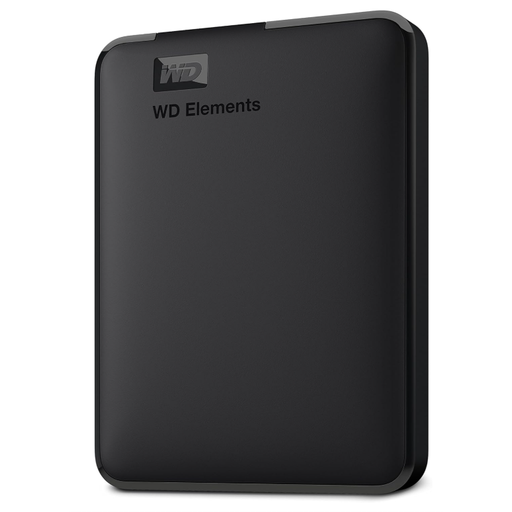 Image unavailable
Western Digital Elements Portable 6 TB USB 3.0
For a large photo or computer archive when you want a portable HDD and the capacity suits the files you plan to keep.
6 TB capacity; USB 3.2 Gen 1; bus-powered operation; the listing includes a Micro-USB 3.0-to-USB-A cable.
The listing says Mac use requires reformatting, which erases the existing file partition. The enclosure is not IP-rated; avoid direct water contact and severe drops.
Joybuy
Frequently asked questions
How do I check whether my phone photos and videos will reach the drive?
For an iPhone-to-computer workflow, Apple describes importing photos and videos to a computer with a USB cable before copying them to a drive. Check the phone and computer connectors, any adapter and the drive’s format; for direct iPhone-to-drive use, check Apple’s supported connection and disk-format requirements. Measure your largest individual file rather than assuming every video is small.
Does a 4 GiB video affect which drive format I should use?
It can: Microsoft lists FAT32’s maximum individual file size as 4 GiB, while exFAT supports a larger maximum. Check that each device and backup application in your workflow supports the format you choose, and copy existing files elsewhere before reformatting a drive.
Can I plug a new portable drive into a Mac and start Time Machine?
Not if the disk is Windows-formatted and left in that format: Apple says Time Machine cannot back up to it as it stands. Reformatting can erase the disk’s contents. Apple’s ideal capacity guidance is at least twice the Mac’s storage capacity, rather than a compulsory minimum for every backup.
Does iCloud Photos give me an independent backup?
Do not assume it does. Apple says deleting a photo on one device deletes it across devices using iCloud Photos. Check the available cloud capacity and keep a separate copy of photos you cannot replace.
Should I choose an HDD or SSD for photo and computer backup?
An HDD may suit a growing archive when capacity is the main priority; an SSD may suit frequent large-file transfers or carrying storage when its capacity and connection meet your needs. Which? describes SSDs as faster and usually pricier than HDDs. Either type still needs a separate, recoverable copy for files you cannot replace.


