Choose a portable hard disk drive (HDD) if a growing photo archive matters more to you than frequent transfers; consider a portable solid-state drive (SSD) if you regularly copy large batches or carry the drive. Whichever you choose, check its capacity, connection and backup format before buying. Keep a completed backup disconnected between updates rather than permanently attached to the computer, as the National Cyber Security Centre advises.
Who needs which setup?
Home photo archivists
If you usually copy family photos and videos at home, size the drive for the collection you have now and room for it to grow. A USB-powered portable HDD is one option when quick transfers are not your main priority. The National Cyber Security Centre advises keeping the backup copy in a separate safe location.
Mac users who want automatic backups
If you want Time Machine to back up photos alongside other Mac files, plan the drive or a separate volume for that purpose. Apple prefers APFS or APFS Encrypted for Time Machine and advises against using its backup disk for ordinary file storage.
Photographers who move large batches
If you copy photos often or carry a backup between locations, an SSD may better fit how you use the drive. Check the computer port and cable against any quoted transfer speed, and treat manufacturers’ resistance ratings as conditional rather than protection against every accident.
What matters when choosing a drive?
Start with the backup method: a manually copied photo archive and a whole-Mac Time Machine backup have different capacity and formatting requirements. Then weigh how often you transfer files against how often you will carry the drive.
| Concern |
What to check |
Who this matters to |
| Archive capacity |
Compare the space used by photos, videos and edited copies with the drive capacity and expected growth. For a whole-Mac Time Machine backup, Apple advises a disk with at least twice the Mac’s storage capacity. |
If my collection keeps growing, I need space for future photos without deleting older ones. Around 36% of consumers put archive capacity first. |
| Automatic backups |
Check which folders your backup tool covers. For Time Machine, decide on a dedicated disk or volume before copying files that a format change could erase. |
When manual copies are easy to postpone, I want repeat backups I can restore from. Roughly 29% of consumers prioritise an automatic backup setup. |
| Transfers and travel |
Match the drive connection and cable to your computer. Read the conditions and warranty exclusions behind any speed, dust, water or drop rating. |
With frequent large imports or a drive I carry between locations, transfer time and handling matter to me. Around 21% of consumers put these needs first. |
| Offline recovery |
Make sure you can restore sample photos, then safely disconnect the drive after an update and store it separately when practical. |
If something happens to my computer, I need the backup copy to remain accessible. Roughly 14% of consumers give that separation first priority. |
Mistakes to avoid
-
Leaving the backup drive permanently connected
A drive attached to the computer remains exposed to the same environment as the original files. The National Cyber Security Centre advises against keeping a backup device permanently connected when protecting against ransomware.
Safely eject it after updating the backup, and periodically check that representative photos can be restored.
-
Copying photos before deciding on Time Machine
Apple says Time Machine cannot back up to a Windows-formatted disk. Reformatting it for Time Machine permanently removes files already on the disk.
Decide whether the drive will hold manually copied folders or serve as a Time Machine destination before making the first copy.
-
Using a Time Machine disk as ordinary photo-library storage
Apple advises using a Time Machine backup disk for Time Machine backups, not as a place to store the Photos library.
Use a separate drive for the library, or plan separate APFS volumes if you intend to use one physical device for distinct purposes.
-
Taking speed and ruggedness ratings as guarantees
Samsung’s stated T7 Shield transfer speeds depend on a compatible host, cable and UASP support. Its dust, water and drop claims reflect controlled tests; Samsung says actual resistance can vary and excludes resulting damage from warranty cover.
Check your connection before choosing a drive for its rated speed, and keep another recoverable copy rather than relying on a resistance rating.
Brands to consider
Seagate
The Expansion Portable range is relevant if you want a USB-powered HDD for a home photo archive. Seagate lists capacities from 1TB to 5TB.
- Seagate describes drag-and-drop saving and an included USB Type-A cable.
- Check your computer port. Seagate says the drive needs reformatting for Time Machine, which would erase data already on it.
Samsung
The T7 Shield portable SSD range is relevant when repeated transfers and carrying the drive are priorities.
- Samsung rates the T7 Shield at up to 1,050MB/s read and 1,000MB/s write with the specified USB 3.2 Gen 2 host, cable and UASP support.
- Samsung’s IP65 and 3-metre drop statements are based on controlled testing; it says actual resistance varies and resulting liquid, dust and drop damage is not covered by its warranty.
SanDisk
The Extreme Portable SSD model SDSSDE70-2T00-G25 is a reference point if you are considering frequent transfers and password-protected local storage.
- SanDisk lists up to 2,000MB/s performance and password protection with built-in 256-bit AES encryption for this model.
- Check the exact model, computer connection and intended password workflow; SanDisk’s speed and protection statements should not be treated as guaranteed results.
Joybuy drives for local photo backups
These portable HDDs and SSDs offer ways to keep a local photo copy. Choose capacity against your archive size, then check the connection and any formatting needed for your backup method.
 No image available
Samsung Portable SSD T7 4TB, grey
Consider this for a larger portable photo copy if 4TB fits your archive and planned growth.
The title specifies USB Type-C and USB 3.2 Gen 2; check your computer connection and the cable you will use. If you need Time Machine, confirm the required setup before copying files.
View on Joybuy
 No image available
Samsung T7 Shield Portable SSD 1TB, blue
Consider this portable SSD for photo transfers between locations if 1TB is enough for the files you need to back up.
The title specifies USB 3.2 Gen 2. Samsung’s T7 Shield speed and resistance ratings depend on stated test conditions; check the computer connection and keep another recoverable copy.
View on Joybuy
 No image available
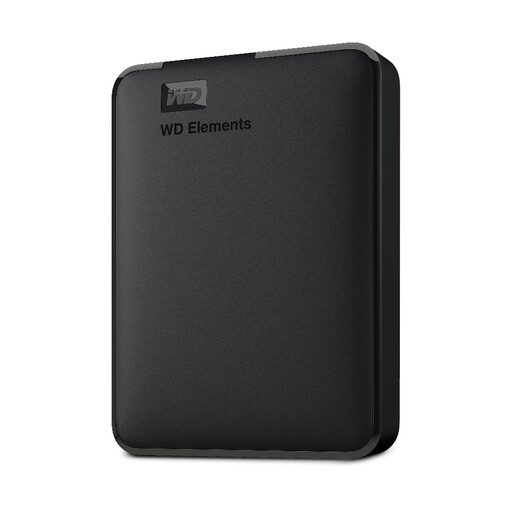
WD Elements Portable Hard Drive 2TB, black
Consider this HDD for a straightforward local archive if 2TB covers your photos, videos and expected growth.
The product title specifies USB 3.0 and describes it as formatted for PC and Mac. For Time Machine, check the required disk format before putting other files on the drive.
View on Joybuy
 No image available
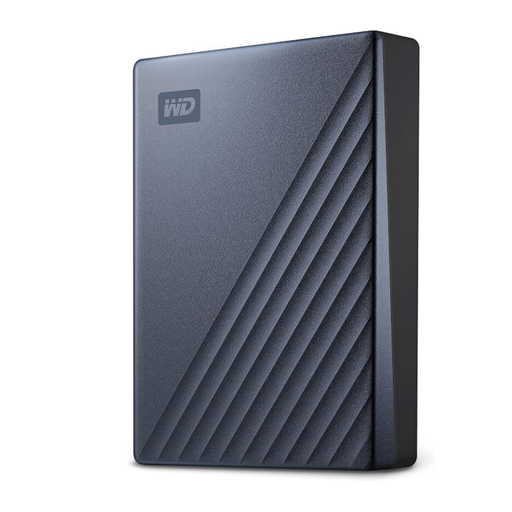
Western Digital My Passport Ultra Hard Drive 5TB, blue
Consider this HDD when a growing photo archive calls for 5TB of local storage.
For macOS use, the product information calls for reformatting; do that before copying photos, because formatting erases existing data. Check that the connection and supplied cable suit your computer.
View on Joybuy
 No image available
SanDisk Portable SSD 2TB
Consider this portable SSD if 2TB suits the photo copy you plan to carry or update regularly.
Check its connection against your computer and confirm the format required by your backup method before buying.
View on Joybuy
Questions about local photo backups
Can an external drive back up photos without cloud storage?
Yes. An external drive can hold a local copy without a cloud service, provided you can restore the photos when the originals are unavailable. The National Cyber Security Centre advises keeping backups in a separate safe location.
Should a photo backup drive stay plugged in?
Disconnect it between updates if reducing ransomware exposure is part of your plan. The National Cyber Security Centre advises against leaving a backup device permanently connected; reconnect it regularly to update the copy and check that photos can be restored.
Can one drive hold both Time Machine backups and a Photos library?
Not in the same Time Machine backup space. Apple advises using that space only for Time Machine and says a Photos library cannot be stored on a device used for Time Machine backups. Plan a separate drive or separate APFS volumes for the two purposes.
Will a Windows-formatted drive work with Time Machine?
It needs reformatting before Time Machine can use it. Apple prefers APFS or APFS Encrypted for a Time Machine disk; reformatting permanently erases files already on the drive, so make another copy first.
Can Windows back up my Pictures folder automatically?
Yes. Microsoft says File History can make regular backups to an external drive or network location. Check that the photo folders you rely on are included in what File History backs up, particularly if you store photos outside Pictures.


