What matters when choosing a drive?
Start with the size and retention period of the recordings, then decide whether the archive must travel; connection, handling and recovery requirements can narrow the choice further.
| Concern | What to check | Who this matters to |
|---|
| Capacity and growth |
Measure representative recording files against the planned retention period and allow space for growth. Seagate lists Expansion Desktop capacities from 4TB to 28TB, but the right size depends on your files. |
I need to retain recordings over multiple terms without choosing capacity from recording hours alone. Around 33% of consumers put archive space and growth first. |
| Transfer speed and compatibility |
Check the computer’s USB mode, port and cable, then decide whether the drive must work across operating systems. A USB-C connector alone does not establish transfer speed. |
When I copy large session files regularly, I want the drive to work with my actual computers without an unexpected connection bottleneck. Roughly 25% of consumers make transfer and device compatibility their primary concern. |
| Portability and handling |
Decide how often the drive will travel and check any model-specific protection claims, test conditions and warranty exclusions. Physical protection does not replace a second copy. |
I take recordings between locations, so carrying and handling the drive matters more to me than keeping it beside a mains socket. About 25% of consumers put portability and handling first. |
| Confidentiality and recovery |
Check institutional storage rules, authorised access and password recovery; arrange a separate copy that can be disconnected between updates. |
I need to restrict access to recordings and still recover them if a drive or computer fails. Around 17% of consumers place confidentiality and offline recovery above the other concerns. |
Joybuy products for local archives
These drives cover a stationary desktop archive, portable HDDs and portable SSDs. Choose between them using your measured capacity needs, how often recordings travel and any access-protection requirements; none replaces a separate recovery copy.
 Image unavailable
Western Digital My Passport Ultra for Mac 5TB, Silver
Consider this portable HDD if you need to carry a local archive and want password protection. The listing describes 5TB capacity, USB-C with USB-A connection options, and 256-bit AES hardware encryption.
It is described as HFS+-formatted, with a downloadable driver route for Windows. Check that this arrangement suits every computer that needs access, and plan a separate backup.
View on Joybuy
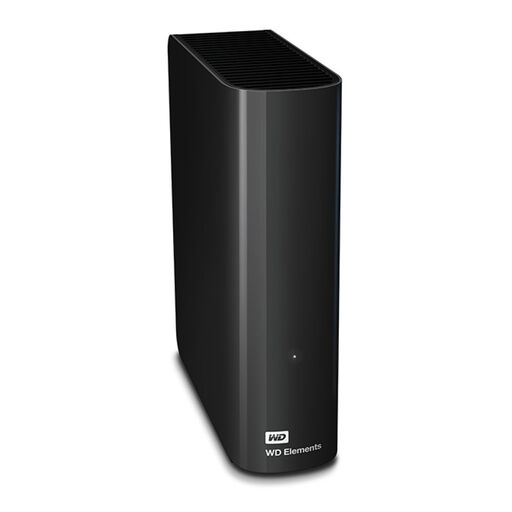 Image unavailable
WD Elements 8TB Desktop External Hard Drive, Black
Consider this desktop HDD for an archive kept at one workstation, provided your measured retention needs fit within 8TB. The listing describes USB 3.0 and an included AC adapter, so allow for a mains socket.
If recordings require encryption, confirm a suitable arrangement under your institution’s policy. Keep another copy separately and disconnect a backup between updates.
View on Joybuy
 Image unavailable
Samsung Portable SSD T7 2TB, Grey
Consider this portable SSD if recordings move between locations and you copy large files regularly. The listing describes USB 3.2 Gen 2, included USB-C-to-C and USB-C-to-A cables, and optional 256-bit AES hardware encryption.
Its stated rates of up to 1,050MB/s read and 1,000MB/s write depend on a compatible connection. Check whether 2TB covers your retention plan and configure encryption if your access requirements call for it.
View on Joybuy
 Image unavailable
Western Digital My Passport 2TB, Black
Consider this portable HDD if a bus-powered 2TB archive meets your measured needs and you want password protection. The listing describes USB 3.2 Gen 1 and 256-bit AES hardware encryption.
It is described as NTFS-formatted, with a macOS driver route. Check the read-and-write setup on your devices, arrange password recovery and keep a separate backup.
View on Joybuy
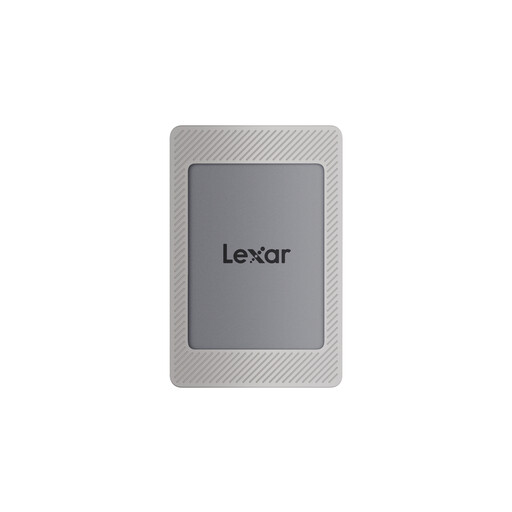 Image unavailable
Lexar ES4 2TB Portable SSD with Magnetic Set
Consider this portable SSD for moving recordings between compatible devices. The listing describes USB 3.2 Gen 2, USB-C-to-C and USB-A-to-C cables, and Lexar DataShield 256-bit AES encryption software.
Its stated rates of up to 1,050MB/s read and 1,000MB/s write depend on the connection. Check the software-encryption setup and recovery procedure against your institution’s requirements, as well as whether 2TB covers the archive.
View on Joybuy
Questions about offline lecture archives
Is one external drive enough for an offline backup?
No, not if it holds the only copy of the recordings. The National Cyber Security Centre defines a backup as a copy kept in a separate safe location; keep a recovery copy and disconnect at least one backup when it is not being updated.
Should I choose a desktop HDD or a portable SSD for lecture recordings?
Choose a desktop HDD when the archive stays at one desk and capacity is your main concern; choose a portable SSD when you carry recordings or copy large files frequently. Measure your files to choose capacity, and check the computer port and cable before relying on an SSD’s quoted speed.
Do locally stored lecture recordings have to be encrypted in the UK?
The appropriate protection depends on the recordings and how they are handled, rather than one identical setup for every recording. The Information Commissioner’s Office describes encryption as an example of a risk-based security measure; check your institution’s recording, retention and information-security policies before choosing local storage and access controls.
Can one drive be used with both Windows and Mac?
Yes, if its formatting and any required software suit both computers, but plan that setup before moving recordings onto it. Western Digital’s support guidance describes performance differences between native formats and exFAT in its comparison, while Seagate says Expansion Desktop requires reformatting for Time Machine; check whether file sharing or a particular backup workflow matters more to you.


