People reusing an HDMI monitor
If you want occasional streaming on a monitor you already own, check how you select its HDMI input and where the sound will come from before choosing a streaming device.


An existing HDMI monitor can serve as an occasional streaming screen if you can select its input, use a video mode it supports and arrange sound with controllable volume. Consider a small TV instead if the monitor’s controls or audio make shared viewing awkward; if you want 4K or HDR through a Roku setup, Roku Support says every device in the HDMI chain must support HDCP 2.2.
If you want occasional streaming on a monitor you already own, check how you select its HDMI input and where the sound will come from before choosing a streaming device.
If the monitor’s speakers or volume controls are impractical, headphones may be an option. Google TV supports Bluetooth headphone pairing, while Roku Support describes private listening through compatible Roku equipment and the mobile app or a suitable remote.
For shared viewing, compare the effort of switching monitor inputs and arranging sound with using a TV that has the connections, speakers and controls you need.
Consider this when: You can select a free HDMI input and have a workable way to hear and control the audio.
Trade-off: A streaming remote may not control the monitor’s volume, power or input; Google says these functions do not work on some device models.
Consider this when: The monitor’s sound, input switching or controls make the adapted setup inconvenient for shared viewing.
Trade-off: You are replacing the display rather than reusing it, and should still check the TV’s exact connections, apps and remote-control functions.
| Priority | What to check | Your needs |
|---|---|---|
| Picture compatibility | Confirm a free HDMI input and a video mode supported by both display and streamer. For 4K or HDR through Roku, Roku Support requires HDCP 2.2 on every HDMI device in the chain. | I want a picture my display can show, without buying 4K features solely for an HD monitor. |
| Sound | Check the display’s speakers or audio output. For headphones, confirm the exact streaming platform’s pairing or private-listening method; Google TV allows one connected Bluetooth audio device at a time. | If my monitor’s sound is unusable, I need another audio route that suits solo or shared viewing. |
| Volume and input control | Find out how to change the monitor input and adjust volume. Google says remote volume control fails on some device models; HDMI-CEC also requires compatible, enabled equipment. | I want to reach the controls I will actually use, rather than rely on a streaming remote to operate my monitor. |
| Fit and power | Check clearance around the HDMI port and follow the stick’s power instructions. Amazon’s Fire TV Stick HD setup guidance warns against assuming direct USB power is suitable. | A stick behind my monitor needs to fit and stay powered during viewing. |
| Replacement display | If considering a small TV, check its speakers, HDMI inputs, remote functions and the streaming apps available on the exact model. | For shared viewing, I may prefer one display with a practical sound and control arrangement. |
Roku Support says 4K or HDR playback requires HDCP 2.2 throughout the HDMI chain. An incompatible display or intermediate device can lead to an HDCP error or a lower-resolution picture.
Check the monitor and any switch, receiver or extractor against the video mode you intend to use. An HD monitor cannot display a 4K picture as 4K.
Google says volume, power and input commands do not work on some device models; HDMI-CEC also depends on compatible, enabled equipment.
Check how you will select the input and change audio volume if remote setup does not work with your monitor.
Amazon’s Fire TV Stick HD guidance addresses insufficient USB power and directs users to appropriate wall power for the relevant setup.
Follow the power instructions for the exact stick instead of treating the monitor’s USB port as a default power source.
An extractor placed between a Roku streamer and display becomes part of the HDMI chain that Roku Support says must support HDCP 2.2 for 4K or HDR.
Check the extractor’s stated video, HDCP and audio-format support against the intended setup, as well as how you will control volume.
Google says its Google TV Streamer works with an HDMI display; Google Store lists HDMI 2.1, Bluetooth 5.1 and Ethernet for the Google TV Streamer (4K).
Roku’s UK streaming-player range includes HD and 4K options, according to Roku.
Amazon’s Fire TV Stick HD setup guidance covers connecting the stick through HDMI and supplying it with suitable power.
These options include streaming sticks for keeping an HDMI monitor and small TVs for replacing the display. For a stick, check your monitor’s picture, sound and control arrangements; for a TV, check the apps you intend to use.
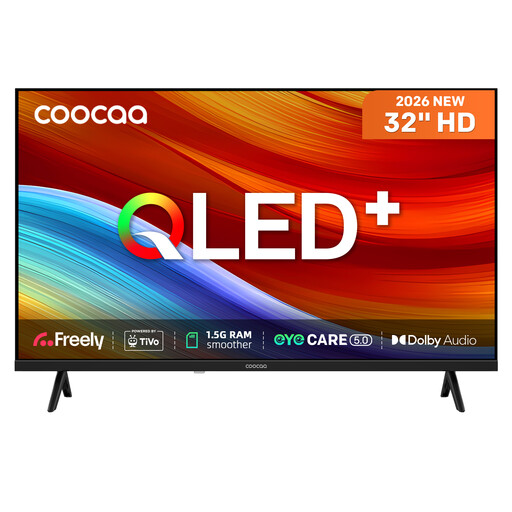 No image available
A small-TV route if you would rather replace the monitor than arrange separate streaming and audio equipment. Check that this variant offers the apps and controls you need.
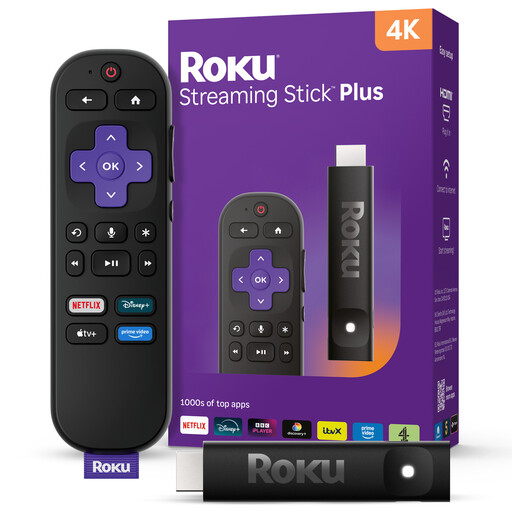 No image available
A stick to consider if you want to keep the monitor. Check its exact headphone-listening arrangement and whether your monitor can provide the intended video mode; Roku Support requires HDCP 2.2 throughout the HDMI chain for 4K or HDR.
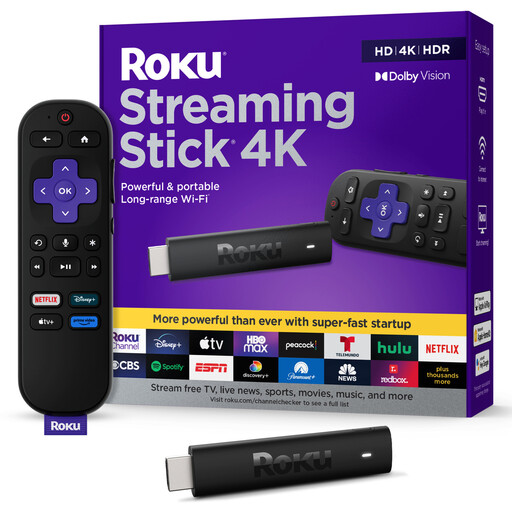 No image available
Another stick route for retaining the monitor. Before choosing it for 4K or HDR, check the display and every intermediate HDMI device for HDCP 2.2, as Roku Support requires; also establish how you will hear and control the audio.
 No image available
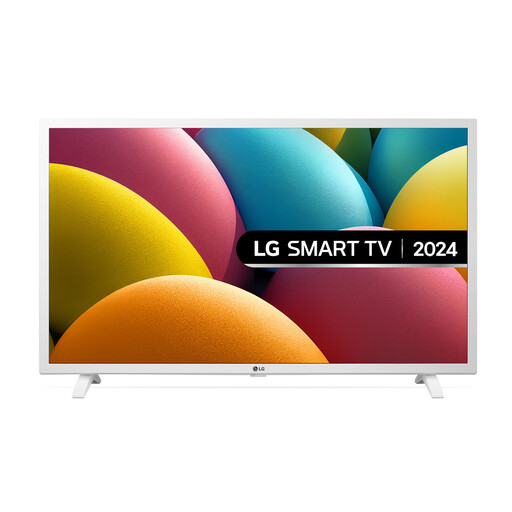
A replacement-screen option when adapting the monitor is inconvenient. Its name identifies a 32-inch Full HD Wi-Fi TV; check app availability on this exact variant before choosing it for your streaming services.
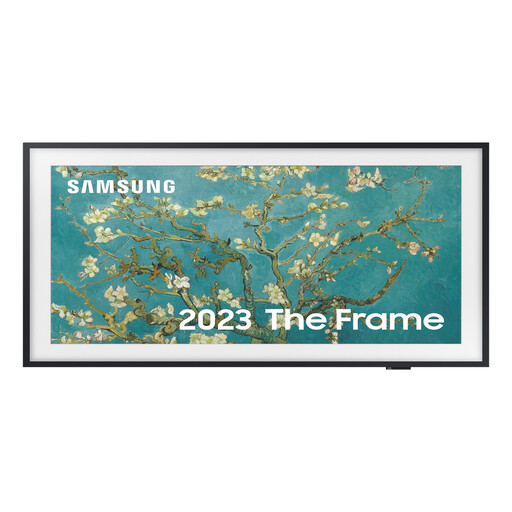
 No image available
A small-TV alternative rather than an accessory for the existing monitor. Check the exact HDMI ports, controls and app availability for this variant before deciding whether it meets your viewing needs.
An HDMI input gives you a connection, but it does not settle the whole setup. Check that you can select the input, that the display supports the intended video mode and that you have a usable audio route. Google says its Google TV Streamer works with HDMI displays, with video limited to a resolution both devices support.
For 4K or HDR playback through a Roku setup, yes: Roku Support says the display and every intermediate HDMI device must support HDCP 2.2. It is not a general requirement for ordinary HD streaming.
Do not assume it can. Google says volume, power and input control fail on some device models, while HDMI-CEC requires compatible, enabled equipment. Check the monitor’s own controls and plan another way to adjust sound if needed.
For solo viewing, Google TV supports pairing Bluetooth headphones, while Roku Support describes private listening through compatible Roku equipment and its app or a suitable remote. For shared sound, check the monitor’s actual audio output or the compatibility of a wired audio route rather than assuming HDMI input provides speaker output.
Only use it if the exact stick’s instructions and the port’s power capability allow it. Amazon’s Fire TV Stick HD setup guidance warns against assuming direct USB power is suitable and addresses insufficient power by directing users to appropriate wall power.