What should you check before choosing?
Start with the apps you need and the TV connection you have; then decide whether an existing device, a stick, a set-top player or a replacement TV fits the way you watch.
| Priority | What to check | Your needs |
|---|
| App and plan access |
Check each required service on the exact device and confirm that your subscription tier works with it. Netflix says some devices cannot use its ad-supported experience when the app or device software cannot be updated. |
I need the services I watch to work on this device, not just a streaming menu on the TV. |
| TV connection and power |
Confirm that an HDMI input works and that you can select it. For a stick, check USB power and cable reach; Amazon advises a suitable wall adapter if its Fire TV Stick HD reports insufficient power. |
I want to keep my working screen and add apps without an awkward connection behind it. |
| HD, 4K and connection |
Match resolution to the display and check the HDMI input’s content-protection support for the intended 4K device. Netflix recommends at least 5 Mbps for Full HD and 15 Mbps for Ultra HD; Google specifies at least 20 Mbps for 4K content on its streaming devices. |
For a 1080p TV, access to apps matters more to me than 4K output. With a 4K TV, I also need the service, plan and connection to qualify. |
| Device route |
Check whether a console or HDMI-connected computer you already own supports the service. If choosing a set-top player, consider placement and any wired-networking need; replace the TV if its screen or HDMI connection is also a problem. |
I would use an existing device for occasional viewing if it can stay connected. Otherwise, I want a separate device—or a new screen if the TV itself needs replacing. |
| Setup |
Check the account, internet details, cable and other setup requirements for the exact model. Apple says an HDMI cable is sold separately for Apple TV 4K; Google says the same for Google TV Streamer. |
I want everything needed to connect the device and complete setup to be ready when I start. |
Streaming-stick options on Joybuy
These Roku streaming-stick listings are options for adding a separate device to a working TV. Check the exact model’s connection, app and subscription-plan requirements before choosing.
 No image available
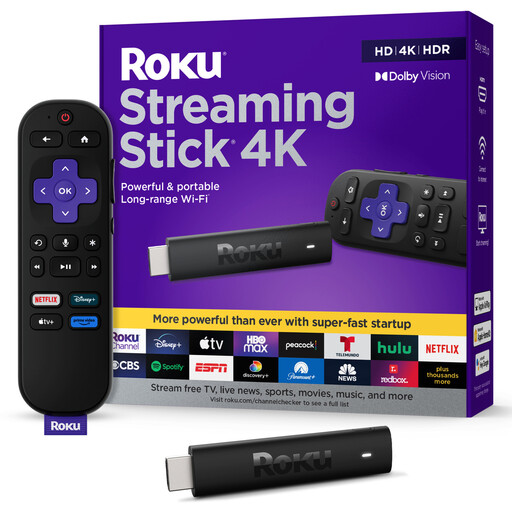
Roku Streaming Stick 4K Doly Vision
Consider this streaming-stick listing if you want a separate device for a working TV. Its name indicates a 4K variant; confirm the exact model’s HDMI, service and subscription-plan requirements, as well as what your TV can display.
View on Joybuy
 No image available
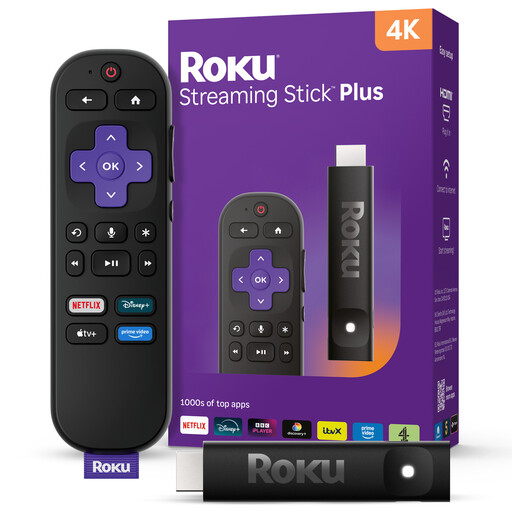
Roku Streaming Stick 4KPlus
This is another Roku streaming-stick option for a TV that needs a separate streaming device. Check the exact 4KPlus model’s TV connection, picture-format requirements and support for the apps and plan you use.
View on Joybuy
Questions about streaming on an older TV
Can I add streaming apps without replacing an older TV?
Yes, if the TV has a working connection for a supported external device. Netflix lists compatible streaming players, game consoles and computers as ways to watch; check that your chosen device supports each app and plan you need.
What should I check before buying a streaming stick?
Check that an HDMI input works, that you can select it and that the stick can be powered as instructed. For intended 4K viewing, check the particular HDMI input and the device’s content-protection requirements; Roku and Google specify HDCP 2.2 for their stated 4K uses.
Will a 4K stick give me 4K picture on a 1080p TV?
No. A stick may provide access to supported apps, but a 1080p screen cannot display 4K detail. Roku specifies its HD Streaming Stick for up to 1080p and requires a compatible TV and HDMI input for 4K HDR with Streaming Stick Plus.
What connection speed should I check for streaming?
Use the requirements of your intended service and device. Netflix recommends at least 3 Mbps for HD, 5 Mbps for Full HD and 15 Mbps for Ultra HD; Google specifies at least 20 Mbps for 4K content on its streaming devices. Wi-Fi conditions at the TV also matter.
Can I use a computer or games console instead of buying a stick?
Yes, if your existing device supports the required service and is convenient to keep connected to the TV. Netflix includes supported computers and game consoles among its viewing options; check the app, plan and display connection before relying on that route.


