For a lesson you attend alone, choose a wired headset if private listening and limiting sound from room speakers matter most. A USB speakerphone is an option when several people need to hear and speak in the same room; a separate microphone suits an unworn setup only if you also plan the playback. With any route, check that the computer and meeting app can select the intended microphone and speaker, then test them together—especially if sound will play through a television or soundbar.
Who each setup suits
People joining alone who want private listening
A headset keeps lesson sound off room speakers, which matters when playback could reach an open microphone. Zoom Support identifies loud speakers, including televisions and soundbars, as a possible source of echo. Check that wearing a headset for the length of the session is comfortable.
Groups sharing a screen and a room
If several people need to hear and occasionally ask questions, consider a speakerphone placed near the participants. Zoom Support highlights microphone proximity and room noise in its audio guidance; a stated pickup range alone cannot tell you how the device will work from every seat.
People who need an unworn or mobile setup
A desktop microphone, speakerphone or wireless device avoids a conventional headset, but each needs a workable listening arrangement. Microsoft Support and Zoom Support describe separate microphone and speaker selection in their meeting apps, so check the exact devices you intend to use together.
What to check before choosing
Start with who needs to hear the call and where its sound will play; then check the microphone, connection and wearing style.
| Concern |
Buying checks |
Who this matters to |
| Private listening and feedback |
Check the headset connection, cable reach and whether its microphone and headphones can both be selected in the meeting app. |
If I join alone, I want to hear the lesson without playing it into the room or disturbing others. About 50% of consumers put private listening and feedback control first. |
| Shared-room participation |
Check where a speakerphone can sit relative to participants, its stated pickup range and whether the app can select it for both input and output. |
When several of us watch on one screen, we need to hear the session and take turns speaking from our seats. For about 30% of consumers, shared-room participation is the primary need. |
| Comfort and movement |
Check the intended USB or Bluetooth connection and test the exact microphone and playback combination in the app. |
If wearing a headset throughout a lesson does not work for me, I need an unworn arrangement that still lets me contribute. That freedom of wearing style or movement comes first for about 20% of consumers. |
Setup mistakes to avoid
-
Leaving several audio connections active in one room
Two devices playing or capturing the same call can create echo. Zoom Support notes that muting one microphone may leave its speaker active.
Choose one intended speaker-and-microphone path for the room, and disconnect or disable audio on secondary devices before the session.
-
Choosing a microphone without planning playback
A separate USB microphone does not prevent loud television or soundbar audio from reaching it. Zoom Support identifies that playback as a possible echo source.
Decide how you will listen as well as speak, then test both devices from your usual seat at the volume you expect to use.
-
Assuming Bluetooth enables every meeting feature
Connection support and feature support are different. Microsoft Support says Teams does not currently support Bluetooth audio devices for its spatial-audio feature; this does not establish a limitation for every kind of call audio.
Check the exact device, computer and meeting feature you need, and try that combination before relying on it for a lesson.
-
Treating pickup range as a room guarantee
Distance, room noise and reverberation affect a shared-room arrangement. Zoom Support includes microphone proximity and room conditions in its audio guidance.
Place the device where participants will sit and make a test call with people speaking from their usual positions.
Relevant brands to consider
Logitech
The wired USB H390 is a reference point for individual computer-based calls and lessons.
- Logitech lists an inline volume and mute control and a noise-cancelling microphone for the H390.
- Check connector fit, cable reach and whether a worn headset suits the full session; the H390 listing does not establish how a television app will use it independently of a computer.
Jabra
The Speak2 55 illustrates a speakerphone route for people sharing a room.
- Jabra specifies four microphones, acoustic echo cancellation and a pickup range of up to 2.3 m for this model.
- Its stated range is not a guarantee for a particular room. Check the intended connection: Jabra describes its Bluetooth connection for smartphone or tablet use.
AnkerWork
The PowerConf S330 provides a wired speakerphone reference for computer-based meetings.
- AnkerWork describes USB-C connectivity and an included standard USB adapter for this model.
- Check the host port, meeting-app device selection and whether the cable allows the placement your room needs.
Joybuy products for these setups
These selections include speakerphones for shared-room calls, headsets for individual listening and a separate desktop microphone. Choose by your seating, playback and connection needs rather than treating the devices as interchangeable.
 No image available
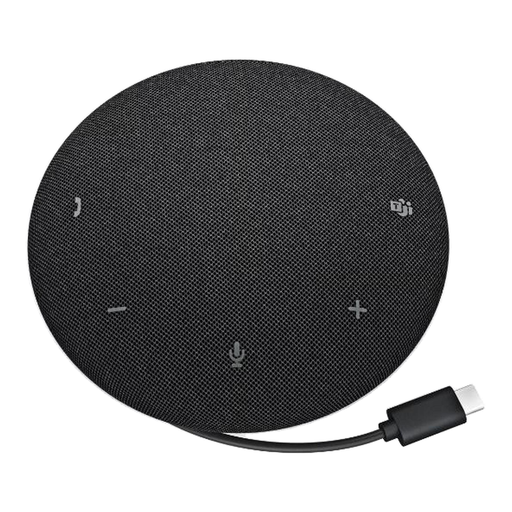
DELL Pro Wired Speakerphone SP325
Consider this wired speakerphone when nearby participants need one device for speaking and listening. Check its connection against your computer and confirm that the meeting app can select it for both jobs.
View on Joybuy
 No image available
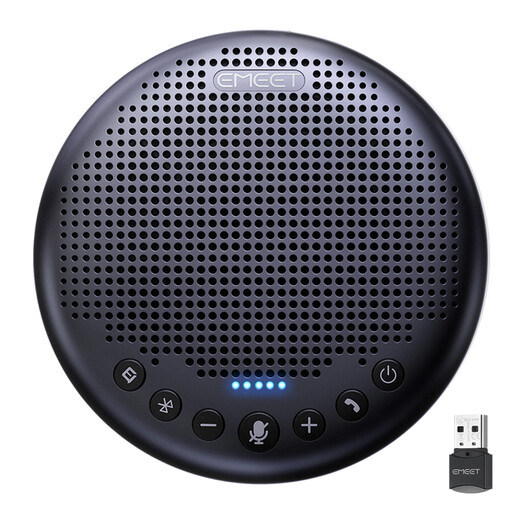
EMEET Lunaplus 8-Mic Bluetooth Conference Speaker
This unworn speakerphone is an option for people speaking from one room. Its name specifies eight microphones, Bluetooth and a 5W speaker; check the connection mode your computer and meeting app can use, and test it from the intended seats rather than relying on the stated 360° pickup.
View on Joybuy
 No image available
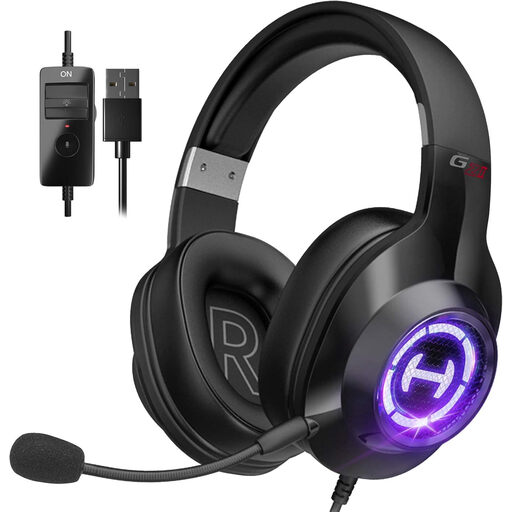
Edifier G2II USB Wired Gaming Headset
A worn headset lets a solo participant listen without using room speakers. The product name specifies USB wired connectivity, a microphone and 50mm drivers; check USB fit, wearing comfort and microphone selection in your meeting app.
View on Joybuy
 No image available
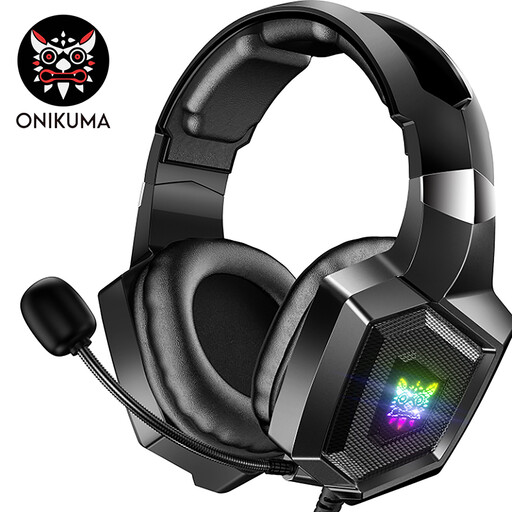
ONIKUMA K8 Wired Over-Ear Headset with Flexible Mic
This is another worn option for someone attending alone who wants headphone playback and a microphone. Check its audio connections against your computer, including whether an adapter is needed, and confirm that the app recognises both input and output.
View on Joybuy
 No image available
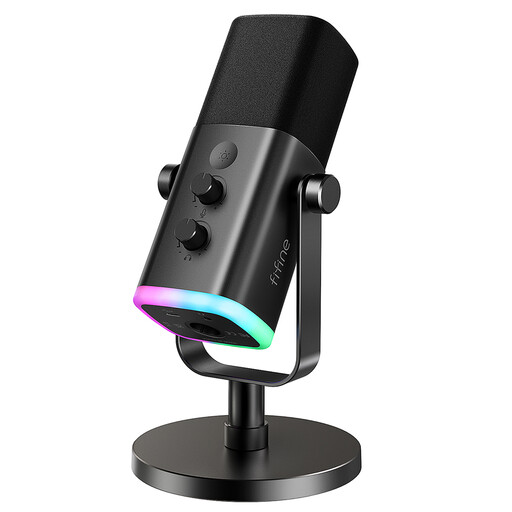
FIFINE AM8 USB/XLR Dynamic Microphone with Desktop Stand
Consider a separate desk microphone if you prefer not to wear a headset and can position it near your usual seat. The product name specifies USB/XLR connections, a mute button and a headphone jack; plan how you will hear the lesson and test that playback with the microphone for echo.
View on Joybuy
Common questions
Can I hear a lesson through my television and speak through a separate microphone?
Yes, if the computer running the meeting can select the television or soundbar as its output and the separate microphone as its input. Microsoft Support and Zoom Support describe speaker and microphone selection in their meeting apps. Test the full arrangement at your usual volume: Zoom Support identifies loud television or soundbar playback as a possible cause of echo.
What should I test before relying on new call audio equipment?
Select the intended speaker and microphone in the meeting app, then use its audio test or make a test call from your usual seat. Zoom Support describes audio-setting tests, and Microsoft Support describes device selection in Teams. If you share a room, have participants speak from the positions they will use during the session.
Does Bluetooth support mean every meeting feature will work?
No; check the particular device, host and feature. Microsoft Support says Teams does not currently support Bluetooth audio devices for spatial audio, which does not by itself rule out ordinary call audio. Test the connection and the features you intend to use.


