What should you check before buying?
Identify whether audio, video or the connection is failing first, then test the proposed setup in the software used for your tutorials.
| Priority | What to check | Your needs |
|---|
| Two-way audio |
Check how you will listen privately and which microphone the meeting app selects. If considering wireless, check charging and the exact connection or supplied adapter. |
I need to hear the tutorial without disturbing others, and I want classmates to hear the microphone I intend to use. |
| Video and room privacy |
Check camera position, field of view and lighting in a test call. If you want to cover the lens between sessions, check for a physical shutter on the exact model. |
My audio is fine, but the built-in camera misses my face or shows more of my room than I want. |
| Computer and software fit |
Match the connector or supplied adapter to your computer. In Zoom or Teams on the web, check browser camera and microphone permissions and select the intended devices. |
I want the accessory to work with my existing computer and my institution’s meeting setup, not just to fit a port. |
| Accessible participation |
Confirm required meeting features and adjustments with your institution. Check that your chosen camera and audio devices work alongside those settings. |
If I use captions or another adjustment, the accessory still needs to fit the way I take part in sessions. |
Joybuy product options
These options cover wired headsets for two-way audio and a webcam with built-in microphones for a camera-led upgrade.
 No image available
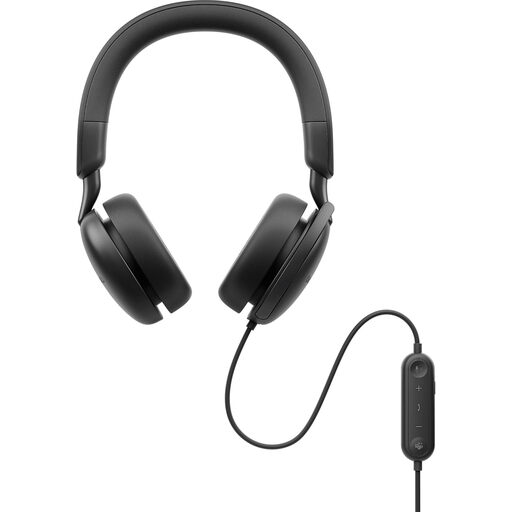
DELL Pro Plus WH5024 Wired ANC Headset
A wired headset option when listening and speaking during tutorials matter more than changing your camera. ANC is part of the listed model name; check the connector against your computer and test the microphone in your meeting app.
View on Joybuy
 No image available
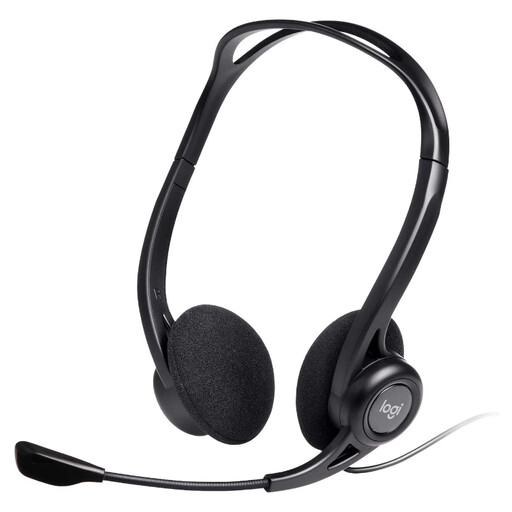
Logitech 960 Wired USB Headset with In-Line Remote
For tutorial audio where a wired headset and accessible call controls suit your desk setup. The product name lists a noise-cancelling microphone; confirm that its USB connection fits your computer and test the selected input in your institution’s meeting software.
View on Joybuy
 No image available
EMEET All-in-One 4K Webcam, 4-Mic Array, 98° FOV
A camera-and-microphone option when both functions need attention. The product name also lists a Sony sensor, dual AI speakers, fixed focus and USB connection. Check computer and meeting-software compatibility, and assess whether you also need a headset for private listening.
View on Joybuy
Frequently asked questions
Do I need both a headset and a webcam for online tutorials?
Not necessarily. The University of Oxford identifies a webcam, headphones or a combined headset as useful for online tutorials and lectures. If your existing camera works but audio does not, start with the audio problem; if audio works but video does not, assess a webcam. Check your institution’s participation requirements as well.
Why consider a headset in shared accommodation?
A headset gives you private listening, and the University of Edinburgh recommends one to cut background noise during online sessions. Test its microphone in your actual room rather than assuming every model handles that noise equally.
How can I check a new device for Zoom or Teams?
Match its connector or supplied adapter to your computer, then select the camera, microphone and speaker in a test meeting. Zoom says web users must allow microphone access to be heard; Microsoft says Teams on the web may require browser permission for the camera and microphone.
Do captions make a headset unnecessary?
Captions and a headset serve different needs. Microsoft documents live captions in Teams, while a headset provides a way to listen and speak privately. If you need accessibility adjustments, confirm the meeting arrangements with your institution before choosing equipment.


