For online sessions in an on-campus study space, start with a headset with a microphone: the University of Bristol strongly recommends one for that setting. Keep your laptop camera if it works adequately in your course’s calling app; consider a separate webcam if its preview falls short or you need a specific feature such as a privacy shutter. Check connections and compatibility, then test the selected microphone, speaker and camera before class.
Who is this for?
Students speaking in shared study spaces
If you regularly speak during online sessions near other people, a headset with a microphone is a practical starting point. The University of Bristol strongly recommends one for sessions from an on-campus study space.
Students checking an unreliable camera
Test your laptop camera in the app your course uses before choosing a separate webcam. Microsoft Support describes a Teams test call that lets you check the camera alongside your audio devices.
Students using a dock or limited laptop ports
Compare the accessory’s connector with a free port on the laptop or dock you actually use. A product family may offer different USB connections, so check the exact variant.
What should you check before buying?
Decide whether you need a microphone for speaking, a different camera for video, or both; then check how each device will connect and work in your calling app.
| Priority |
What to check |
Your needs |
| Speaking and listening |
Choose a headset with a microphone if you need one for shared-space calls. Check whether a wired USB connection or a compatible wireless connection suits how you use your laptop. |
I speak during classes near other people and want to use a headset rather than rely on my laptop’s speakers and microphone. |
| Physical connection |
Check the exact USB-A or USB-C variant where applicable, and find a free matching port on your laptop or dock. Check any adapter or dock connection you plan to use. |
My available ports are limited, or I normally connect accessories through a dock. |
| Call setup |
Check operating-system and conferencing-app support. Select the intended microphone, speaker and camera, allow any required browser permissions, and run an app test. |
A connected accessory is only useful to me if my class app can access and select it. Microsoft Support describes Teams test calls; Zoom Support provides a speaker and microphone test. |
| Video and privacy |
Check your laptop camera’s preview in the required app first. If it falls short, compare the exact webcam’s framing controls, lighting features or physical lens cover, as relevant. |
I would keep the built-in camera if it meets my course’s needs, but consider a separate webcam for a specific problem or feature. The University of Bristol says built-in laptop cameras are normally fine. |
Common buying mistakes
-
Buying a webcam before testing the laptop camera
A separate camera may not address any problem with your class setup. The University of Bristol says built-in laptop cameras are normally fine, while Zoom Support notes that most laptops can use their integrated webcam for Zoom.
Open the app your course uses and check its video preview before deciding whether you need a different camera.
-
Assuming the app will select a new accessory
A headset can be connected while a call still uses the laptop microphone or speakers. Teams and Zoom provide controls for choosing and testing audio devices.
Select the intended speaker, microphone and camera in the app, then complete a test before your first class.
-
Overlooking the connector on the exact variant
USB-A and USB-C variants need different available connections. Jabra lists different USB connection options within its Evolve 20 range, so the family name alone does not identify the plug.
Check the selected variant against a free laptop or dock port before ordering.
-
Treating a compatibility claim as a guarantee
Device selection and permissions can affect whether an accessory works in a particular app. Jabra also cautions that its compatibility guide can change with hardware, firmware and software updates.
Check the exact model, connection, computer and conferencing app, then test the setup you intend to use.
Relevant brand references
Jabra
Its Evolve 20 range offers office-style call headsets with USB connection variants.
- Jabra lists USB-A, USB-C and combined connection options for Evolve 20 variants; check the plug on the exact version.
- Jabra says its compatibility guide is subject to hardware, firmware and software changes. Confirm your device and calling app combination.
Logitech
The Brio 100 is an example to compare when a separate webcam’s features would address a specific need.
- Logitech UK lists Full HD 1080p video, a built-in microphone and an integrated privacy shutter for the Brio 100.
- Those Brio 100 specifications do not establish compatibility for every computer or describe every Logitech webcam.
AnkerWork
The PowerConf C200 is a reference point if adjustable webcam framing matters to you.
- AnkerWork UK lists 65°, 78° and 95° field-of-view settings for the PowerConf C200.
- According to AnkerWork, selecting those settings uses its software; check that the software suits your computer.
Joybuy product options
These options include wired and wireless personal audio devices for calls, plus a separate webcam to consider if your laptop camera does not meet your needs. Check microphone use and app compatibility for the exact device you choose.
 No image available
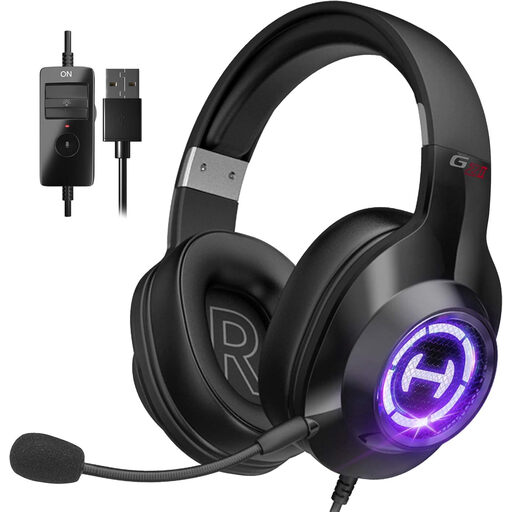
Edifier G2II USB Wired Gaming Headset (Black)
A wired headset with a microphone for speaking during shared-space classes. Its title specifies USB wiring and a noise-cancelling microphone; check the exact USB connector and support for your computer and meeting app.
View on Joybuy
 No image available
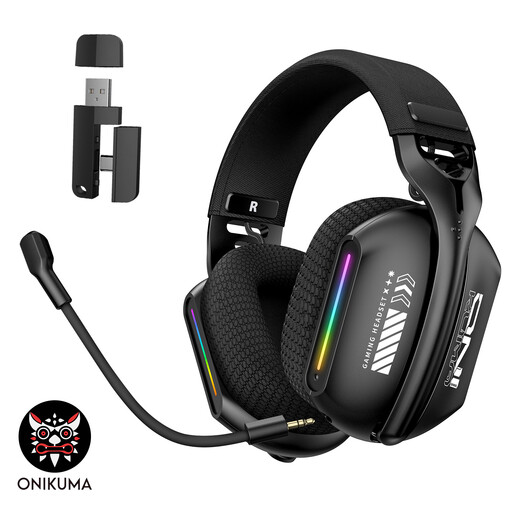
ONIKUMA GT808 Triple-Mode Wireless Headset
A headset option for spoken calls when you prefer not to rely on the laptop microphone. The title specifies a microphone and 2.4GHz wireless use; check which connection mode works with your computer and conferencing app.
View on Joybuy
 No image available
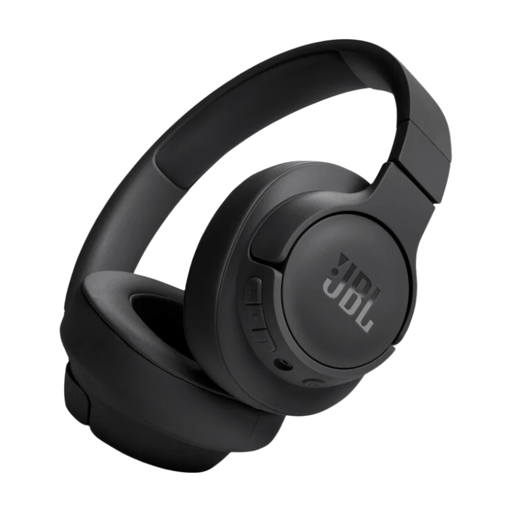
JBL Tune 720BT Wireless Over-Ear Headphones (Black)
A wireless over-ear option to consider for laptop calls. Before choosing it for spoken classes, check that your computer and conferencing app can use its microphone, then test the selected call audio.
View on Joybuy
 No image available
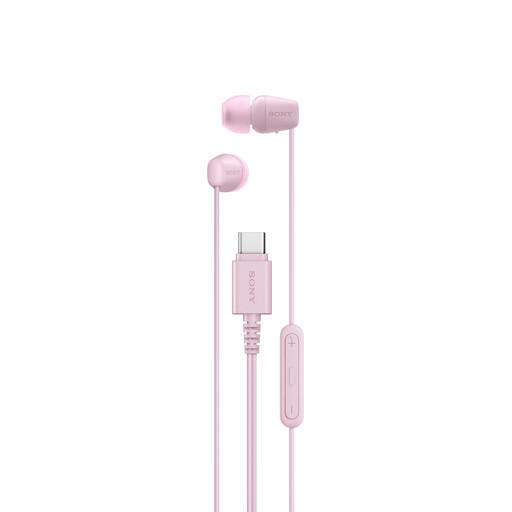
Sony IER-EX15C USB-C Wired Earbuds (Pink)
An in-ear wired option rather than a headband-style headset. Check that your laptop’s USB-C connection and meeting app can use both earbud audio and the microphone before relying on them for class.
View on Joybuy
 No image available
Philips SPL6308S/00 2K QHD PC Webcam (EU Version, Silver)
A clip-on webcam to consider if your laptop camera’s preview is inadequate in your course app. Its title specifies 2K QHD and a noise-reduction microphone; check its connection and app compatibility. It does not replace a headset for listening in a shared space.
View on Joybuy
Frequently asked questions
Do I need a headset if my laptop microphone works?
Not necessarily in a quiet private room. For online sessions from an on-campus study space, the University of Bristol strongly recommends a headset with a built-in microphone; select and test it in your meeting app before class.
When is my laptop camera enough?
Keep using it if its preview works in your course’s app and the image meets the session’s needs. The University of Bristol says built-in laptop cameras are normally fine; consider a separate webcam when testing reveals a specific shortcoming or you need a feature such as a physical privacy shutter.
What should I check before buying a USB headset or webcam?
Match the exact accessory connector to a free laptop or dock port, then check computer and conferencing-app compatibility. Microsoft Support describes selecting devices and making a Teams test call; Zoom Support provides a speaker and microphone test.
Why might a connected camera or microphone not work in Teams on the web?
The browser may need permission to access it, or another app may be using the camera. Microsoft Support advises checking the relevant permissions and testing the devices in Teams after making changes.


