Choose a wired USB headset if you mainly call from one computer and want a direct connection; choose a Bluetooth headset if moving around or switching between a computer and phone matters more. For Microsoft Teams-specific buttons or mute synchronisation, check the certification and supported connection method of the exact variant. Existing wired headphones or a separate USB microphone can also work, provided your computer recognises the devices and you select the intended microphone and speaker in your meeting software.
Who each setup suits
Computer-first Teams callers
If most meetings happen at one computer, a USB headset is worth considering when physical call buttons matter. Microsoft Support documents call controls for certified Teams devices; check that the particular headset and connection method support the controls you need.
People who switch devices or locations
If calls move between a laptop and phone, look for a Bluetooth headset with a documented active-device limit. Jabra, Logitech and EPOS describe different connection arrangements for their business-headset models, so check the exact variant rather than relying on a product-family name.
Callers in distracting spaces
If nearby sound affects your calls, consider the microphone and listening-side noise control separately. Active noise cancellation concerns what you hear; it does not, by itself, establish how clearly other people hear your voice.
What to check before buying
Decide how you will connect to your computer and meeting software, then consider whether movement, outgoing voice clarity or a separate desk microphone changes the setup you need.
USB wired headset
Choose it when: Most calls happen at one computer and a cable is acceptable.
Trade-off: Movement is limited by the cable; Teams-specific controls depend on the exact device.
Bluetooth headset
Choose it when: You move away from the desk or regularly take calls on both a computer and phone.
Trade-off: It needs charging, and active multi-device connections vary by model.
Wired headphones with a microphone
Choose them when: Your headphones have a microphone and your computer accepts their connector.
Trade-off: Ordinary audio use does not establish support for Teams-specific call controls.
Separate USB microphone
Choose it when: You prefer a desk microphone alongside separate headphones or speakers.
Trade-off: Two devices take more space and must be selected correctly in the meeting software.
| Concern |
What to check |
Who this matters to |
| Computer and meeting-software compatibility |
Match the connector or receiver to your computer. If you need Teams call buttons or mute synchronisation, check certification and support for the exact variant and connection method. |
I need my headset and meeting software to work together, including the physical controls I use during calls. Around 31% of consumers may put that compatibility and control need first. |
| Outgoing voice clarity |
Assess microphone features separately from listening-side noise cancellation, then make a test call in your usual room. |
When people are talking nearby, I want colleagues to hear my voice clearly rather than judging the headset by what it blocks from my ears. Voice clarity may come first for around 25% of consumers. |
| Computer-and-phone use |
Check the number of active connections, the included receiver and the charging arrangement for the exact model. |
I take calls on my computer and phone and do not want to keep changing my audio setup between them. Roughly 25% of consumers may prioritise that ability to switch devices. |
| Separate microphone setup |
Confirm that the computer recognises both devices and that you can select the intended microphone and speaker in your meeting software. |
I prefer my own headphones but want a microphone on the desk, even if that means selecting two devices before a call. For around 19% of consumers, a separate setup may be the primary need. |
Common buying mistakes
-
Assuming audio playback means Teams buttons will work
A headset may handle ordinary sound without providing the answer, end-call or mute-synchronisation behaviour you expect. Microsoft Support describes those controls for certified Teams devices.
If the buttons matter to you, check the exact headset's Teams certification and its supported operating system and connection method.
-
Using noise cancellation as a shortcut for microphone quality
Listening-side active noise cancellation and outgoing microphone features address different parts of a call. Logitech, for example, lists them separately for Zone Wireless 2.
Check the microphone features in their own right and make a test call where you normally work.
-
Overlooking the wireless variant and receiver
According to their respective manufacturers, Jabra Evolve2 65 Flex supports two simultaneous Bluetooth connections, Logitech Zone Wireless 2 lists two active connections, and EPOS states up to three wireless devices for IMPACT 1000. Those figures belong to the named models, not Bluetooth headsets generally.
Confirm the exact variant, its receiver and connector, and how many devices can be active for your intended connection.
If the supplied receiver does not fit your computer, you may need a suitable adapter or a different connection arrangement.
-
Leaving a desk microphone on the wrong device setting
A separate microphone and headphones can be connected while the meeting software still selects another input or output.
In Teams, select the intended microphone and speaker under device settings, then make a test call before an important meeting.
Relevant brands to consider
Microsoft
The Modern USB-C Headset is a reference point for a wired Teams setup on a Windows 10 or 11 PC.
- Microsoft Support documents mute, answer and end-call, volume and Teams controls for this certified model.
- Its documented setup uses USB-C and Windows 10 or 11; do not assume the same controls on another computer or platform.
Jabra
The Evolve2 65 Flex is relevant when portable Bluetooth use and computer connection options matter.
- Jabra's technical specifications list two simultaneous Bluetooth connections and USB-A and USB-C connectivity options.
- Teams certification depends on the variant; confirm which version and connection accessories you are buying.
Logitech
Zone Wireless 2 offers documented receiver and native-Bluetooth connection routes; Logitech also makes USB microphones for separate-device setups.
- Logitech lists two active connections for Zone Wireless 2 and gain, mute and headphone monitoring controls for the Yeti USB microphone.
- Teams certification conditions for Zone Wireless 2 differ by connection route. A separate microphone does not automatically provide headset-style call buttons.
EPOS
IMPACT 1000 is relevant to callers considering native Bluetooth and several connected devices.
- EPOS states that IMPACT 1000 can connect to up to three wireless devices.
- EPOS's microphone and active-noise-cancellation descriptions are manufacturer claims, not a guarantee of results in your calling environment.
Joybuy products for meeting calls
These products cover wired USB headsets, a wireless headset, wireless headphones with a microphone, and wired headphones with a microphone. Choose by your connection and call-control needs rather than assuming every model offers the same meeting-software features.
 No image available
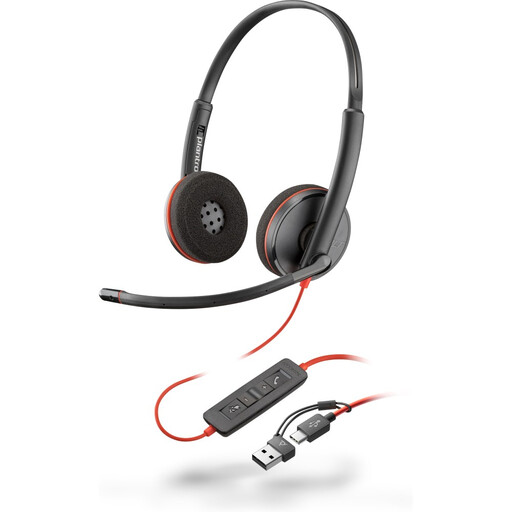
Poly Blackwire 3220 Stereo USB-C Headset with USB-C/A Adapter
Consider this wired headset for calls from a computer where a USB-C connection suits your setup.
The named bundle includes a USB-C/A adapter. If Teams-specific call controls matter, confirm their behaviour with your computer and the exact headset.
View on Joybuy
 No image available
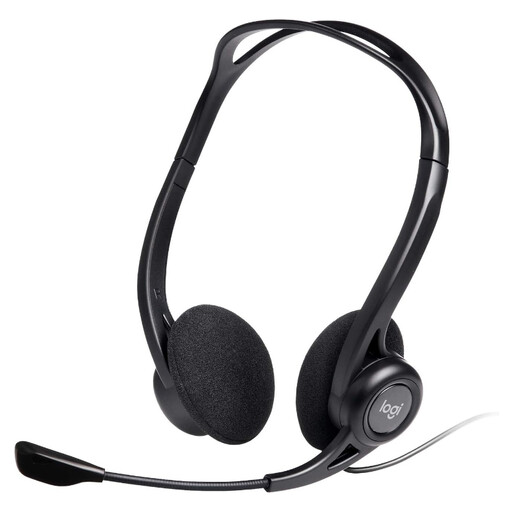
Logitech 960 Wired USB Headset, Black
This is a wired USB option for calls from a computer.
The product name identifies an inline remote and a noise-cancelling microphone. Check the connector against your computer and confirm Teams-specific control support if you need it.
View on Joybuy
 No image available
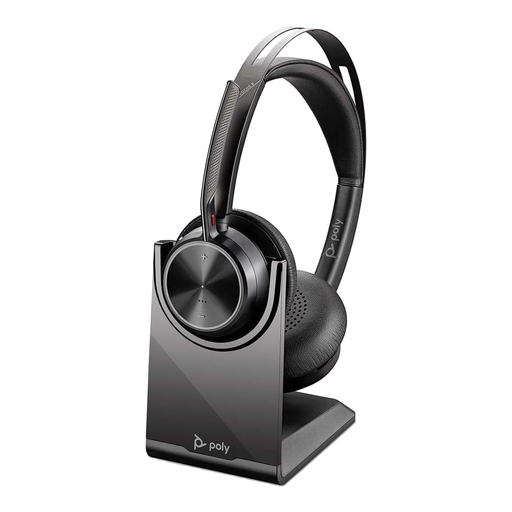
Poly Voyager Focus 2-M USB-C-C Headset with USB-C/A Adapter and Charging Stand
Consider this wireless-headset route if you take calls away from a fixed desk as well as at your computer.
The named bundle includes a USB-C/A adapter and charging stand. Check the precise variant, its connection accessories and supported meeting controls before buying.
View on Joybuy
 No image available
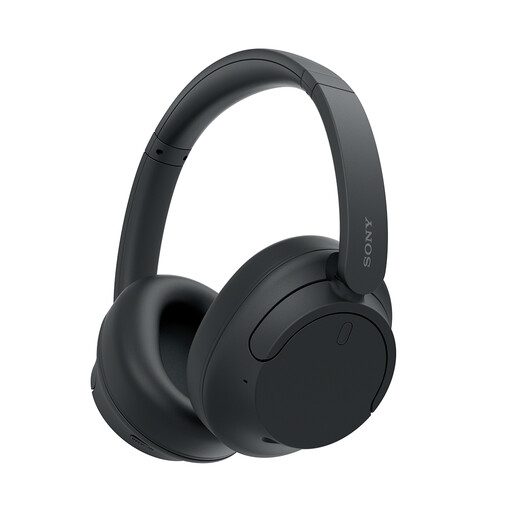
Sony WH-CH720N Noise-Cancelling Over-Ear Headphones, Black
These wireless headphones are worth considering if you want to use the same listening device for calls and other audio.
The noise-cancelling name refers to a product feature, not proof of outgoing call clarity. Confirm the connection and microphone behaviour with your computer and meeting software.
View on Joybuy
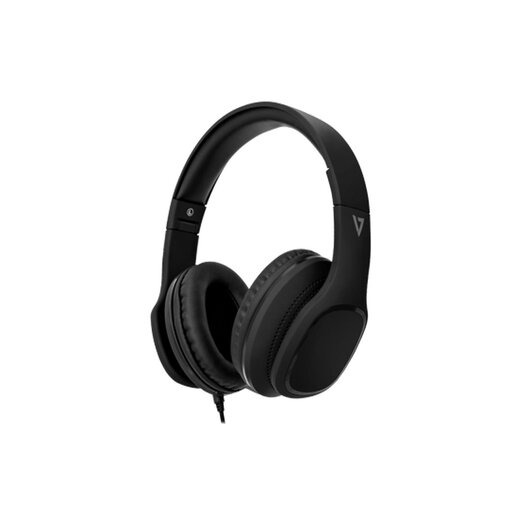 No image available
V7 HA701-3EP Wired Over-Ear Headphones with Inline MEMS Microphone
Consider these wired headphones for calls if your computer accepts the headset connection and microphone input.
The product name specifies 40 mm drivers and an inline MEMS microphone. Check whether your computer needs an adapter, and test microphone selection in your meeting software.
View on Joybuy
Frequently asked questions
Do I need a Teams-certified headset just to speak and listen?
Not necessarily: Teams lets you select recognised audio devices for ordinary speaking and listening. If you also want supported peripheral features such as mute synchronisation, call buttons or a Teams button, check that the exact headset and connection method meet Microsoft's Teams certification requirements.
Can I use a USB microphone with headphones I already own?
Yes, if your computer recognises both devices and your meeting software lets you select them separately. Microsoft Support explains how to choose the speaker and microphone in Teams; select each intended device and make a test call.
Will any Bluetooth headset connect to my laptop and phone at once?
No: simultaneous active connections depend on the model. Jabra specifies two simultaneous Bluetooth connections for Evolve2 65 Flex, Logitech lists two active connections for Zone Wireless 2, and EPOS states up to three wireless devices for IMPACT 1000. Check the exact variant and connection method before choosing.


