What matters when choosing?
Start with the way you will listen and speak, then check the connection and meeting app. These choices assume your existing computer can run the sessions you need to join.
Wired headset
Consider it: For calls mainly taken at one desk, provided the headset connector matches your computer.
Trade-off: The cable limits movement away from the computer.
Wireless headset or earbuds
Consider it: When moving during calls matters and you can check how the model connects to your computer.
Trade-off: Charging, pairing and any required USB dongle become part of your call setup.
USB microphone and headphones
Consider it: At a fixed desk where you want separate microphone input and private headphone output.
Trade-off: You must set up and select two audio devices rather than one headset.
Webcam microphone
Consider it: If you also need a camera and the webcam microphone meets the needs of your calls.
Trade-off: It does not give you private listening; headphones may still be needed in shared accommodation.
| Concern | What to check | Who this matters to |
|---|
| Private listening and participation |
Check for an integrated microphone and a suitable listening style. Test the selected input and output in your call app. |
If I share a room, I want to hear the seminar without playing it aloud and make myself heard when I speak. About 36% of consumers put privacy and participation first. |
| Connection and platform |
Match the connector or wireless method to your computer; check the exact model against your main meeting app. |
When I switch between tutorials and work calls, I need my computer and app to select the intended audio devices. Connection and platform fit come first for about 29% of consumers. |
| Comfort and controls |
Assess the wearing style and fit; check whether mute and other controls work with your call platform. |
For repeated or lengthy calls, I need a headset I can wear and operate comfortably. About 21% of consumers make comfort and controls their primary concern. |
| Separate desk devices |
Confirm that your app can select separate microphone and speaker devices; add a webcam only if you need its camera. |
If my existing computer already runs the sessions, I would rather configure desk audio than replace the computer for an accessory need. That is the first priority for about 14% of consumers. |
Headsets and earbuds on Joybuy
These models cover wired and wireless listening with microphone options for seminars and calls. Choose by the connection your computer accepts and test the audio setup in your meeting app.
 No image available
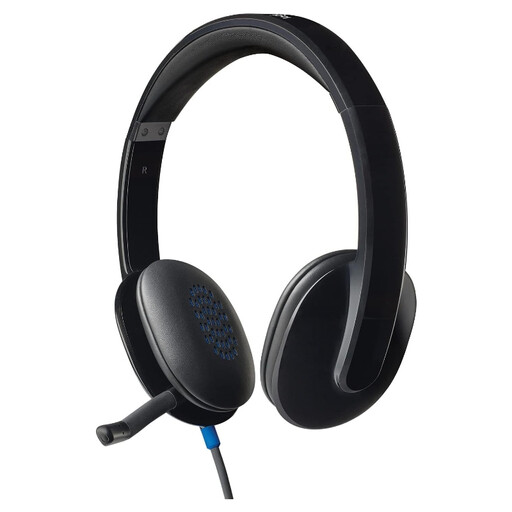
Logitech H540 wired headset
Consider this for a wired desk setup if your computer has an available USB-A port. Confirm that your seminar or work-call app can select the headset as both input and output before relying on it for a call.
View on Joybuy
 No image available
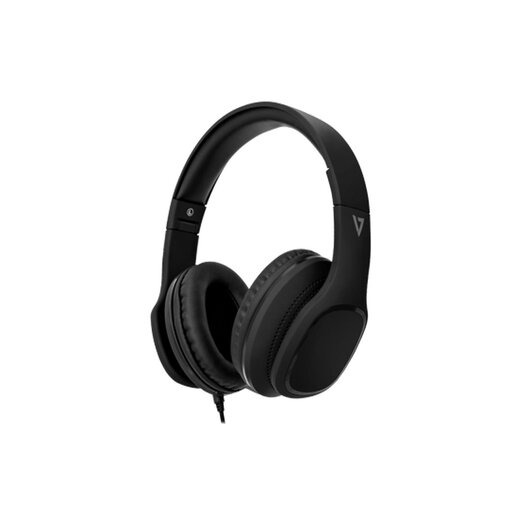
V7 HA701-3EP wired over-ear headphones
Consider this over-ear option for calls if your device has a compatible 3.5 mm connection that accepts microphone input. Its product name specifies 40 mm drivers and an inline MEMS microphone; check fit and the connection before relying on it for seminars.
View on Joybuy
 No image available
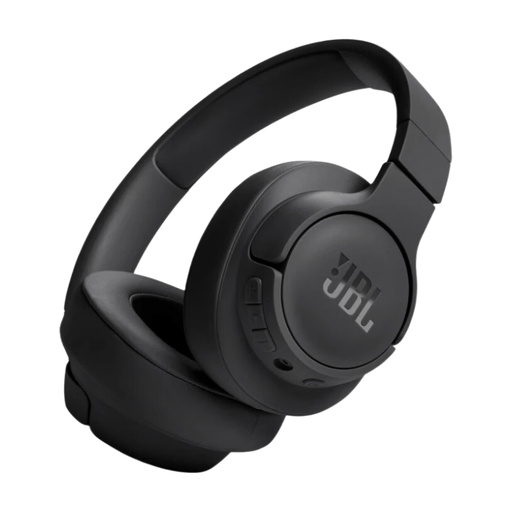
JBL Tune 720BT wireless over-ear headphones, black
Consider these if you prefer an over-ear wireless option for calls. Test microphone and speaker selection with your computer and meeting app. If you intend to use a wired connection instead, confirm that microphone input works in that mode before relying on it.
View on Joybuy
 No image available
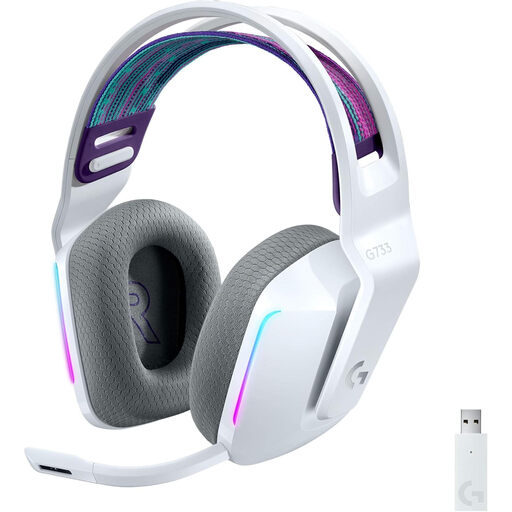
Logitech G G733 LIGHTSPEED wireless gaming headset, white
Consider this for desk calls if you prefer a wireless headset and can use its listed USB receiver with your computer. Check that the microphone and any call controls work in your actual meeting app; the gaming designation does not establish seminar-platform compatibility.
View on Joybuy
 No image available
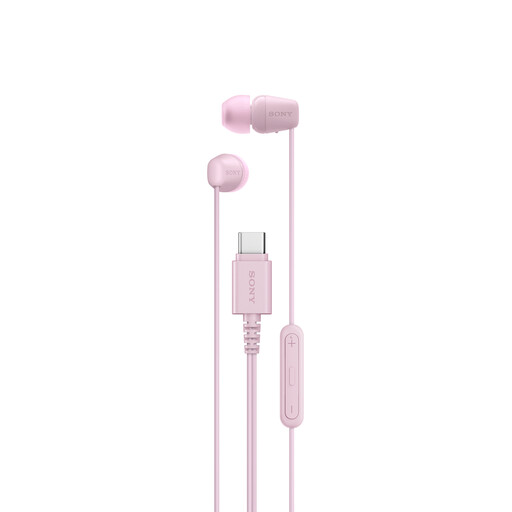
Sony IER-EX15C USB-C wired earbuds, pink
Consider these wired earbuds if you prefer an in-ear fit. Before buying for calls, confirm that your device’s USB-C port accepts audio and microphone input, then check the earbuds in your meeting app.
View on Joybuy
Questions about seminars and calls
Do I need a headset if my laptop has speakers and a microphone?
Not necessarily: use the laptop’s audio if it meets your needs. If you need private listening or want to try a single device for speaking and hearing, University College London suggests a headset with an integrated microphone for online sessions.
Will a Teams-certified headset work with every seminar app?
Teams certification does not establish compatibility with every other app. Microsoft describes plug-and-play operation and call controls for Teams-certified peripherals in Teams; check your university’s or employer’s actual app, operating system and connection requirements separately.
How can I test a headset before an important call?
Connect or pair it, select its microphone and speaker in the meeting app, then make a test call if the app offers one. Microsoft recommends checking audio settings in Teams; if the microphone is not detected, also check the computer’s microphone permissions and selected input.
Should I buy equipment before applying for disability-related study support?
If you are applying through the GOV.UK Disabled Students’ Allowance route, wait until after the needs assessment before buying equipment you expect that route to reimburse: GOV.UK says purchases made beforehand will not be reimbursed. Ask your university disability service and the relevant funding body about the route that applies to you.


