Readers of detailed archive images
If you regularly inspect handwriting, maps or marginal notes in digitised records, fine image detail may matter more to you than the width of a single window.


Choose a 27-inch 4K monitor if inspecting fine detail in scans is your priority, a 27-inch QHD model if you mainly compare text and ordinary documents, or a 34-inch ultrawide if keeping broad sources side by side matters most. Whichever format suits your records, check that the screen fits your desk, can be positioned comfortably and works with your computer’s video output; a USB-C port alone does not establish that it will charge your laptop.
If you regularly inspect handwriting, maps or marginal notes in digitised records, fine image detail may matter more to you than the width of a single window.
If your work centres on transcriptions, catalogue entries and timelines, consider how many windows need to remain visible and whether those documents are wide or tall.
If you connect and disconnect a laptop at your desk, check its video and charging requirements alongside the monitor’s connections and available positioning adjustments.
For historical-record comparison, decide whether fine detail, ordinary document work or persistent window width drives the choice; then check how the display will fit your workstation.
Choose it when: You frequently inspect small handwriting or image detail in scans on a 27-inch screen.
Bear in mind: Interface text may need display-scaling adjustment, and the screen does not offer the physical width of an ultrawide.
Choose it when: You chiefly compare transcriptions and other text-based records on a conventional desk.
Bear in mind: At the same screen size, 2560 × 1440 provides fewer pixels for fine image detail than 3840 × 2160.
Choose it when: You want broad source documents and reference windows visible together without a central bezel.
Bear in mind: The wider screen needs more desk width; a 3440 × 1440 model has fewer pixels than a 3840 × 2160 4K model.
| Concern | What to check | Who this matters to |
|---|---|---|
| Fine detail | Compare native resolution at your chosen screen size, and view your usual scans at a comfortable display-scaling setting. | Small handwriting and annotations need to remain readable while I compare sources; around 33% of consumers put fine detail first. |
| Screen positioning | Check stand height adjustment or compatible mounting, and allow for your viewing distance and room lighting. The Health and Safety Executive advises placing the screen top around eye level and the display about an arm’s length away. | During long reading sessions, I need the screen to sit comfortably at my desk rather than adjusting my posture to suit it. Positioning comes first for around 27% of consumers. |
| Laptop connection | Confirm the laptop’s video-output compatibility and required charging wattage; check whether the monitor provides the ports and cable you need. | I connect a laptop regularly and want the display connection to fit that routine without assuming it will also charge the computer; roughly 20% of consumers prioritise laptop connectivity. |
| Side-by-side space | Measure usable desk width and depth, then consider whether your records need wide parallel windows or a taller page layout. | I want a source and transcription to stay visible together instead of repeatedly switching windows. For around 20% of consumers, workspace width is the primary need. |
Resolution cannot raise a screen that sits too low or resolve glare from its position. The Health and Safety Executive’s display-screen guidance addresses screen height, viewing distance and placement.
Measure your desk and seated eye height, then check the supplied stand’s adjustment or the monitor’s mounting options.
If the stand cannot provide a suitable position, you may need a compatible arm or riser or a change to your lighting arrangement.
USB-C charging varies by model: LG lists up to 15W for the 27U631A-B, while Dell lists up to 90W and video, data and Ethernet over USB-C for the P2725QE. The port name alone does not establish what your laptop can use.
Check video compatibility, charging wattage, included cables and any need for Ethernet or USB peripherals before ordering.
Depending on your setup, a compatible cable, separate charger or dock may still be needed.
A 34-inch 21:9 display offers a different window layout from a 27-inch 4K screen and occupies more horizontal space.
Measure usable desk width and depth. Choose the wider layout when parallel documents drive your work, rather than assuming it provides the most detail within a single scan.
The cited Dell business-monitor models illustrate 27-inch QHD and 4K document workspaces with different connection and adjustment features.
The cited GW2790QT is a 27-inch QHD option for text-centred comparison where an adjustable, portrait-capable screen is useful.
The cited LG models show how 27-inch QHD, 27-inch 4K and 34-inch ultrawide formats address different record-comparison layouts.
These monitors cover compact 4K setups for detailed records and a wider screen for side-by-side documents. Compare each listing’s screen format, positioning options and connection requirements against your desk and computer.
 No image available
Consider this compact 4K format if fine details in digitised records drive your choice.
The product name specifies an IPS panel, USB-C and a height-adjustable stand. Check how the Nano Glossy surface works with your desk lighting and whether the connection meets your laptop’s video and charging requirements.
 No image available
The 27-inch 4K format suits a desk where detailed scans take priority over ultrawide window space.
The product name identifies an IPS panel and USB-C with 65W power delivery. Check the required USB-C video connection and whether 65W meets your laptop’s charging needs.
 No image available
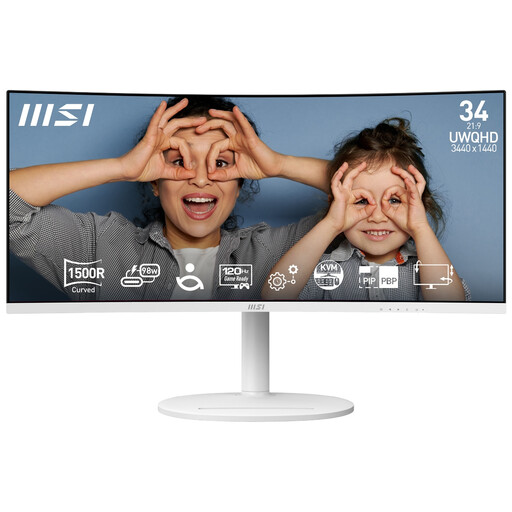
Consider the wider layout if you want landscape records and reference windows open alongside one another.
The product name specifies 3440 × 1440 resolution, a 1500R curve and 120Hz refresh rate. Measure your desk before choosing the 34-inch format; its width addresses a different need from maximum pixel detail in a 4K scan.
 No image available
The 27-inch 4K format is relevant if you inspect detailed records but do not need an ultrawide screen.
The product name identifies a 16:9 LED monitor. If you plan to connect a laptop through USB-C, confirm video support and charging capability for this exact model before relying on a single-cable setup.
 No image available
Consider this 4K model only after weighing its OLED panel against your pattern of document use.
The listing advises against leaving static images at high brightness for prolonged periods to reduce burn-in risk, which matters for persistent document windows. Confirm USB-C video and charging compatibility if you intend to connect a laptop that way.
Working from home does not, by itself, decide whether the workplace rules apply. The Health and Safety Executive says the display-screen-equipment Regulations apply to employers whose workers regularly use display screen equipment as a significant part of their normal work; the guidance does not prescribe a particular monitor model for every private home purchase.
The Health and Safety Executive advises placing the top of the screen around eye level, about an arm’s length away, with the screen directly in front of you. Check whether the supplied stand reaches a suitable height; if it does not, confirm mounting compatibility before choosing an arm.
No: charging capability differs by model and must meet your laptop’s needs. LG lists up to 15W for the 27U631A-B, BenQ lists 65W for the GW2790QT and Dell lists up to 90W for the P2725QE; also confirm that your laptop supports the monitor’s video connection.
Check the exact seller’s return terms and the precise model’s warranty and dead-pixel terms before ordering. Find out who handles faults, and confirm that the listing identifies the model and the cables or plug arrangement you need; seller policies and warranty terms should not be treated as a substitute for any applicable statutory rights.