What matters when choosing?
For consumers choosing one laptop to plan history lessons at home, school compatibility comes before screen or storage preferences. Once the required applications and personal-device rules are clear, these three operating-system routes offer different ways to work.
Windows laptop
Consider it: When the school requires Windows desktop applications or a Windows-based workflow.
Bear in mind: Windows alone does not establish compatibility with every school tool or peripheral; check the exact configuration, particularly where its processor platform matters.
MacBook Air
Consider it: When you prefer macOS and the school confirms that its essential applications and access arrangements support it.
Bear in mind: Check specialist software and peripherals; Apple’s UK purchase information says the current MacBook Air does not include a power adapter.
Chromebook Plus
Consider it: When planning is browser-led and the school confirms its services and file workflow work in ChromeOS.
Bear in mind: A required desktop-only application or driver may rule out this route; check offline tasks as well as online access.
| Concern |
What to check |
Who this matters to |
| School software and data security |
Ask which operating systems and access tools the school approves, and whether its personal-device policy permits your intended use. |
If I need school applications or access to pupil data, I cannot choose on specifications alone. Around 36% of consumers would put confirmed compatibility and security requirements first. |
| Research and document multitasking |
Compare the exact model’s memory and storage with your simultaneous applications and local-file needs; treat Microsoft 365 requirements as minimums. |
Keeping source material, lesson documents and slides open together is my main concern. Roughly 29% of consumers would prioritise this workload. |
| Readable workspace |
Compare screen size and resolution, then check monitor connections if you use an external display. |
I spend time reading source scans and preparing visual material, so the working area matters more to me than a compact screen. Around 21% of consumers would make the visual workspace their primary concern. |
| Web-first planning |
List essential browser services and check file formats and offline tasks before choosing ChromeOS or a lighter configuration. |
Most of my planning uses cloud documents, and I do not want to choose hardware for desktop tools I will not use. Roughly 14% of consumers would put a suitable web-first workflow first. |
Brands and product lines to consider
These manufacturer examples illustrate different configurations and operating-system routes; check the model and variant rather than assuming every laptop from a brand has the same features.
Lenovo
The IdeaPad Slim 5i 14, configuration 83HR004TUK, illustrates a Windows 11 laptop for document-led home-office work.
- Lenovo lists 16 GB DDR5 memory, a 512 GB SSD, a 14-inch 1920 × 1200 OLED display and an English (UK) backlit keyboard for this configuration.
- Lenovo marks this exact configuration as unavailable on its own UK page; check the specifications of any alternative listing rather than assuming they match.
Dell
The Inspiron 14 2-in-1 7440 illustrates a Windows convertible for someone who wants touch input alongside a conventional keyboard workflow.
- Dell describes a 360-degree hinge and lists a 14-inch touch display in cited configurations.
- Memory varies between the cited configurations, including 8 GB and 16 GB options; confirm the specification against the exact order code.
Apple
MacBook Air illustrates the macOS route when the school confirms that its required workflow supports it.
- Apple lists 16 GB unified memory and a 512 GB SSD as the starting configuration for the current 13-inch model, with a 13.6-inch 2560 × 1664 display.
- Apple’s UK purchase information says a power adapter is not included. Confirm school-specific software and peripheral compatibility before buying.
Acer
The Chromebook Plus 514 CB514-5H-574N illustrates a ChromeOS route for confirmed browser-led planning.
- Acer lists a 14-inch 1920 × 1200 anti-glare display, 8 GB memory, a 512 GB SSD, HDMI, USB-A and USB-C for this model.
- Those specifications do not establish whether a particular school’s desktop applications, peripherals or offline tasks work in ChromeOS.
Windows laptops on Joybuy
These Windows-oriented laptop choices offer different screen sizes, memory and storage configurations for planning at home. Check each exact model against your school’s applications, access tools and personal-device rules; a Windows label alone is not a compatibility guarantee.
 Image unavailable
ASUS Vivobook 14 X1407QA-LY003W, Quiet Blue
Consider this 14-inch model if a compact home-office laptop fits your desk and document workflow.
Its named configuration has a Snapdragon X processor, 16 GB RAM and a 512 GB SSD. Confirm that your school’s required applications, peripherals and access tools work with this exact configuration.
View on Joybuy
 Image unavailable
Microsoft Surface Laptop 7 15-inch, Maya Color
Consider the larger touchscreen if you want more room for reading source material and working on lesson documents.
This Snapdragon X Elite configuration names 16 GB RAM and a 256 GB SSD. Check whether that storage suits your local files and whether school applications and peripherals work with the exact model.
View on Joybuy
 Image unavailable
HP OmniBook X Flip 16-as0004na
Consider this convertible if a 16-inch touchscreen suits your home workspace and you want the option of touch interaction.
The named variant has an Intel Core Ultra 5 226V, 16 GB RAM, a 512 GB SSD and Windows 11 Home. Confirm school application and personal-device requirements before using it for school work.
View on Joybuy
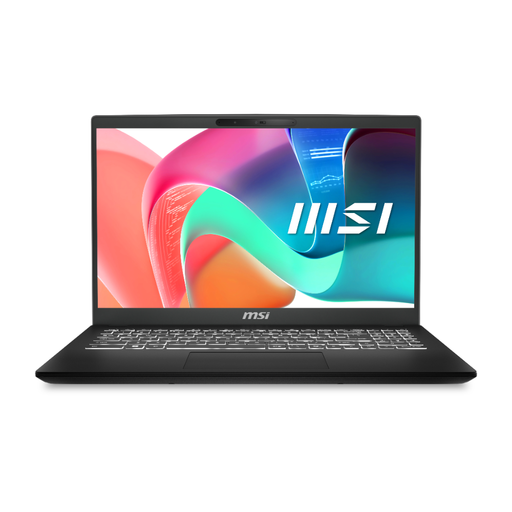 Image unavailable
MSI Modern Laptop C2RMG-282UK, 9S7-15H431-282
Consider this model if a Full HD laptop screen and space for local lesson files suit your home-office setup.
Its name specifies an Intel Core 5 processor, 16 GB DDR IV RAM and a 512 GB SSD. Confirm the operating-system edition and camera details if your school tools or video meetings depend on them.
View on Joybuy
 Image unavailable
Acer Aspire Lite AL15-36P-C29Z, Silver
Consider this 15.6-inch Full HD model for a planning workflow centred on browsing and documents, subject to your school’s software requirements.
The named configuration has an Intel N150 processor, 8 GB DDR4 RAM, a 128 GB SSD and Windows 11 Home. Check the memory and storage against your simultaneous work and local files, and confirm how its stated Windows 11 Home in S Mode setup affects required applications.
View on Joybuy
Frequently asked questions
Can I plan school lessons on a personal laptop at home?
Yes, if your school permits personal-device use and you can meet its security requirements. The Information Commissioner’s Office highlights risks such as outdated software, shared access and insecure storage; ask the school how it expects you to access systems and handle its data.
Is a Chromebook suitable for planning history lessons?
A Chromebook can suit browser-led planning if your school confirms that its essential services and file workflow work in ChromeOS. Check video meetings, offline access, required applications and peripherals before choosing one.
Are Microsoft 365 minimum requirements enough for lesson planning?
They establish application requirements, not a comfortable specification for every workload. Microsoft lists 4 GB RAM as a minimum for Microsoft 365 on Windows or Mac; compare the laptop you are considering with the tabs, documents, slides and calls you expect to use together.
Can I copy historical images and extracts into teaching materials?
Not automatically. The UK Intellectual Property Office explains that educational exceptions apply under defined conditions and that many uses still require permission or a licence. Check your intended use against school licensing guidance and acknowledge sources where required.
What should I check besides the laptop configuration?
Check which accessories and connections your setup requires, including a power adapter and any monitor cable or adapter. Apple’s UK purchase information says the current MacBook Air does not include a power adapter; confirm the contents of the exact model you choose.


