For a household backing up photos and documents, an external drive is a direct local option for a computer, while a NAS can give several computers a shared backup destination if someone can manage it. Cloud services can help with phone backups and off-site copies, but their sync, storage and recovery rules differ. For files you cannot replace, keep a copy separate from the main device, consider an additional off-site copy, and test that you can restore what matters.
Who needs which backup arrangement?
Mixed-device households
If your photos and documents span iPhones, Android phones, Windows PCs and Macs, check each device’s backup settings separately. A shared storage destination does not, by itself, establish that every device’s files and settings can be restored.
Households protecting photos and records
If losing family photos or important documents would be difficult to remedy, keep a recoverable copy apart from the original device. The National Cyber Security Centre advises keeping at least one backup offline or digitally disconnected, because connected backup locations can also be affected in a ransomware incident.
Homes with several computers
A NAS may provide one network destination for multiple PCs or Macs. Check the backup software and restore procedure for each computer, and allow for the work of configuring and maintaining the NAS.
What should you check before choosing?
Choose a destination for each device, then check what can be restored after a deleted file or a lost device—not merely whether files appear in storage.
External drive
Consider it when: One computer holds most of the files and you can make regular local backups.
Allow for: A drive left connected can be exposed to the same incident as the computer; store another copy separately.
NAS
Consider it when: Several computers need a shared network backup destination.
Allow for: Device configuration, compatible backup software and ongoing maintenance; a NAS is still a local copy.
Cloud service
Consider it when: Automatic phone backup or an off-site copy is a priority.
Allow for: Shared storage allowances and service-specific rules for syncing, retained versions and recovery.
Local and off-site copies
Consider it when: You need to recover important files after both device loss and a local incident.
Allow for: Managing more than one destination and periodically testing a restore.
| Priority | What to check | Your needs |
|---|
| Recoverability |
Check whether you can restore a deleted file, an older version and the data needed on a replacement device. Microsoft says OneDrive file version history is retained for 30 days; its whole-OneDrive restore feature is for Microsoft 365 subscribers. |
I want more than a folder that keeps files in sync: I need to know how to get an earlier file or my device data back. |
| Routine backups |
Check the schedule or trigger and the date of the last successful backup. Apple says automatic iCloud Backup needs power, Wi-Fi and a locked device; Time Machine and Windows File History can make regular computer backups. |
Recent photos and documents matter, so I need a routine I can keep running and check. |
| Capacity and compatibility |
Compare used storage with space for future files and retained versions. Apple advises a Time Machine disk with at least twice the Mac’s storage capacity; check its format before use, since reformatting erases existing data. |
Will this destination work with my computers and hold the files and backup history I intend to keep? |
| Phone data |
Check device-backup and photo-sync settings separately. Apple says iCloud Photos is not included in the daily iCloud device backup when syncing is enabled; Google says Android backup data other than photos and videos may be erased after 57 days of device inactivity. |
If I replace a phone, I want to know which photos, files and device data I can restore. |
| Copy separation |
Check whether at least one copy is off-site, offline or digitally disconnected, and whether you can retrieve it. The National Cyber Security Centre warns that connected USB, network and cloud backup locations can be compromised in ransomware incidents. |
I do not want a problem affecting one computer or account to reach every copy of my important files. |
| Access protection |
Check the encryption option and where its recovery password or key is kept. Apple says an encrypted Time Machine backup requires its password for restoration; Microsoft advises backing up a BitLocker recovery key. |
For sensitive records, I want to protect a lost drive without losing the means to restore it myself. |
Which backup mistakes matter?
-
Relying on one permanently connected drive or NAS
The National Cyber Security Centre reports ransomware incidents affecting original data and connected backup locations. A local backup can also be caught in the same physical incident as the computer.
Keep another copy off-site or digitally disconnected when it is not in use, and test that you can restore from it.
-
Sizing storage for today’s files alone
Retained versions and new files need space too. Apple advises a Time Machine disk with at least twice the Mac’s storage capacity; Google One storage is shared across Drive, Gmail and Google Photos.
Check used storage and the backup history you intend to retain against the capacity of the disk or service you choose.
-
Treating sync, backup and version history as interchangeable
Apple says iCloud Photos syncs separately from the daily iCloud device backup. Microsoft’s whole-OneDrive restore feature has a stated 30-day window and requires Microsoft 365.
For each important category—such as photos, documents or device settings—check whether the service syncs it, backs it up and offers the restore point you need.
-
Encrypting a backup without retaining its recovery secret
Apple says an encrypted Time Machine backup needs its password for restoration. Microsoft advises keeping a BitLocker recovery key so an encrypted drive can be unlocked when needed.
Keep passwords or recovery keys in a separate secure place accessible to the people who may need to restore the files, then try a small restore.
Which platforms and brands are relevant?
These references help identify backup features to check; they do not mean that every service or product line is included in the Joybuy options below.
Apple
iCloud Backup concerns iPhone and iPad device recovery; Time Machine backs up a Mac to suitable external storage or a compatible network destination.
- Apple says iCloud Backup can run automatically when the device is locked, powered and connected to Wi-Fi.
- Apple says iCloud Photos syncs separately from the daily device backup. A Windows-formatted disk cannot be used directly for Time Machine without reformatting, which erases its contents.
Google
Android backup and Google Photos have separate settings; Google One provides storage shared across Drive, Gmail and Google Photos.
- Google says Android backup can be configured to run automatically.
- Google says backed-up Android data other than photos and videos may be erased after 57 days of device inactivity. Check backup details and the account’s available storage.
Microsoft
Windows File History can back up selected files to an external drive or network location; OneDrive provides file version history.
- Microsoft says File History makes regular backups and lets you browse saved versions of a file or folder.
- Microsoft states that OneDrive file version history is retained for 30 days and that whole-OneDrive restore is a Microsoft 365 subscriber feature.
Synology
Synology describes PC and Mac backup functions for its NAS software and recovery features for its C2 Backup for Individuals service.
- According to Synology’s product documentation, supported software can schedule computer backups; C2 Backup offers file versions and selective recovery.
- Check the exact NAS model, drive configuration, device compatibility and any cloud subscription terms before planning around those features.
Seagate
Seagate’s Toolkit documentation describes software functions that may accompany particular external drives.
- Seagate lists Backup, Mirror, Sync Plus and Seagate Secure among Toolkit functions.
- Seagate says available activities depend on the specific drive. Check its manual for operating-system support and whether the intended function makes a backup rather than synchronising files.
Joybuy drive and NAS options
These options cover local storage for computer files and a network storage device for a multi-computer setup. Choose the backup software, copy location and restore routine alongside the hardware; a storage device alone does not establish a complete backup plan.
 No image available
Western Digital My Passport 2TB portable hard drive, black
A local destination to consider if your computer holds the photos and documents you plan to back up. Compare its 2TB capacity with your files and intended backup history; check the drive format, backup software and restore steps for your computer before relying on it.
View on Joybuy
 No image available
Samsung Portable SSD T7 2 TB USB Type-C 3.2 Gen 2, blue
A portable local storage option for a separate copy of household files. Check whether 2 TB covers the files and versions you intend to retain, and confirm the backup schedule and restore method you will use with your devices.
View on Joybuy
 No image available
SanDisk Portable SSD 2TB
A portable drive to assess for a local copy of photos and documents. Compare its 2TB capacity with your storage needs, then check device compatibility and how you will schedule and restore backups.
View on Joybuy
 No image available
Samsung MU-PE1T0S 1TB USB Type-C 3.2 Gen 2, black
A 1TB portable local storage option if that capacity accommodates the files and backup history you need. Check compatibility with your intended devices and establish a backup schedule and restore procedure before using it as a recovery copy.
View on Joybuy
 No image available
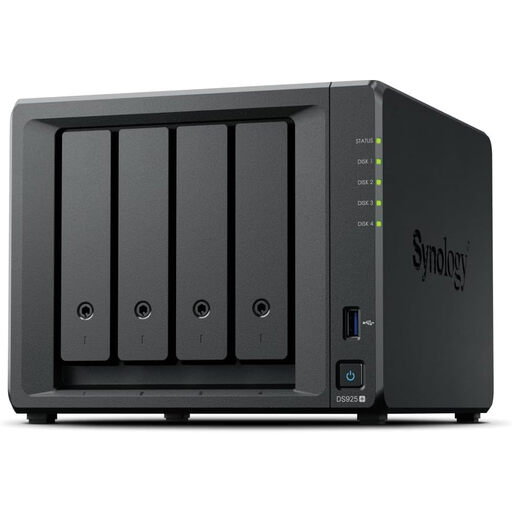
Synology DiskStation DS925+ 4-bay NAS
A network storage option to assess if several household computers need a shared backup destination. Confirm whether drives are included, the compatible drive configuration and usable capacity, and the backup and restore software required for each computer.
View on Joybuy
Backup questions answered
Is a synced cloud folder the same as a backup?
Not necessarily. Apple distinguishes iCloud Photos syncing from its daily iCloud device backup. If you need to recover an accidentally changed or deleted file, check the service’s version history or keep a separate backup copy rather than relying on the synced folder alone.
How much space should a Mac Time Machine drive have?
Apple advises a Time Machine storage device with at least twice the Mac’s storage capacity. That advice is specific to Time Machine; also check the drive’s format before using it and account for the files you intend to back up.
Can I put Windows files and Mac Time Machine backups on one drive?
Check the disk layout before attempting it. Apple says Time Machine cannot back up directly to a Windows-formatted disk, and reformatting a disk for Mac use permanently removes its existing data. Protect files already on the drive before making any format changes.
When does automatic iCloud Backup run on an iPhone or iPad?
Apple says automatic iCloud Backup requires the feature to be enabled and the device to be locked, connected to power and on Wi-Fi. Check the last successful backup in the device settings so you know whether a recent copy is available.


