An external drive is a straightforward local backup target for one main computer if you can disconnect and store it separately. Network-attached storage suits households that need shared access across devices, while cloud backup offers a separate, off-site route if the connection, account controls and continuing subscription work for you. Whichever route you choose, check how to restore files and whether another copy survives an incident affecting the first.
Who needs which kind of backup?
The starting point is where your files live, who needs access and where a recoverable copy can be kept.
Households using one main computer
If photos and documents live mainly on one PC or laptop, a removable drive can provide a separate local copy. Store it away from the computer between backups and consider another location for files you could not replace.
Families sharing a PC or files
Separate user accounts help keep personal files distinct on a shared computer, as the NI Cyber Security Centre advises. If several devices need access to family files, check who can view or change each shared folder.
Households relying on portable devices
A laptop or removable drive can be lost away from home. Plan for a copy you can reach from a separate location, and check how you would regain account access and restore the files.
What should you check before choosing?
Choose a backup destination around access and separation, then check the restore process before relying on it.
| Priority | What to check | Your needs |
|---|
| Local external copy |
Check capacity, your computer’s connector and operating-system compatibility. Confirm how backups are scheduled and how the drive will be disconnected and stored. |
Most of my files are on one computer, and I can keep a removable copy apart from it. |
| Shared network storage |
Check device compatibility, individual accounts and folder permissions. Plan a second destination: Synology advises backing up its BeeStation data to an external location. |
Several people or devices need access to shared files, without making every personal folder visible to everyone. |
| Off-site cloud copy |
Check upload and restore requirements, account protection, version retention and what happens when a subscription ends. The Information Commissioner’s Office advises checking a cloud service’s security and availability for the files being uploaded. |
I need a copy that remains reachable if the device or storage at home is lost. |
| Portable-file protection |
If a removable copy will travel, check encryption on the exact model, compatible devices and how access is recovered. Keep another copy elsewhere. |
I carry files between places and need to consider both access to those files and recovery if the drive goes missing. |
| Restoring older files |
Check which folders are included, whether earlier versions survive edits or deletion, and how long they remain available. Restore a test file before depending on the setup. |
If I delete or overwrite a document, I want to know whether I can retrieve the version I need. |
Backup mistakes to avoid
-
Treating a synced folder as the whole backup
Changes or deletions may also affect the files available through synchronisation. The National Cyber Security Centre describes a backup as a copy kept in a separate safe location.
Check what the service includes, how long it retains previous versions and how you would restore them.
-
Leaving the only backup drive attached
A drive kept beside its computer can be affected by the same theft or damage. The NI Cyber Security Centre advises keeping a secure backup separate from the computer.
Arrange regular backups, disconnect the drive afterwards and store it safely; keep another copy elsewhere for important files.
-
Assuming a NAS is already a separate backup
A network-attached storage device can centralise files while remaining in the same home. Synology recommends backing up its BeeStation data to an external location.
Plan another destination and test how files are restored from it, rather than relying on shared folders alone.
A second destination adds another device or service to maintain.
-
Overlooking cloud retention and account access
Backblaze documents a default 30-day version history for its computer-backup service and says account data is deleted if payment stops. Those conditions are specific to Backblaze, not all cloud services.
Check the chosen service’s retention and account-recovery terms, and whether its restore window covers the files you may need later.
A continuing subscription, or a different retention option, may be needed for the plan you choose.
Relevant brand and service references
These examples illustrate different backup routes; features and terms need checking for the exact product or service.
Seagate
Its One Touch range is an example of direct-attached external storage for a local copy.
- Seagate describes scheduled backups on selected One Touch models.
- Password protection and AES-256 hardware encryption apply to relevant security models; check the exact variant and its backup software.
Synology
Its network storage products illustrate central file access and sharing across devices.
- Synology describes local and, when configured, remote access with sharing permissions.
- Network storage remains one location unless you arrange another backup destination; Synology recommends an external copy for BeeStation data.
Backblaze
Its computer-backup service illustrates an off-site route for eligible computers and directly attached external drives.
- Backblaze documents file version history and options for longer retention.
- Its documented retention and disconnected-drive conditions vary by plan; check the current terms and restore method before relying on them.
Joybuy storage options
These removable-drive and network-storage options cover local copies and shared home storage. Choose how you will keep a separate recoverable copy as part of the wider backup plan.
 No image available
Western Digital My Passport 2TB portable external drive, black
A removable 2TB local-copy option. Check the backup software, restore process and exact operating-system requirements, particularly for macOS, before choosing it.
 No image available
Western Digital My Passport Ultra for Mac 5TB, silver
A 5TB removable-drive option aimed at Mac users. Check the intended computer’s compatibility and backup workflow; verify driver requirements if you also need to use it with Windows.
 No image available
Samsung MU-PE1T0S 1TB USB Type-C 3.2 Gen 2, black
A 1TB removable destination for a local file copy. Check compatibility with the devices you will use and arrange the backup schedule and restore method that your files require.
 No image available
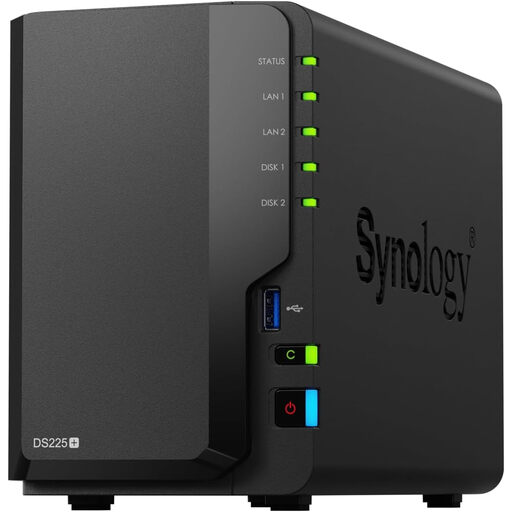
Synology DS225+ two-bay diskless NAS
A network-storage option for a household organising files across devices. Check compatible drives, user permissions and restore procedures, and plan a backup destination separate from the NAS.
 No image available
Western Digital Elements Portable 4TB USB 3.0, black
A 4TB removable target for local copies. Check compatibility and any formatting needed for your computer, then decide how backups will run and where the drive will be stored between them.
Home backup questions
Should I use an external drive, NAS or cloud backup?
Use an external drive for a removable local copy from one main computer, NAS when several devices need shared storage and controlled access, or a cloud-backup service when an off-site copy matters. The NI Cyber Security Centre lists all three as backup options and advises keeping a copy offline in a different location; check restore access and separation whichever route you use.
What should I set up on a shared household PC?
Start with separate user accounts, as the NI Cyber Security Centre advises for shared computers. Then decide which folders are private or shared and make sure the backup arrangement includes the files each person needs to recover.
How can I check that files will restore?
Run a backup, confirm that the intended folders are included and restore a small test file. If recovering an older version matters, test that too and check how long the chosen software or service retains it.
What should I check in a cloud-backup subscription?
Check its billing terms, version-retention period and what happens to files if the subscription ends. Backblaze documents a default 30-day version history and deletion of account data when payment stops; check the current terms of the particular service you choose rather than applying those rules to every provider.


