Who this is for

Households protecting irreplaceable collections

A separate copy with a practical restore path matters if photos and documents could be lost through computer failure, accidental deletion, malware, theft or local damage. The National Cyber Security Centre advises keeping important data in a separate safe location; an additional off-site copy adds protection against a home-wide incident.

Windows or Mac users seeking automatic backups

Built-in tools can reduce the effort of regular backups. Microsoft File History can back up libraries to an external drive or network location, while Apple Time Machine can automatically back up files to a dedicated backup disk.

Multi-computer households using shared storage

A NAS can provide a central local destination for several computers, but it needs ongoing management and another backup destination. Synology warns that RAID or a same-NAS copy does not remove the risk of data loss from drive failure.

What to check before buying

Start with the files and recovery outcome you need, then check where each copy will live, how it will be restored and whether the storage works with your computer.

Priority What to check Your needs
Recoverable separate copy Confirm the backup is stored separately from the computer; check how to browse files, select versions and restore them. I want a copy I can retrieve when the original computer or its files are unavailable.
Protection from local loss Keep one copy away from the home or offline between sessions; secure cloud accounts with a unique strong password and two-factor authentication. My important files should not be exposed only to the same theft, fire, flood or always-connected device as the working copy.
Capacity and compatibility Measure the folders to protect, allow for growth and retained versions, and check ports, cable, file system and operating-system support. I need enough usable space for the files and history I plan to keep, with a drive that fits my computer and backup software.
Privacy and access Use encryption or password protection for portable media where loss is plausible; store recovery credentials safely away from the drive. I want to reduce unauthorised access to personal files without locking myself out of the only usable backup.

Backup mistakes to avoid

  • Treating one permanently connected drive as complete protection

    A connected USB or network drive can be affected by the same ransomware incident as the computer, while a drive kept only at home can be lost in the same fire, flood or theft event.

    Keep a local backup for fast recovery and another copy off-site for irreplaceable files. Disconnect removable media when it is not actively backing up.

  • Choosing capacity from today's photo folder alone

    Collections grow, and versioned tools need room for older copies. When a backup disk fills, retained history may be reduced.

    List the folders you need to protect, decide whether file-only or whole-computer recovery matters, and include future growth and version history. Apple recommends a Time Machine disk with at least twice the Mac's storage capacity.

  • Assuming cloud synchronisation always reverses deletion or damage

    Changes in a synchronised cloud folder can be copied across devices, while recovery features may have time limits. Microsoft documents 30-day version history and 30-day deleted-file recovery for the cited OneDrive personal-account features.

    Check version history, recycle-bin retention and account-level restore rules before relying on a service, and keep an independent backup for files that cannot be replaced.

  • Encrypting the only backup without a recovery-password plan

    Encryption can protect a lost or stolen drive, but a forgotten password can also prevent the owner from opening the only copy.

    Use a strong unique password, keep it safely away from the backup device, and test that you can unlock and restore a file.

Relevant brand references

Western Digital

Relevant for portable external hard drives that combine local backup capacity with USB connectivity. The My Passport portable HDD range lists 1TB to 6TB variants.

  • Western Digital lists Acronis True Image for Western Digital software, password protection and hardware encryption for the My Passport line.
  • Compatibility is model-dependent: the cited My Passport data sheet lists USB 3.2 Gen 1/USB 3.0, Windows 10+ and ChromeOS; macOS read/write may require a driver or reformatting.

Samsung

Relevant for portable SSD backup media where compactness, regular transport and quicker large-file transfers matter more than maximising capacity.

  • Samsung states that the T7 Shield supports USB 3.2 Gen 2 transfer speeds up to 1,050 MB/s read and 1,000 MB/s write, plus IP65-rated dust and water resistance.
  • These figures apply to the named model and stated test basis; host port, cable and workload affect practical transfer performance.

Synology

Relevant for households considering NAS as a central local backup destination and willing to manage network storage, disks and a separate off-site copy.

  • Synology provides backup tools for local, external-device and cloud destinations, and describes a 3-2-1 protection approach.
  • Synology notes that a same-NAS multi-version copy does not remove possible loss from RAID crash or drive failure, so important data needs another destination.

Microsoft

Relevant to Windows households using File History for versioned copies, or OneDrive features alongside a separate backup plan.

  • Microsoft states that File History backs up libraries automatically to an external drive or network location.
  • OneDrive synchronisation, version history and deleted-file recovery have separate conditions. Microsoft documents 30-day version history and 30-day deleted-file recovery for the cited personal-account features.

Apple

Relevant to Mac households wanting built-in automatic backup software with directly connected external storage or another supported destination.

  • Apple states that Time Machine can automatically back up files, apps, music, photos, email and documents to external storage.
  • Apple recommends a backup disk with at least twice the Mac's storage capacity. Time Machine retains hourly, daily and weekly versions until the disk fills.

Joybuy product options

Joybuy options for local photo and document backups, including portable hard drives and portable SSDs. Keep an additional off-site copy for files that cannot be replaced.
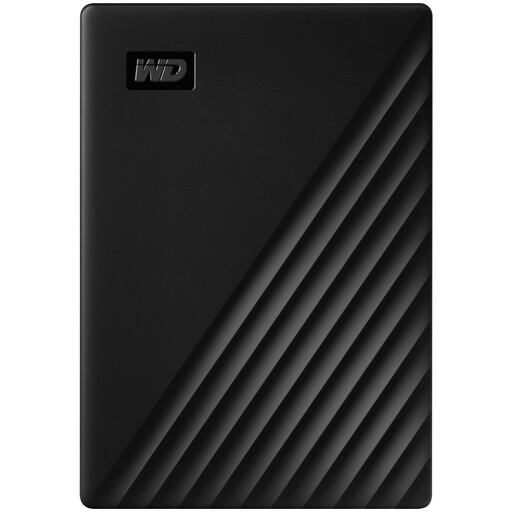
Western Digital My Passport 4TB portable hard drive in black

Western Digital My Passport 4TB Portable Hard Drive

A local option for scheduled home-computer backups where 4TB fits the file inventory and retention plan.

4TB; USB 3.2 Gen 1; USB-A cable; AES-256 hardware encryption and password protection. Check the macOS driver requirement before buying, and use a separate off-site copy for irreplaceable files.

Joybuy

Samsung T7 Shield 1TB portable SSD in blue

Samsung T7 Shield 1TB Portable SSD

A compact local copy for people who regularly move backups between places.

1TB; USB 3.2 Gen 2; stated up to 1,050 MB/s read and 1,000 MB/s write; USB-C-to-C and USB-C-to-A cables; IP65-rated protection. Check backup software and test a restore.

Joybuy

Samsung MU-PG4T0B 4TB portable SSD in black

Samsung MU-PG4T0B 4TB Portable SSD

A higher-capacity removable local copy for a large photo and document collection, subject to checking the data inventory.

4TB; USB-C with USB 3.2 Gen 2x2; stated up to 2,000 MB/s transfers; USB-C-to-C and USB-C-to-A cables; AES-256 hardware encryption. Maximum speed needs a compatible host.

Joybuy
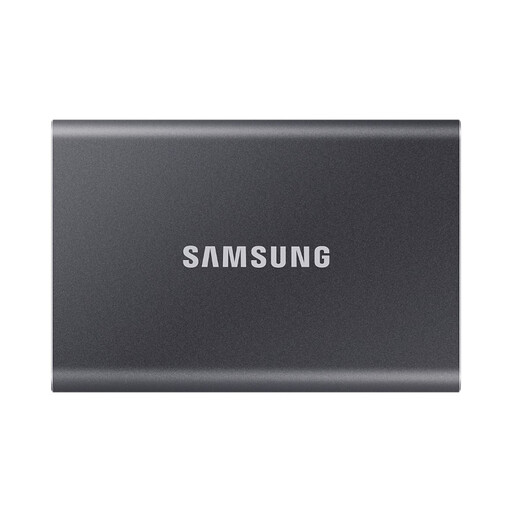
Samsung Portable SSD T7 1TB in grey

Samsung Portable SSD T7 1TB Grey

A portable encrypted copy for personal files that may need to connect to different devices.

1TB; USB 3.2 Gen 2; stated up to 1,050 MB/s read and 1,000 MB/s write; USB-C-to-C and USB-C-to-A cables; AES-256 hardware encryption. Check capacity and restore workflow.

Joybuy

Samsung MU-PG2T0B 2TB portable SSD in black

Samsung MU-PG2T0B 2TB Portable SSD

A removable local destination for a sizeable collection when 2TB suits the planned backup and version history.

2TB; USB-C with USB 3.2 Gen 2x2; stated up to 2,000 MB/s transfers; AES-256 hardware encryption and stated up-to-3-metre drop protection. Check computer connection and backup software.

Joybuy

Frequently asked questions

Is a synchronised cloud folder the same as a backup?

Not necessarily. The Information Commissioner's Office explains that changes to files in a cloud folder are commonly copied automatically, so check version history, deletion retention and the restore scope you need. Microsoft documents 30-day version history and 30-day deleted-file recovery for the cited OneDrive personal-account features.

How large should an external backup drive be?

Measure the folders you will protect, then allow for future growth and retained versions. For a full Mac Time Machine backup, Apple recommends a disk with at least twice the Mac's storage capacity; for file-only backups, calculate from the selected data rather than the computer's nominal storage alone.

Which connection should I check before buying a backup drive?

Check the ports on the computer and drive, the supplied cable, file-system compatibility and the backup software's supported destinations. A USB label alone does not confirm the practical setup: host port, cable and operating system can affect how the drive works.

Should a portable backup drive be encrypted?

Use encryption or password protection when a drive could be lost, stolen or accessed by others, and keep the recovery password separate from the device. The Information Commissioner's Office states that encryption of personal information held on USB or backup media helps protect against unauthorised access, but it does not replace a second copy.

How can I test that a backup will help after a failure?

After the first backup and periodically afterwards, check that recent folders are present and restore a small non-critical file to a different location. The National Cyber Security Centre advises checking that important and recent data is included before relying on a backup.