What matters when choosing?
Start with how you will keep and restore a separate copy. Then choose the storage format and security features that fit your household’s routine.
| Concern |
What to check |
Who this matters to |
| Recoverable copies |
Keep a copy separate from the original device; check how to restore it and whether one copy can be disconnected. |
If losing a computer would also put my records out of reach, I need a copy I can restore from another location. About 33% of consumers put that separation and recovery need first. |
| Confidentiality and access |
Check how encryption is enabled and how drive passwords or cloud-account access can be recovered. |
When I carry sensitive records or store them in an account, I want to limit unauthorised access without locking myself out. For about 27% of consumers, that access need comes first. |
| Backup routine |
Check scheduling, included folders and whether you can test a restore. |
If I update household files regularly, I need a copying routine I can keep up and a clear way back to an older file. Roughly 27% of consumers make that routine their primary concern. |
| Portable copying |
Check device and cable compatibility; assess any speed or physical-protection claim under its stated conditions. |
When I move large folders between devices, carrying a local copy and making those transfers matters most to me. Around 13% of consumers prioritise that need. |
Joybuy storage selections
These portable hard drives, SSDs and encrypted USB storage options can hold local copies of household records. Choose a capacity and connection that fit your files and devices, then plan a further separate backup rather than treating a removable device as the only copy.
 No image available
Western Digital My Passport 2TB portable hard drive, black
A local storage option for households copying documents and other files. Check the backup-software setup and restore procedure if you want scheduled copies, and keep another backup separately.
View on Joybuy
 No image available
Samsung T7 Shield 1 TB portable SSD, blue
A portable local copy for moving files between compatible devices. Its stated connection is USB 3.2 Gen 2; check your host and cable if Samsung’s quoted transfer speed matters. Set up any password protection before relying on it, and retain a separate copy.
View on Joybuy
 No image available
Western Digital My Passport Ultra for Mac 5TB, silver
A portable hard drive for a larger local file archive in a Mac-oriented setup. Check the operating-system and driver requirements for every device you intend to use, along with the backup and restore workflow.
View on Joybuy
 No image available
Samsung Portable SSD T7 2 TB, blue
A portable local destination when you need to move a larger set of household files. The title specifies USB Type-C and USB 3.2 Gen 2; confirm connection and file-format compatibility with your devices, and keep another copy elsewhere.
View on Joybuy
 No image available
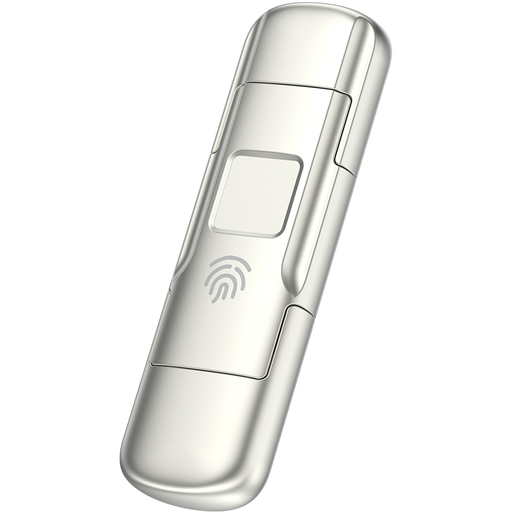
MOVESPEED YSUYC-256GSN 256GB fingerprint USB drive, silver
Removable storage for a selected set of records you need to carry, rather than a complete household backup. Its title specifies fingerprint encryption and USB-A and Type-C connections. Check how access can be recovered if fingerprint authentication fails, and keep another copy of important files.
View on Joybuy
Common questions
Is an encrypted drive enough for household records?
No. Encryption addresses access to stored files, not the need for another recoverable copy if a device fails, is lost or becomes inaccessible. Keep a separate backup and make sure you can restore it.
Should I leave an external backup drive connected?
A connected drive can make scheduled copying convenient, but it can also be reachable during an incident affecting the computer. The National Cyber Security Centre describes ransomware affecting connected USB and network-storage backups; keep at least one copy offline or digitally disconnected when it is not in use.
What should I secure before using cloud storage for backups?
Set up two-step verification for the cloud account and its recovery email, use unique credentials and review the provider’s account-recovery process. The National Cyber Security Centre notes that recovery procedures differ between providers; also check that you can restore the files you need.
How can a NAS avoid becoming my only backup?
Use the NAS as one storage destination and configure a further copy on a supported USB device, another system or a cloud destination. For Synology Hyper Backup, check the chosen version mode: Synology’s guidance says its single-version workflow overwrites older backup data, unlike a configured multiple-version backup.


