What should you check first?
Identify whether screen space, your image, call audio, connectivity or the room itself is causing the difficulty; then check the equipment against your laptop and workspace.
| Priority |
What to check |
Your needs |
| Screen workspace |
Check the exact laptop model’s external-display limit, video-capable ports and required cable or adapter. Microsoft Support and Apple Support both make display support dependent on the computer’s connections and capabilities. |
I need room to read documents while staying on a call, rather than constantly switching windows. |
| Camera image |
Check camera placement, framing and room lighting before choosing a resolution. PCMag UK describes 1080p as a starting point for a webcam; confirm any software needed for framing features. |
My laptop camera sits at an awkward angle, or changing light makes it harder for colleagues to see me. |
| Private call audio |
Check the headset’s microphone evidence, fit for the length of your calls and USB or wireless connection. Which? notes that call quality varies by individual headphone model, not simply by whether it is wired. |
I need to hear colleagues without playing their voices into a shared room. |
| Open-table calls |
Check whether everyone nearby may hear the call and whether the speakerphone’s connection suits your laptop. For conversations with overlapping speech, check whether the model specifies full-duplex audio. |
Several of us sometimes join a call around one table, where open audio is appropriate. |
| Desk connections |
For a dock or USB-C hub monitor, confirm video output, display count, required charging power and cable path. Anker advises checking the laptop’s USB-C or Thunderbolt capabilities rather than relying on port count. |
I reconnect a display and peripherals at the same desk and want fewer cables to handle each day. |
| Lighting |
Decide whether you need light on the desk or light on your face. For a monitor light bar, check clip fit, available power and clearance around a mounted webcam. |
My desk is dim, but I do not want to mistake a light aimed at the work surface for one that lights my face on camera. |
| Connection reliability |
Check broadband and Wi-Fi conditions before blaming a peripheral. Ofcom describes 30 to 300 Mbit/s broadband as suitable for most everyday home-working and video-call use, and advises a direct Ethernet connection when seeking better broadband speeds. |
Calls break up when others at home are online; I want to identify the connection problem before replacing call equipment. |
Joybuy product options
These options address open-table call audio, webcam placement and monitor-mounted task lighting. Choose the type that matches your room and the problem you are trying to solve.
 No image available
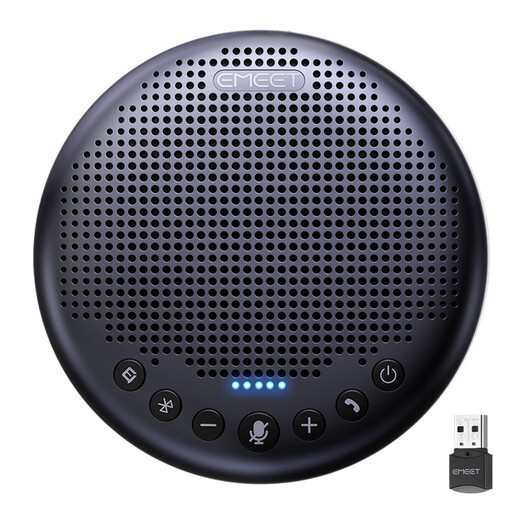
EMEET Lunaplus 8-Mic Bluetooth Conference Speaker
Consider this for an open-table call where several people need to participate. Its product name specifies eight microphones, 360° voice pickup and dual connection; these features do not establish how voices will sound in your room. Open audio is unsuitable when others must not hear the call.
View on Joybuy
 No image available
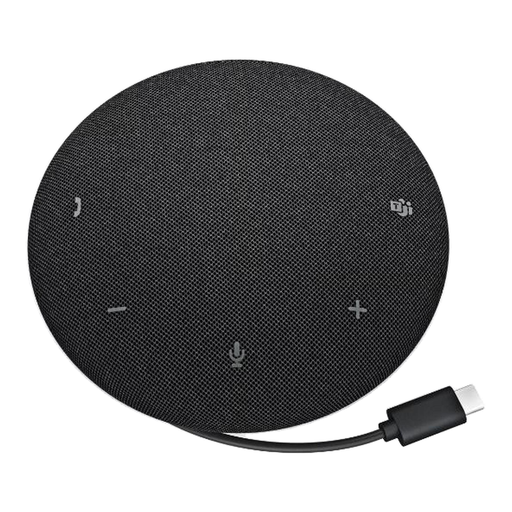
Dell Pro Wired Speakerphone SP325
This wired speakerphone is an option for calls at a desk or table when everyone nearby may hear the audio. Confirm that its connection suits your laptop; choose private listening instead if the room is shared.
View on Joybuy
 No image available
Targus 2K Webcam with Auto Focus
Consider a separate webcam if laptop-camera placement or framing is the problem. The listing calls this model 2K but also states Full HD 1080p at 30 fps in its detailed specifications; confirm the resolution for this exact SKU before choosing it on that basis. A webcam does not replace private call audio.
View on Joybuy
 No image available
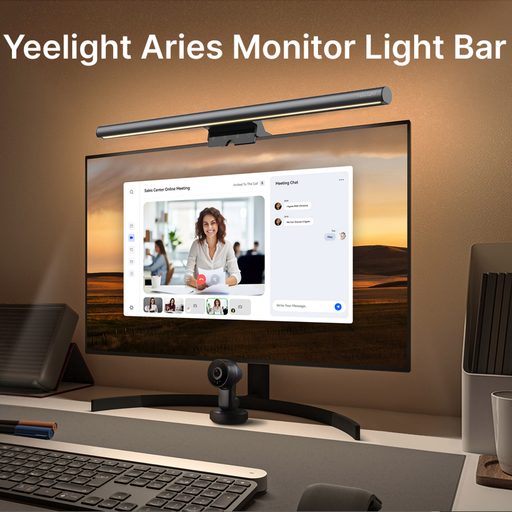
Yeelight Aries USB-C Monitor Light Bar
This monitor-mounted bar is for adjustable desk lighting, not a direct replacement for light aimed at your face during a call. Check that its clip fits your monitor, that there is room for your webcam and that suitable USB power is available.
View on Joybuy
 No image available
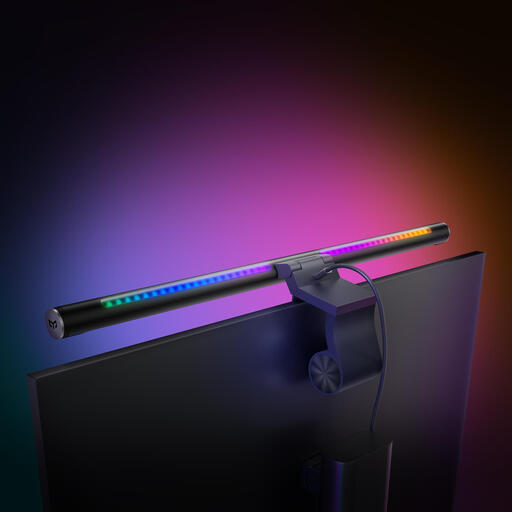
Yeelight Screen Light Bar Pro Libra 2
This monitor light is an option for a fixed desk where knob control and the Matter compatibility named in its product title matter to your setup. Confirm monitor-clip fit, webcam clearance and power requirements before purchase. Like other monitor light bars, it lights the desk rather than directly lighting your face.
View on Joybuy
Common questions
Will any USB-C dock or monitor work with my laptop?
No: the connector shape alone does not establish video output, display count or charging support. Check the exact laptop model, its port capabilities and the cable or adapter required. Microsoft Support and Apple Support both advise checking the computer’s external-display capabilities before connecting additional screens.
Should I improve the lighting before buying a webcam?
Check the lighting first if your image looks poor in a dim room; buy a webcam when the existing camera’s placement, framing or image remains the limitation. PCMag UK describes 1080p as a starting point for webcam resolution. A monitor light bar lights the work surface, so check whether you need light directed at your face instead.
Is a headset or speakerphone more suitable for a shared home?
Choose a headset when you need private listening or must avoid disturbing others. A speakerphone suits a table call only where open audio is acceptable; if several people speak at once, check whether the model offers full-duplex audio.
Do I need faster broadband to improve video calls?
Not necessarily. Ofcom describes 30 to 300 Mbit/s broadband as suitable for most everyday home-working, video-call and streaming use, though activity elsewhere in the household can affect your needs. Check the connection when problems occur and try Ethernet where practical before attributing interruptions to a webcam, headset or dock.
How can I connect desk equipment more safely?
Avoid overloading sockets or chaining extension leads. Electrical Safety First warns that overloaded sockets can overheat and advises against plugging one extension lead into another. Check an extension lead’s marked rating and stop using damaged plugs or cables.


