For selected personal files, a cloud folder backup may meet your needs; if you want to recover the operating system and applications too, choose a backup method that can create a full-machine image. For files that would be difficult to replace, combine a local copy you can disconnect with a copy stored elsewhere, then check what each service or device can actually restore.
Who needs which kind of backup?
Whole-PC recovery planners
If recovery must include the operating system and applications, look for full-machine image capability rather than relying on folder sync. Microsoft describes its folder backup separately from full-disk imaging, while Acronis describes image backups as copies of a drive or whole machine.
Large-library local backup users
An external drive gives a substantial photo, video or document collection a local backup destination without making each update depend on an internet connection. Plan where the drive will be kept and when it will be disconnected; the National Cyber Security Centre advises against leaving a backup device connected when it is not in use.
Off-site resilience seekers
If the computer and a drive kept beside it could be affected by the same incident, add a cloud copy or a physical copy stored elsewhere. The National Cyber Security Centre recommends keeping an off-site copy as part of a multi-copy backup arrangement.
What matters when choosing backup storage?
Decide what you need to restore before choosing where to store the backup: selected files and a whole computer call for different backup capabilities. Then decide how you will keep a copy separate from the computer.
| Concern |
What to check |
Who this matters to |
| Whole-computer recovery |
Confirm that the software can create and restore a full-machine image on your operating system; folder backup alone serves a different purpose. |
If my computer fails, I need to recover its operating system and applications, not just documents. Around 33% of consumers put whole-computer recovery first. |
| Protection from a local incident |
Choose where a separate copy will live, and whether a local drive can be disconnected between updates. |
I do not want a problem at home or on a connected computer to affect every copy of my files. For around 27% of consumers, keeping a backup separate is the primary need. |
| Substantial local storage |
Match drive capacity to the files you intend to protect, and check its connection and operating-system requirements. |
My photo and video collection needs a local destination that can hold the files I choose to back up. Around 20% of consumers prioritise that storage need. |
| Routine backups across devices |
Check the plan's device allowance, treatment of external drives, version retention and available restore methods. |
I need backups to keep running across the devices I use, with a practical way to retrieve the files later. That is the leading concern for around 20% of consumers. |
Backup mistakes to avoid
-
Assuming folder sync can rebuild a computer
Files available on another device are not necessarily a recoverable copy of the operating system and applications. Microsoft also says a Windows Recovery Drive does not include personal files.
Decide whether you need files, a full-machine image or both. Confirm image and restore capability for the computer you intend to protect, and keep a separate personal-file backup.
-
Leaving the only backup drive connected
A connected drive can be affected by an incident on the computer, while a drive kept at home shares some of the computer's physical risks. The National Cyber Security Centre advises disconnecting backup devices when they are not in use.
Disconnect the drive after backup, store it securely and keep another important copy in the cloud or at a separate location.
-
Overlooking version and reconnection rules
Backblaze says its default version history is 30 days. Under that default policy, an external drive must be reconnected at least every 30 days to keep its backed-up data.
Check how long earlier or deleted versions remain recoverable, particularly if an external drive spends long periods disconnected.
-
Choosing a private key without a recovery record
IDrive says it does not store a user's private encryption key. Losing that key can prevent restoration of backups protected with it.
If you select a private-key option, keep a secure recovery record separate from the backed-up computer.
Relevant brands for reference
Seagate
A local-drive option for storing computer backups.
- Seagate lists Backup Plus Portable models with capacities up to 5TB and describes scheduled backups through its software.
- Check the exact model's software and operating-system requirements; Seagate notes that Time Machine use may require reformatting.
Western Digital
Portable drives that can serve as local backup destinations.
- A Joybuy My Passport listing describes utilities for scheduled local file backups.
- That listing does not establish the same software or backup capabilities for every Western Digital drive; check the model you choose.
Backblaze
Cloud backup for computer data and connected external drives.
- Backblaze describes Personal Backup coverage for user-generated computer data and connected external drives.
- Coverage is per computer. Its default version history is 30 days, with reconnection rules for external drives.
IDrive
Cloud backup for people who want to manage backups from several devices in one account.
- IDrive says one account can schedule backups from multiple PCs, Macs and mobile devices.
- If you choose its private encryption key, you must retain the key to restore the protected data; IDrive says it does not store it.
Acronis
Backup software to consider when full-machine recovery matters.
- Acronis describes True Image as supporting full-machine images as well as selected-file backups.
- Confirm that the available plan and its recovery features meet the needs of your computer before choosing it.
External drives for local backups
These drives provide local destinations for copies of home-computer files. Choose a backup method that creates the kind of copy you need, and add a separately stored copy if a drive kept with the computer would leave both exposed to the same incident.
 No image available
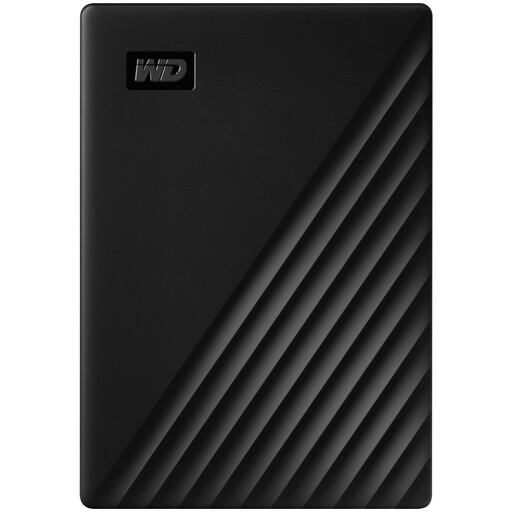
Western Digital My Passport 4TB Portable Hard Drive, Black
Consider this 4TB local drive for a substantial collection of personal files. If you need to recover the whole computer, confirm that your chosen backup software can create and restore a full-machine image; keep another copy away from the computer.
View on Joybuy
 No image available
Western Digital My Passport Ultra 5TB Portable Hard Drive, Blue
The 5TB capacity makes this a local destination to consider when your selected files need more space. Check the connection and file-system setup for your computer, and verify full-image recovery separately if restoring the operating system matters.
View on Joybuy
 No image available
Samsung MU-PE1T0S 1TB USB Type-C 3.2 Gen 2, Black
Consider this 1TB external SSD when you want a removable local copy for files that fit that capacity. Confirm how you will schedule and restore backups rather than relying on file transfers alone, and retain a separate copy elsewhere.
View on Joybuy
 No image available
Western Digital Elements Portable 4TB USB 3.0, Black
This 4TB drive can serve as a local destination for personal-file copies. Check the formatting needed for your operating system and choose backup software separately if you want scheduled copies or full-machine recovery.
View on Joybuy
Frequently asked questions
Is cloud folder backup enough to recover a whole computer?
Not if you need to recreate its full drive, operating system and applications. Microsoft describes OneDrive folder backup as protecting selected folders, while Acronis describes a full image as a copy of a drive or whole machine; check for image creation and restoration when that is your goal.
Should an external backup drive stay connected?
Disconnect it when it is not updating or restoring a backup. The National Cyber Security Centre advises against leaving backup devices connected because an incident affecting the computer can also affect connected storage; keep another important copy separately.
What should I check before choosing a cloud backup service?
Check what data it backs up, how many devices it covers, how long earlier versions remain available and how you would restore a large backup. The terms differ: Backblaze describes coverage per computer and a default 30-day version history, while IDrive describes backups from multiple devices under one account.
Can I restore a large cloud backup using a shipped drive?
Some providers offer a physical-media restore option, but check its availability and delivery conditions before relying on it. IDrive describes a shipped-drive restore service, while Backblaze says its international USB restores are sent from the US.


