Laptop-first hybrid workers
If you move between home and office, a repeatable connection matters. Check that your laptop can provide the display, charging and accessory functions you expect before choosing a hub or dock.


Start with the limitation that affects your work most, but check your laptop’s display, port and charging capabilities before buying anything that connects to it. Add a monitor if screen space is the problem, or keyboard, mouse and call equipment where those address your daily work. A compact hub can suit a desk you pack away; a larger dock is worth considering when you repeatedly connect several devices, provided your laptop and workplace IT policy support the functions you need.
If you move between home and office, a repeatable connection matters. Check that your laptop can provide the display, charging and accessory functions you expect before choosing a hub or dock.
If documents, applications and calls compete for screen space, decide whether one external monitor solves the problem before adding a dock and more peripherals. Apple Support notes that external-display support depends on the particular Mac model.
If camera position, voice pickup or nearby noise makes calls difficult, consider call equipment that addresses that specific need and is practical to put away afterwards.
Identify your main workday bottleneck, then check the connections your laptop can actually provide. Treat the percentages below as approximate shares of consumers grouped by their primary concern, not as a reason to buy equipment you do not need.
| Concern | What to check | Who this matters to |
|---|---|---|
| Laptop and workplace compatibility | Check the exact laptop model, video-capable ports and charging requirements. For a managed device, confirm permitted drivers and dock functions with IT. | If I use a work laptop, I need to know that a new dock or display will provide the functions I rely on, rather than merely fit the port. Around 33% of consumers put that compatibility question first. |
| Screen workspace | Match the laptop’s supported display count and video output to the monitor input and cable; check the intended resolution and refresh rate. | When documents and applications crowd my laptop screen, an external display is my immediate priority. Around 27% of consumers primarily want more screen workspace. |
| Video calls | Consider camera placement and headset connection type, then confirm any meeting-platform or work-device requirements. | If calls are frequent in a shared room, I care most about practical camera and audio arrangements. For around 20% of consumers, call equipment is the primary concern. |
| Pack-away use | Count the devices you connect each day and consider the cables, power equipment and storage space the setup requires. | If the desk returns to household use after work, I need equipment I can disconnect and store without a complicated routine. Pack-away flexibility comes first for around 20% of consumers. |
A USB-C connector does not by itself establish video output, USB4 or Thunderbolt support, or adequate charging. Microsoft Support notes that the PC, dock and cable can all affect USB4 functionality.
Check your laptop’s host-port specifications against the dock’s requirements for each function you intend to use.
An incompatible cable or connection may mean changing the cable, adapter or dock to use the intended function.
According to Apple Support, the number of external displays a Mac can run depends on its model and the displays’ resolution and refresh rate. Additional dock sockets do not automatically raise that limit.
Confirm your exact laptop’s supported display arrangement before choosing a dock for two or more monitors.
DisplayLink Support describes centrally deployed drivers and workplace policies that can restrict individual dock functions, including Ethernet.
Ask your IT team whether the proposed dock, its drivers and the connections you need are permitted on your work device.
A monitor, large dock and several wired accessories can take time and space to disconnect when the work surface has another use.
Choose around your main need: a direct monitor connection for screen space, a compact hub for a few connections, or a larger dock if you repeatedly connect several devices.
Dell’s UK range includes compact travel hubs, larger docks and USB-C hub monitors for different connection needs.
Logitech offers keyboards, mice, webcams and call equipment for building a desk setup one accessory at a time.
Jabra’s headset, camera and speakerphone ranges are relevant when calls are the main reason for adding equipment.
Anker’s UK range covers compact USB-C hubs as well as docks with different connection approaches.
These options cover external screens, a USB-C connection adapter, a webcam and a keyboard-and-mouse set. Choose the item that addresses your main need, and check its connection requirements against your laptop before ordering.
 No image available
Consider this portable screen if you need extra display space at desks you use in different locations.
The product name specifies a 15.6-inch Full HD IPS display, USB Type-C connection and anti-glare surface. Check that your laptop’s USB-C port supports the video connection it requires.
 No image available
Consider a larger screen if you regularly work with several documents or applications at the same desk.
The product name specifies a 31.5-inch 2K IPS monitor with built-in speakers. Check available desk space and whether your laptop can provide a suitable display connection.
 No image available
Consider this adapter when your recurring desk setup needs several connection types from one laptop port.
The product name lists 4K HDMI, VGA, Gigabit Ethernet, 100 W power delivery and USB 3.0 connections. Confirm your laptop’s video and charging support, the number of USB ports, and whether HDMI and VGA can be used simultaneously if you need both.
 No image available
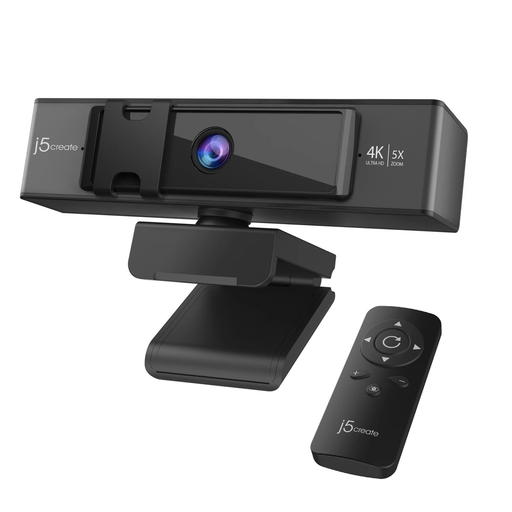
Consider a separate webcam if camera placement is a recurring problem on work calls.
The product name specifies 4K video and remote-controlled 5x digital zoom. Check its connection and your workplace’s camera and meeting-platform requirements.
 No image available
Consider a separate keyboard and mouse if typing and pointer work are regular parts of your home-desk routine.
The product name identifies a dual-mode set. Confirm the keyboard layout and which connection methods your work laptop permits before choosing it.
No: the connector shape alone does not establish video, USB4, Thunderbolt or charging capability. Check the laptop’s exact port specifications alongside the dock, cable and number of displays you intend to use; Microsoft Support notes that unsupported hardware or cables can limit USB4 functions.
Not automatically. Apple Support says simultaneous external-display support depends on the Mac model and the resolution and refresh rate of each display, so confirm your model’s limit before buying a multi-display hub.
Yes, if your laptop is managed or the dock needs drivers or particular network functions. DisplayLink Support describes corporate driver deployment and policies that can restrict individual dock functions, so ask which connections are approved for your device.
Identify the laptop’s video-capable output and the monitor’s input, then check the display mode you want to use. Apple Support advises checking available ports, supported displays and the required cable or adapter rather than choosing by connector appearance alone.