Choose a screen size and resolution that make your usual documents comfortable to view, then check that the stand and footprint suit your desk. A conventional video connection may be enough; for USB-C charging or a monitor hub, check the laptop, monitor and cable specifications together, as Dell Support advises. If you want a second screen, confirm your computer’s external-display limit before choosing the setup.
Who a home-desk monitor may suit
Document-heavy desk users
If you want room to read, write or compare windows without replacing your computer, compare resolution and text scaling as well as screen size. Dell’s P2725D specifications and Microsoft’s Windows scaling guidance are useful reference points.
Laptop users seeking one desk connection
If you regularly connect and disconnect a laptop, you may want a compatible USB-C setup for video, charging and possibly peripherals. Dell Support’s USB-C guidance and BenQ’s GW2790QT specifications illustrate why the laptop’s port and the monitor’s power delivery need checking.
Small-desk or long-session users
If the display needs to fit a compact desk or be positioned for extended use, consider the stand and footprint as well as the panel size. The Health and Safety Executive gives screen-positioning guidance, while the exact adjustment available depends on the monitor model.
What to check before buying
Start with the workspace you need, then check the computer connection and whether the screen can be positioned comfortably at your desk.
For consumers choosing an external display for desk-based work, study or document viewing, the table links each main priority to a practical check.
| Concern |
What to check when buying |
Who this matters to |
| Usable space and readable text |
Compare screen size, native resolution and text scaling at your usual viewing distance. Dell lists 2560 × 1440 for its 27-inch P2725D; Microsoft explains Windows scaling controls. |
If I work with documents or spreadsheets, I want useful workspace without text becoming uncomfortable to read. Roughly 31% of consumers put readable workspace first. |
| Laptop connection and charging |
Check that the computer supports video through the port, and compare the monitor’s power delivery and cable with the laptop’s charging needs. Dell Support advises checking port features; BenQ lists 65 W power delivery for the GW2790QT. |
If I connect my laptop at a desk, I want the planned cable to provide the functions I need. Roughly 25% of consumers prioritise connection and charging. |
| Desk fit and positioning |
Measure the desk and stand footprint, then check the model’s adjustment or mounting options. The Health and Safety Executive suggests positioning the screen about an arm’s length away; Dell specifies 150 mm of height adjustment for the P2725D. |
If my desk is compact or I use the screen for long sessions, I need space to position it comfortably. Roughly 25% of consumers prioritise desk fit and positioning. |
| Multiple-screen layout |
Check the exact computer’s external-display support and available outputs before planning the arrangement. Apple’s published specifications show that limits vary by model; Windows includes controls for arranging detected displays. |
If I need separate documents or applications visible at once, I want to know the computer can support my planned layout. Roughly 19% of consumers prioritise a multiple-screen workflow. |
Monitor-buying pitfalls
-
Assuming every USB-C port carries video and enough charging power
USB-C video support and power delivery are separate, model-specific capabilities, so the connector shape alone does not establish that a one-cable setup will work as intended.
Check the laptop’s port specification and charging requirement against the monitor’s input and power-delivery rating, and make sure the cable supports the planned connection.
A separate video adapter, cable or charger may still be needed.
-
Choosing screen size without planning its position
A screen that does not fit the desk or cannot be placed at a workable distance and height may not suit the setup, even if its display specifications meet your needs.
Measure the desk and stand footprint, then check the exact model’s adjustment or mounting details before choosing where it will sit.
If the supplied stand cannot be positioned suitably, you may need a compatible mount or another positioning arrangement.
-
Assuming an extra output guarantees the intended second-screen setup
Support for multiple external displays varies by computer model, so an available port does not by itself confirm that the planned arrangement is supported.
Check the exact computer’s specified external-display limit before planning the layout.
An adapter or another display will not resolve a mismatch with the computer’s display limit.
Relevant monitor brands by model
Dell
Dell’s P2725D represents an adjustable QHD desk display, while the P2725QE is a separate 4K USB-C hub option.
- Dell specifies a 27-inch, 2560 × 1440 panel and 150 mm of height adjustment for the P2725D. For the P2725QE, Dell lists a 27-inch, 3840 × 2160 panel, hub functions and 90 W power delivery.
- These specifications apply to different models. Check the exact inputs and charging requirements for your computer before choosing between them.
BenQ
The GW2790QT is a 27-inch QHD USB-C option for a laptop-centred desk.
- BenQ lists 65 W USB-C charging and an ergonomic design for this model.
- Check your laptop’s video support and charging needs; the listed power delivery does not establish that every laptop will work through one cable.
LG
The 27UP850K-W is a 27-inch 4K USB-C display with an adjustable stand.
- LG lists height, pivot and tilt adjustment for this model.
- Check the exact USB-C connection and charging specification against your computer rather than assuming that USB-C alone confirms compatibility.
Philips
The 24E1N1300A/00 illustrates a smaller Full HD USB-C desk-monitor option.
- Philips describes USB-C power delivery for a connected device on this model.
- The one-cable setup depends on device compatibility; check the monitor’s specification and your computer’s supported functions.
ASUS
The ProArt PA278CV combines a QHD display with USB-C and peripheral connections.
- ASUS specifies DisplayPort Alt Mode on its USB-C input, 65 W power delivery, four USB-A hub ports and 150 mm of height adjustment for the PA278CV.
- These are specifications for this model; check that its inputs, charging and hub connections match your own setup.
Joybuy monitors for desk use
These Joybuy listings include external desk displays and portable second screens. Check each model’s dimensions and connections against your desk and computer before choosing.
 No image available
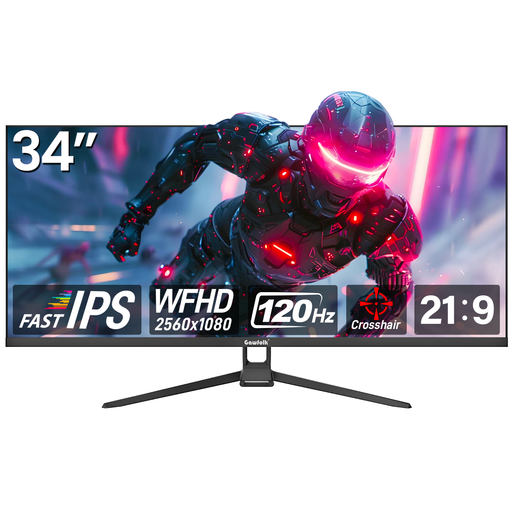
Gawfolk 34-inch Flat Monitor, 2560 × 1080, 120 Hz
The listing describes it for office work as well as gaming, with screen space for managing windows side by side.
34-inch display; 2560 × 1080 resolution; 120 Hz. Check that the screen size and desk space suit your setup.
View on Joybuy
 No image available
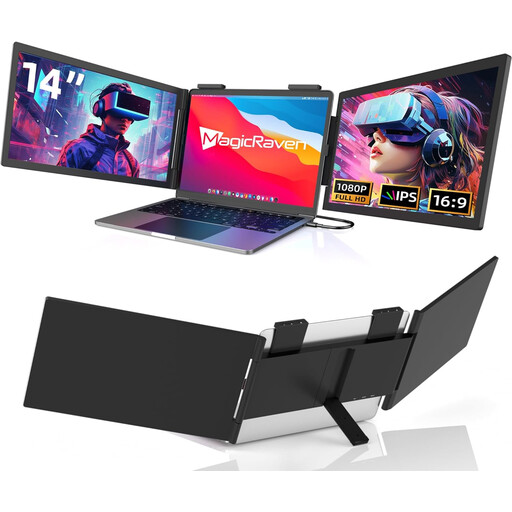
14-inch Dual-Screen Portable Monitor for Laptops, FHD 1080p, 60 Hz
This laptop extender is described for adding screen space to compatible 14–16-inch laptops.
14-inch display; FHD 1080p; 60 Hz; USB-C connectivity. Check your laptop’s size and connection compatibility before buying.
View on Joybuy
 No image available
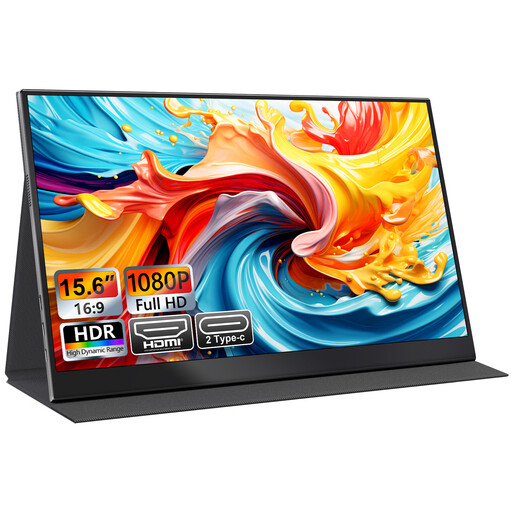
UFYQL M156F04 Portable Monitor, 15.6-inch FHD IPS
This listing describes a separate external screen for laptops and mini PCs, with placement options for desk use.
15.6-inch FHD 1080p IPS display; USB-C and HDMI; smart-cover stand and VESA mounting listed.
View on Joybuy
 No image available
CRUA 49-inch Curved Ultrawide Monitor, 5120 × 1440, 165 Hz
The listing describes this large display for office multitasking as well as gaming; consider whether its size suits your desk.
49-inch, 32:9 curved display; 5120 × 1440; 165 Hz; height-adjustable stand. The product safety information says the desk must be deep enough and structurally rated to support the monitor and stand.
View on Joybuy
 No image available
MAG 274QP QD-OLED X24 27-inch Monitor, 2560 × 1440, 240 Hz
This is a 27-inch external display with a position-adjustable stand, as described in the product listing.
QD-OLED; 2560 × 1440 resolution; 240 Hz; stand adjustments listed for height, tilt, swivel and pivot.
View on Joybuy
Frequently asked questions
Will any USB-C laptop charge and show video through a USB-C monitor?
No; the connector shape alone does not confirm video or suitable charging support. Check the laptop’s documented USB-C video function, its charging requirement, the monitor’s rated power delivery and the cable. Apple’s published laptop specifications illustrate why these capabilities need checking by model.
How should I set up the screen for long desk sessions?
The Health and Safety Executive suggests positioning the top of the screen around eye level and the display about an arm’s length away. Its guidance for prolonged laptop use also describes using a separate keyboard and mouse with an elevated laptop screen, or a separate display; it does not require every private buyer to purchase a particular stand.
How do I arrange a new second screen in Windows?
Connect the screen, then use Settings > System > Display to identify and arrange detected displays. Windows also provides scaling controls if text and apps are uncomfortable at the chosen resolution, but the computer still needs to support the intended display setup.
Does working from home legally require me to buy an external monitor?
The Health and Safety Executive does not establish a blanket requirement for every private buyer to purchase an external monitor. Its guidance says the Display Screen Equipment Regulations can apply to people who work at home permanently or for the long term, and describes employers’ assessment duties for qualifying display-screen users.


