Regular home-desk returners
You leave a screen and accessories at home and want to reconnect your laptop without rebuilding the workstation. Check whether a dock or hub monitor fits your connections and the laptop’s video and charging capabilities.


For a fixed home desk, choose a dedicated monitor when screen space is the main gap, or a dock when you already have peripherals to reconnect; a hub monitor can combine those roles. A portable screen or separate keyboard and mouse may suit a desk that needs to pack away or input devices that need independent placement. Check your exact laptop’s video output, charging support, display limits and software requirements before expecting a one-cable setup.
You leave a screen and accessories at home and want to reconnect your laptop without rebuilding the workstation. Check whether a dock or hub monitor fits your connections and the laptop’s video and charging capabilities.
You want a display arrangement for working across documents and spreadsheets, with input devices placed separately if useful. Check the laptop’s supported display configuration before buying for a multi-screen setup.
You need an additional screen that can move or be stored between work sessions. Check that your laptop supports the chosen video connection and that the screen’s power arrangement suits how you plan to use it.
For a home setup used alongside workplace days, decide which part of the workspace needs solving, then confirm that your laptop supports the connections and configuration you plan to use.
| Concern | What to check when buying | Who this matters to |
|---|---|---|
| Reconnect the workstation | List the monitor, network and USB connections that need to stay at the desk. Check the laptop-facing port, cable and charging power delivered to the laptop. | I want to leave my screen and accessories connected at home so I can reconnect without rebuilding the setup; around 28% of consumers put that reconnection need first. |
| Laptop compatibility | Check the exact laptop model’s video-capable ports, charging support and display limits. Confirm any required software and permissions, especially on a managed laptop. | I need the intended video, charging and software arrangement to work with my specific laptop; around 22% of consumers prioritise compatibility. |
| Display arrangement | Decide how many independent screens you need, then check the laptop’s supported resolution and refresh rate for that complete configuration. | When I work across documents or spreadsheets, I want a display arrangement my laptop can actually run; around 22% of consumers put the screen setup first. |
| Pack-away screen | Check the screen’s dimensions and support arrangement, then choose a video path your laptop supports. Treat stated battery runtime as manufacturer information, not a guarantee of all-day use. | I need an extra screen I can move or store between sessions; around 11% of consumers prioritise portability. |
| Input placement | Check the keyboard layout and device-switching features. Review customisation software support separately from basic keyboard and mouse functions. | I want to position my keyboard and mouse separately or switch them between computers; around 17% of consumers make input placement or switching their main concern. |
A USB-C connector can fit even when the port does not support the video signal your display needs.
Check the exact laptop’s port specifications and the screen or dock’s required signal path before buying.
A dock’s power-supply rating can differ from the power it passes through to a laptop. Microsoft’s Surface USB4 Dock documentation specifies a 100W power supply and 65W laptop passthrough.
Compare the laptop-delivered figure with your computer’s charging requirements when deciding whether one cable is sufficient.
Apple says a hub does not increase the MacBook Air’s native maximum number of displays.
Check the exact laptop model and the full intended display arrangement before adding another screen.
DisplayLink Manager requires Screen Recording permission on macOS, which may matter on an employer-managed laptop.
Confirm that the required software and permissions are allowed before choosing this connection route.
Dell’s U2724DE is a 27-inch Thunderbolt 4 hub monitor for a fixed desk where a display and integrated connectivity are both relevant.
CalDigit’s TS4 is a stationary Thunderbolt dock for a desk where several connections need to remain attached.
The ASUS ZenScreen Touch MB16AMTR is a portable Full HD 1920 × 1080 display with a kickstand, USB-C hybrid-signal connection and mini-HDMI.
The Logitech MK850 is a keyboard-and-mouse combination for buyers who want separate input devices or switching between computers.
The Surface USB4 Dock is relevant to a compatible host that needs USB, HDMI and Ethernet connections at a fixed desk.
These options cover portable and fixed-desk displays, plus USB-C hubs and docks for laptop-based workspaces. Check each product’s stated details against your laptop and intended setup.
 No image available
Its portable-screen format suits a setup where you need an additional display that can be moved or packed away.
14-inch touchscreen; 60Hz; VESA compatible; adjustable stand. The title describes an 180° adjustable stand. One-cable video and power require a connected device with video output.
 No image available
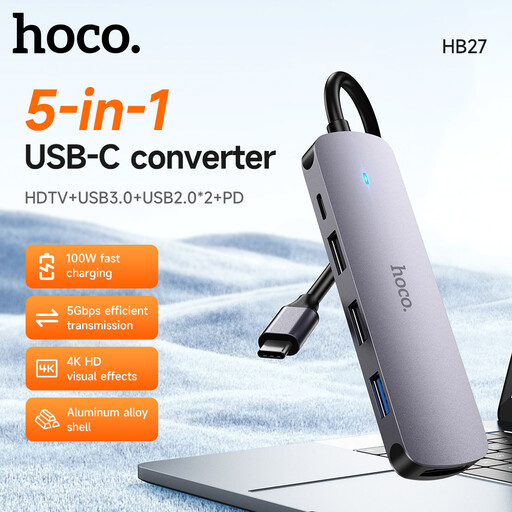
A hub may suit a laptop-based desk when you need a connection point for accessories; check its ports against the devices you plan to attach.
 No image available
This fixed-desk monitor may suit a setup where you want a larger display and to connect a laptop through the monitor.
The product description specifies a 31.5-inch 4K display, IPS panel and adjustable stand. It lists USB-C video, data and 90W power delivery over one cable, plus HDMI. Confirm that your laptop supports the intended connection and charging arrangement.
 No image available
This portable display may suit a workspace where you need an additional screen that can be moved or positioned separately.
16-inch display; 2560 × 1600 resolution; 144Hz; USB-C and Mini HDMI; VESA compatible. Check the laptop’s video output and support for the display configuration you intend to use.
 No image available
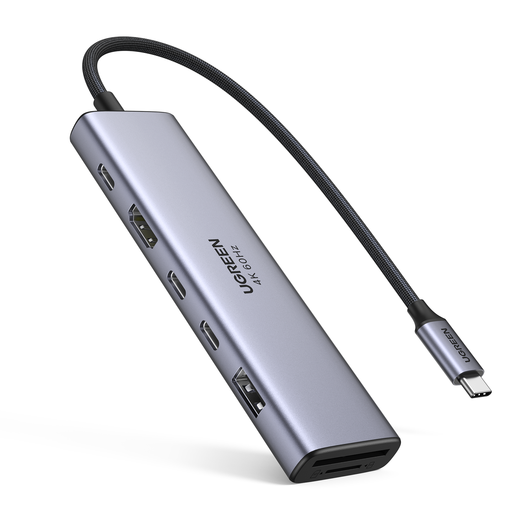
A compact connection point may suit a laptop desk where the listed ports match the accessories you want to leave connected.
The product name lists HDMI, two USB-C 3.2 ports, one USB-A 3.2 port, SD/TF and PD. Check the laptop’s USB-C capabilities and the dock’s specifications for your intended display and charging setup.
No. Acer’s official guidance says that not all USB-C ports carry a video signal. Check the exact laptop’s documented video-output capability before choosing a native USB-C display connection.
No. Apple says a hub does not increase a MacBook Air’s native maximum display count. Apple’s guidance for M3 MacBook Air and M3 MacBook Pro specifies two external displays with the lid closed; check the instructions for your exact model rather than applying that condition to every Mac.
Not necessarily. Microsoft’s Surface USB4 Dock documentation specifies a 100W supply and 65W laptop passthrough. Compare the host-delivered figure with your laptop’s supported charging requirement.
Only if the required software and permissions are allowed. DisplayLink’s official setup instructions require Screen Recording permission on macOS, so check with your employer before choosing that connection route.
For a UK consumer distance purchase covered by the cancellation rules, GOV.UK says you can notify the seller within 14 days of receiving the item that you want to cancel, then have another 14 days to return it. Faulty-goods remedies are separate from change-of-mind cancellation; check the applicable terms and test the intended laptop setup promptly.