Replace the computer if slow or unreliable operation prevents you from completing your normal work; add a monitor if the computer works adequately but you need more screen space or a better position at your desk. A desktop-oriented computer suits a fixed workstation when portability is unnecessary, while a dock makes sense only after you confirm that the exact computer, dock, cable and displays support the connections you intend to use.
Who is this setup for?
Desk-based multi-window workers
If your laptop handles the work but documents, spreadsheets, browser windows and calls compete for space, a monitor may address the desk arrangement without replacing the computer. The Health and Safety Executive advises considering the home display-screen workstation as a whole.
Home workers with a computer bottleneck
If slowdowns or unreliable operation interrupt your usual applications and calls, identify what the computer cannot do before buying desk accessories. A larger screen will not resolve a problem in the computer itself.
Hybrid laptop users returning to one desk
If the computer travels with you but reconnects to displays and accessories at home, a dock may simplify that routine. Microsoft Support and Lenovo Support document why display support depends on the particular computer and connection configuration.
What should you check before buying?
Decide whether the limiting factor is the computer, the available screen space, the need to travel or the connections at your desk. That distinction determines which specifications are worth checking.
| Concern |
What to check |
Who this matters to |
| Computer performance and reliability |
Note recurring problems during your normal mix of applications, downloads and video calls; compare a replacement’s configuration with that workload. |
If ordinary work slows down or the computer operates unreliably, more screen space will not solve my main problem. About 27% of consumers put resolving the computer bottleneck first. |
| Screen space and desk arrangement |
Check the available desk area, the monitor connection and the exact model’s stand adjustment or mounting options. |
When my computer works adequately but I need documents and calls visible together, I want room to arrange them at my desk. For about 33% of consumers, that workspace need comes first. |
| Portability |
Decide whether the computer must regularly leave the home desk; if it must also connect to a monitor, check its video outputs. |
I take my work computer between locations, so a permanently fixed machine would not fit how I use it. Keeping the computer portable is the primary need for about 20% of consumers. |
| Monitor and dock compatibility |
Match the exact computer, ports, dock and cables to the required number of independent displays and their intended resolution. |
At my regular desk, the displays and accessories need to connect in the arrangement I have planned. About 20% of consumers prioritise making those connections work. |
Purchasing mistakes to avoid
-
Assuming every USB-C port supports the same dock features
A USB-C connector alone does not establish video or charging capability. VESA describes DisplayPort over USB-C as a specific alternate mode, and Microsoft Support notes that connected hardware and software can affect functionality.
Check the laptop’s exact port capabilities, the dock specification and the required cable against the display arrangement you want.
An incompatible cable, adapter or dock may need replacing.
-
Expecting a splitter to create two extended desktops
Microsoft Support explains that a display splitter duplicates one signal rather than creating two independent displays.
Check how many independent monitors the computer supports, then choose a documented video-output or dock arrangement if you need separate desktops.
-
Replacing the laptop when the desk is the constraint
A new computer can leave limited screen space or an awkward screen position unchanged. The Health and Safety Executive treats regular display-screen work as a workstation arrangement, not just a choice of computer.
If the current laptop handles your workload, assess the desk space, monitor connection and screen position before deciding to replace it.
-
Assuming a monitor’s stand is adjustable in every direction
Stand movements vary by model. Dell lists height, tilt, swivel and pivot adjustment for its S2725HS, but that specification does not apply to every monitor.
Check the exact model’s stand, desk footprint and mounting options if screen position matters to your setup.
If the supplied stand cannot provide the position you need, a separate arm or stand may be necessary.
Brands to consider
These brands offer relevant monitor or docking ranges; features and compatibility still depend on the exact models being considered.
Dell
Relevant when comparing adjustable monitors and USB-C or Thunderbolt docks for a fixed desk.
- Dell lists height, tilt, swivel and pivot adjustment for the S2725HS monitor and describes multi-display video and data connections in its docking range.
- Check the chosen monitor’s stand and the exact dock-to-computer compatibility; these features are model-specific.
Lenovo
Relevant for laptop users comparing dock and display configurations, particularly with a known ThinkPad model.
- Lenovo offers docks with differing display-output arrangements and publishes ThinkPad display configurations by system and dock.
- A dock’s listed outputs do not establish what every laptop can drive; check the specific computer-and-dock pairing.
HP
Relevant when comparing office monitors with conventional inputs or USB-C docking features.
- HP describes office-monitor lines with options including USB-C connections, accessory ports and selected adjustable stands.
- Confirm the particular monitor’s inputs, charging capability and stand movements rather than applying range-wide descriptions to one model.
Joybuy products for different setups
These selections cover adding a monitor, replacing a portable computer, building a desk around a mini desktop and connecting a laptop through a dock. Choose the type of product only after identifying which part of your current setup needs to change.
 Image unavailable
BenQ MA320UP 32-inch 4K USB-C Mac monitor
Consider this if an otherwise adequate Mac-focused desk setup needs a larger external screen. The product title specifies a 32-inch 4K IPS monitor, USB-C and a height-adjustable stand; check video, charging and control compatibility with your exact computer before relying on one connection.
View on Joybuy
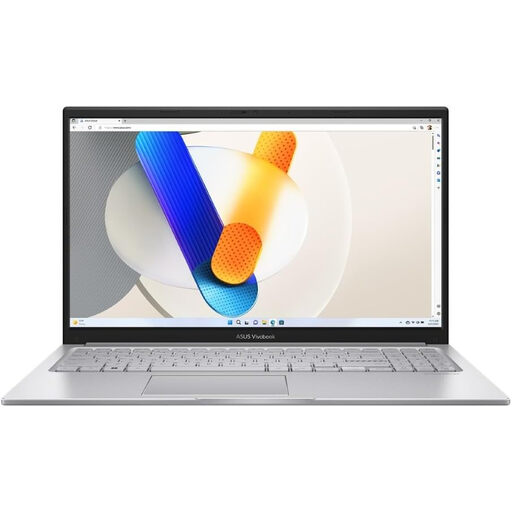 Image unavailable
ASUS Vivobook 15 X1504VA, Core 5 120U, 24 GB, 1 TB SSD
This is a laptop-replacement option when the computer needs to travel between work locations. Its title specifies a 15.6-inch display, Intel Core 5 120U, 24 GB memory and 1 TB SSD. If it must drive a desk monitor, confirm the supported external-display configuration for this exact model.
View on Joybuy
 Image unavailable
Lenovo L32p-30 31.5-inch 4K IPS USB-C monitor
Consider this external monitor when the computer works adequately but a fixed desk needs more screen space. Its title identifies a 31.5-inch 4K IPS display with USB-C. Check your computer’s video compatibility and the monitor’s charging capability before planning a single-cable arrangement.
View on Joybuy
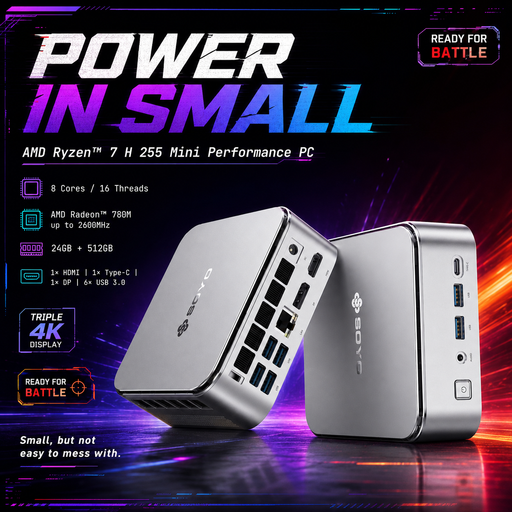 Image unavailable
SOYO S4PLUS mini PC, Ryzen 7 H 255, 24 GB, 512 GB SSD
This mini desktop is an option for a workstation that does not need to travel. Its title specifies Ryzen 7 H 255, 24 GB memory, 512 GB SSD and HDMI, DisplayPort and Type-C video outputs. Plan the separate display and desk peripherals, and confirm supported display modes if you intend to use multiple monitors.
View on Joybuy
 Image unavailable
Targus USB-C Universal Dual HDMI 4K Dock, 100W Pass-Thru
Consider a dock if you regularly reconnect a laptop at a desk with external displays. This model’s title specifies dual HDMI 4K and 100W power-delivery pass-through. Confirm that your exact laptop supports the intended independent-display arrangement, and check the dock’s power-adapter requirements.
View on Joybuy
Common questions
Do I need a new laptop just to get a larger screen?
No, not if the laptop handles your normal work adequately. An external monitor may resolve limited screen space; check the laptop’s supported video output and the monitor connection first. A monitor will not fix slow or unreliable computer operation.
Will any USB-C laptop work with a monitor or dock?
No. The result depends on the laptop’s port capabilities and the particular dock, cable and display. VESA describes DisplayPort Alt Mode as a specific way to carry video over USB-C, so check the exact computer’s documentation rather than relying on the connector shape.
Can a display splitter give me two separate extended screens?
A basic splitter duplicates the same signal; it does not create two independent desktops, according to Microsoft Support. Check how many external displays the laptop supports and which output or dock configuration provides them.
Do display-screen workstation rules matter when I work from home?
For employees working at home permanently or long term, the Health and Safety Executive says the Display Screen Equipment Regulations can apply. Where a home workstation assessment indicates that action is needed, HSE says workers cannot be charged for that action; discuss the assessed workstation needs with your employer rather than assuming a personal equipment purchase is required.


