Who needs which backup approach?

Home users focused on local recovery

If you want to restore documents and photos without relying on an internet connection, a directly connected drive gives you a local backup destination. Microsoft Support describes external-drive backups for Windows File History, while Apple Support describes compatible external storage for Time Machine.

Households protecting irreplaceable files

If losing both a computer and a drive at home would put important files at risk, keep a copy elsewhere as well. The National Cyber Security Centre advises storing backups in a separate safe location.

Households with files across several devices

If files are spread across computers and mobile devices, consider whether a cloud account or managed network storage fits the devices you use. Check which files each device actually backs up: access to a shared folder does not, by itself, mean every device is protected.

What should you check before choosing?

External drive or portable SSD

Choose when: You want a directly connected destination for backups and local restores.

Trade-off: A drive kept with the computer can be affected by the same loss; an SSD's stated transfer speed also depends on the port and cable.

Rotated backup drives

Choose when: You can keep one drive available for local recovery and store another copy separately.

Trade-off: You must rotate the drives and check that backups remain usable.

Cloud storage

Choose when: An off-site copy and access across devices matter to you.

Trade-off: Restoring files depends on account access, the available allowance and your connection.

Network-attached storage

Choose when: Several home devices need a shared storage destination and you are willing to manage it.

Trade-off: A NAS at home still needs a separate off-site backup, even if it has drive redundancy.

ConcernWhat to checkWho this matters to
Local recovery Check available computer ports, capacity for the selected folders and compatibility with your backup software. If I need documents back without waiting for a download, I want a local copy I can reach directly. Around 23% of consumers put local recovery first.
Loss at home Check where a second copy will be kept and how you will access a rotated drive or cloud account. If an incident affects both my computer and its nearby drive, I need files stored somewhere else. For around 29% of consumers, that separation is the primary concern.
Several devices Check device compatibility, what uses the cloud allowance and whether the intended NAS supports each backup application. With files across the household's devices, I need to know which ones are actually covered. Around 18% of consumers chiefly need a workable multi-device approach.
Large-file backups Compare capacity with the files being protected, then check the computer port and cable against any stated SSD speed conditions. If large photo or video collections change regularly, transfer time affects whether I can keep backups current. It is the leading concern for around 18% of consumers.
Shared home archive Check NAS drive requirements, device backup compatibility and the plan for a separate off-site copy. If I manage one archive for several computers, I can take on setup and maintenance to keep it organised. Around 12% of consumers primarily want that managed destination.

Backup mistakes to avoid

  • Treating synchronised cloud files as the whole backup plan

    Cloud storage can keep a copy away from home, but access to it depends on the account and its recovery settings. A separate local copy also gives you a route to files when cloud access is unavailable.

    Keep a local copy of important files, set up account recovery and check that the files you intend to protect are included.

    Restoring a large collection without a local copy may take time.

  • Leaving the only backup drive connected

    A drive beside the computer can be affected by the same physical incident. Separate storage matters when you need protection from losing the home copy.

    Disconnect and store a backup copy separately when practical, and arrange an off-site copy for files you cannot replace.

  • Choosing an SSD by its headline speed alone

    Samsung says the T7 Shield's stated maximum transfer speeds require a compatible USB 3.2 Gen 2 host, cable and UASP mode; the figure does not describe every computer setup.

    Check your computer's port specification and cable before deciding whether that speed claim is relevant to you.

  • Confusing NAS redundancy with an off-site backup

    Synology describes a redundancy option for its two-bay DS224+, but drives within a NAS at home remain at the same location.

    Plan a separate external, cloud or second-location copy for important files rather than relying on NAS drive redundancy alone.

    A NAS also takes time to configure and maintain, including its separate backup routine.

Relevant brands for reference

Western Digital

Its portable external drives are relevant when you want a USB-connected local backup destination.

  • A Joybuy listing identifies a 2 TB My Passport portable hard drive for local storage.
  • Check the exact model's connection, formatting and backup-software requirements for your computer.

Samsung

The T7 Shield portable SSD range is relevant to buyers who regularly transfer large files.

  • Samsung UK lists 1 TB, 2 TB and 4 TB T7 Shield variants.
  • Samsung's stated maximum speeds require compatible USB 3.2 Gen 2 equipment and UASP; check the conditions for the exact variant.

Synology

Its NAS products are relevant to households prepared to manage shared network storage.

  • Synology describes the DS224+ as a two-bay model with a one-drive redundancy option.
  • NAS redundancy does not create an off-site copy; drive requirements and backup compatibility depend on the model and setup.

Microsoft

Windows File History and OneDrive are relevant when choosing local and cloud routes for a Windows household.

  • Microsoft Support says File History can use an external drive or network location; Microsoft 365 Basic provides 100 GB shared across Outlook and OneDrive.
  • Check which files are backed up, what uses the cloud allowance and how you will recover the account.

Apple

Time Machine and iCloud+ are relevant to households using Macs and other Apple devices.

  • Apple Support describes Time Machine backups to compatible external storage or a supported NAS.
  • If you enable Advanced Data Protection for iCloud, Apple requires an alternative recovery method; check that you can maintain access to it.

Joybuy backup storage choices

These choices cover directly connected drives for local backups and one NAS for a managed home archive. Choose capacity and device compatibility for the files you intend to protect, then arrange a separate copy where protection from a loss at home matters.

Samsung MU-PE1T0S portable SSD, 1 TB, black

Samsung MU-PE1T0S 1 TB portable SSD, black

Consider this directly connected SSD if you back up large files frequently. It has a USB Type-C 3.2 Gen 2 connection; Samsung says the T7 Shield's stated maximum speeds depend on a compatible host, cable and UASP mode. Check whether 1 TB covers your selected files, and keep another copy separately.

View on Joybuy

Western Digital My Passport portable hard drive, 2 TB, black

Western Digital My Passport 2 TB portable hard drive, black

This USB-connected drive is a local destination for personal-file backups. Check that 2 TB allows room for the files you select and their future growth; if you use a Mac, confirm the setup and formatting required for your backup software. A second, separately stored copy is still needed for protection from a loss affecting the computer and drive together.

View on Joybuy

Western Digital My Passport Ultra for Mac portable hard drive, 5 TB, silver

Western Digital My Passport Ultra for Mac 5 TB, silver

This Mac-oriented portable hard drive offers a 5 TB local backup destination. Confirm its formatting and compatibility with your intended Mac backup setup before storing files on it, and decide where a separate copy will be kept.

View on Joybuy

Western Digital Elements portable hard drive, 4 TB, black

Western Digital Elements 4 TB portable hard drive, black

This USB-connected drive provides a 4 TB local destination for a file archive. Confirm that its capacity suits the folders and backup history you intend to keep; for a Mac or another operating system, check formatting and backup-software compatibility before use. Keep an independent copy elsewhere for files you cannot replace.

View on Joybuy
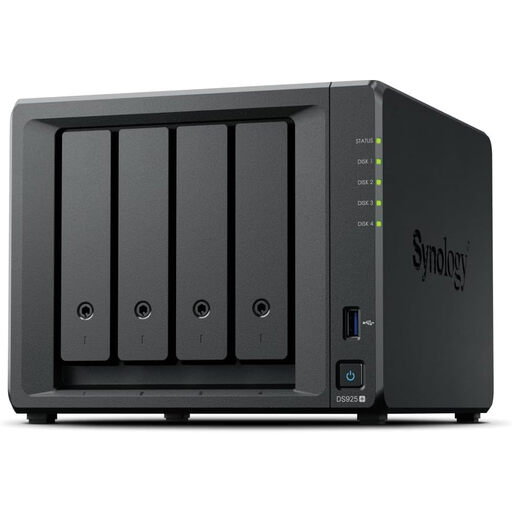
Synology DiskStation DS925+ four-bay NAS

Synology DiskStation DS925+ four-bay NAS

Consider this network-attached storage device if you are prepared to manage a shared home archive. Check which drives are required or included and whether the DS925+ supports the backup applications and protocols your Windows PCs or Macs need. Storage kept at home also needs a separate off-site backup plan.

View on Joybuy

Backup storage questions

How much external-drive capacity do I need for personal backups?

Size the drive around the folders you will actually protect, allowing room for growth and any earlier versions your backup software retains. Review photos, videos, documents and folders outside its default selection rather than using the computer's advertised internal capacity as your only measure.

Can one external drive be used for both Windows and Mac backups?

It may be possible, but check the intended backup software and file-system setup before using the drive for both. Microsoft Support says File History can back up to an external drive or network location; Apple Support lists compatible directly connected storage and supported NAS devices for Time Machine. Protect any files already on the drive before changing its format.

Is one external hard drive enough to protect important files?

No, not if you need protection from an incident that affects both the computer and its nearby drive. The National Cyber Security Centre advises keeping important-data backups in a separate safe location; retain an additional copy away from the computer for files you cannot replace.

What should I check before using cloud storage for an off-site copy?

Confirm that the files you need are covered, that the storage allowance is sufficient and that you can recover access to the account. Google One Help says Google storage is shared across Drive, Gmail and Photos, while Microsoft Support says Microsoft 365 Basic's 100 GB is shared across Outlook and OneDrive. Apple requires an alternative recovery method for Advanced Data Protection for iCloud.