If a family-managed device already runs the child’s intended games, start by checking its child-account settings and add an accessory only if it solves a remaining shared-play or room-use need. A separate device makes more sense when the household needs a distinct gaming arrangement, but neither a new device nor a parental-controls label replaces checking the exact account, communication and game settings before online play.
Who is this for?
Carers arranging a child’s first gaming device
If there is no suitable family-managed device yet, decide where the child will play and how content, play time, communication and purchases will be managed before choosing hardware. Internet Matters covers these setup decisions in its guidance for a first console.
Families sharing a device or living space
When children and adults use the same console, tablet, computer or room, account arrangements matter as much as controllers, charging and where game audio can be heard. Check whether settings apply to an individual child or to everyone using the device.
Parents deciding how online chat will work
Agree whether the child may use voice or text chat, and with whom, before choosing a headset. The intended game, platform and child account can each affect the available communication settings.
What matters when choosing?
Identify the child’s games and the devices already at home, then decide whether the missing piece is a separate device, an accessory or a workable child-account setup. A headset or controller can change how an existing setup is used; it cannot create account controls.
| Concern |
What to check |
Who this matters to |
| Child account and controls |
Check for an individual child account, an adult organiser role and the particular play-time, content, communication and purchase settings you need. |
If my child plays online, I want their own settings to apply rather than relying on my adult profile. Roughly 42% of consumers put child-account management first. |
| Shared-device fit |
List the intended games and exact device models; check whether another controller is useful and whether controls apply per account or across the console. |
When several people use one device or room, I need to know whether an accessory will solve the practical problem before adding another device. Around 33% of consumers make shared-use fit their primary concern. |
| Online communication |
Check the intended games’ voice and text chat options alongside the platform’s child-account settings, including any separately managed features. |
Before giving my child a headset, I want to decide who they can talk to and whether chat should be available at all. About 25% of consumers place that communication decision first. |
Mistakes to avoid
-
Letting a child use an adult account on a managed device
PlayStation warns that a child using an adult account can access its services without parental controls. Buying a device with family settings does not ensure that child-specific restrictions apply to the account actually in use.
Create a child account in the family group, check that the child signs into it and protect the adult organiser account with the available PIN or passcode.
-
Assuming all parental controls have the same scope
Nintendo says Switch parental controls apply to the whole console rather than to each player. PlayStation describes account-based controls, while Apple and Google settings depend on supported accounts and devices.
For the exact model and software version, check each setting the household needs, including play time, content, communication and purchase permissions.
-
Choosing a headset before deciding on chat
A headset does not determine who can contact a child. Chat options may be managed in the game, through the platform or through a separate feature; Nintendo says Switch 2 GameChat settings need separate attention.
Decide whether voice and text chat should be allowed, restricted or disabled, then check the applicable settings on the child’s account before buying a compatible headset.
-
Treating a first console as the whole setup
Games, accessories and any online-service requirements affect what the household needs alongside the console. Internet Matters also includes communication, content and spending settings in its first-console guidance.
Make a list of intended games, necessary accessories and account settings before choosing the device.
Charging, storage and setting up family accounts may also take household space and time.
Relevant brands to consider
These ecosystems offer different ways to manage a child’s play; the useful distinction is how their settings work on the device and account your family will actually use.
Nintendo
Switch and Switch 2 are console options for households considering handheld and shared-room play.
- Nintendo says its parental-controls app can be linked to Switch and Switch 2 for play-time and communication management.
- Nintendo says Switch parental controls apply to the whole console, not each player. Check whether that suits a shared household; Switch 2 GameChat settings require separate attention.
PlayStation
PlayStation is relevant when the family already uses, or is considering, a PS5 or PS4 with child accounts.
- PlayStation describes family management alongside play-time, content, communication and spending controls.
- The child needs to be in the family and signed into their own account. PlayStation warns that its parental controls do not apply when a child uses an adult account.
Xbox
Xbox is relevant to families planning to manage console use through a Microsoft family group.
- Xbox describes content, screen-time, social and multiplayer settings for family members, with an organiser PIN available to help protect controls.
- Check the settings available for the household’s accounts and location; Xbox notes that some features vary by locale.
Apple
Apple is relevant when the child will play on an iPhone, iPad or Mac within a family-managed setup.
- Apple says Screen Time can manage apps, content, communication and device use.
- Family management calls for Family Sharing and a Child Account; check the operating-system versions required for the particular controls you intend to use.
Google
Google is relevant to child gaming on compatible Android devices and Chromebooks with a supervised Google Account.
- Google says Family Link can set screen-time limits on supported Android devices and Chromebooks and manage Google Play purchase approvals.
- Check device and game compatibility: Google says system apps cannot have app limits, and supervised Play Games sign-in varies by game.
Joybuy product choices
These choices cover dedicated Xbox consoles, a children’s Android tablet and accessories for an existing gaming arrangement. Choose the device and child-account approach first; consider a controller or headset only for a compatible setup and an agreed way to play or communicate.
 No image available
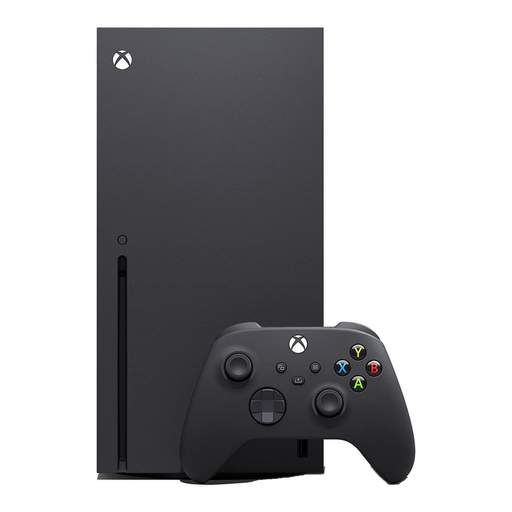
Xbox Series X 1TB Console – Black
Consider this dedicated console if the family wants a separate Xbox gaming device rather than sharing a general-purpose screen. The listed capacity is 1TB; check the child’s intended games and set up their Microsoft family account before online play.
View on Joybuy
 No image available
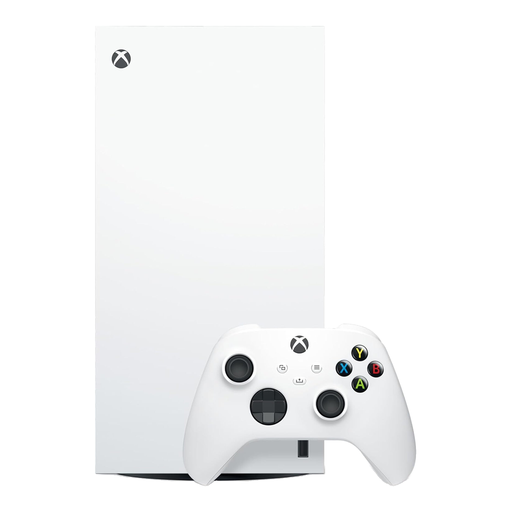
Xbox Series X 1TB Digital Edition Console – White
This is another dedicated Xbox option if the child’s intended games suit a digital-only arrangement. The title identifies a 1TB Digital Edition; confirm game availability and establish the child-account settings before online play.
View on Joybuy
 No image available
Alldocube Kido 8-inch Android 15 Tablet, 3GB+32GB – Blue Case
A tablet is worth considering when the child’s games and the household’s account arrangements suit a portable, multipurpose device. The title specifies an 8-inch display, Android 15, 3GB RAM, 32GB storage and a blue protective case; it says no adapter is included. Check game requirements, charging equipment and how the advertised child lock works with the intended account setup.
View on Joybuy
 No image available
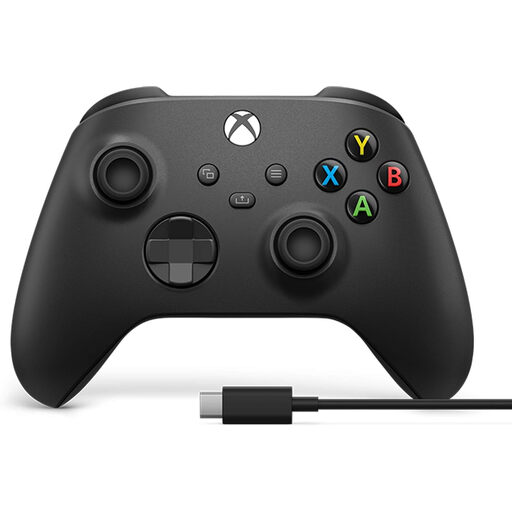
Xbox Wireless Controller with USB-C Cable – Series X|S, One and Windows
Consider an additional controller when an existing compatible device and the intended games call for one. The title specifies a USB-C cable and names Xbox Series X|S, Xbox One and Windows devices; confirm the exact shared-play arrangement before buying. Account and communication controls remain separate settings.
View on Joybuy
 No image available
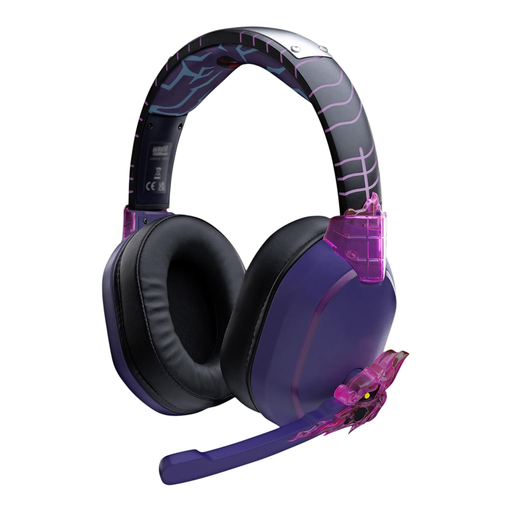
Lexip Naruto Sasuke Headset
Consider a headset only after deciding whether the child should use voice chat on the intended game and device. Check the required connection and microphone compatibility for that combination; a headset does not restrict who the child can contact.
View on Joybuy
Common questions
Should I buy a first gaming device or add accessories to what we own?
Start with what the existing device can already do. If it runs the child’s intended games and supports a suitable child account, choose an accessory only for a specific remaining need, such as shared play; if the family needs a distinct gaming arrangement, plan the account and online-use settings before selecting a new device.
Will parental controls apply if my child uses my account?
Do not rely on child-specific controls when the child signs into an adult account. PlayStation explicitly warns that a child using an adult account can access its services without parental controls; set up the child’s own family-group account and protect the adult account with the available PIN or passcode.
Can I set different controls for each child on a shared console?
It depends on the console’s control scope. Nintendo says Switch parental controls apply to the whole console, whereas PlayStation describes account-based controls and Xbox describes settings for family-group members; check the exact setup if siblings or adults need different permissions.
Does a gaming headset control who can talk to my child?
No. A headset provides a way to hear or use game audio, while contact permissions depend on the game and relevant platform settings. Check voice and text chat on the child’s account before deciding whether a headset fits the family’s communication rules.


