Choose equipment that addresses the main limitation of your workstation: a fixed desk may call for a better-positioned screen and separate input devices, while a portable setup may start with a laptop stand, keyboard and mouse. Add a dock for connections or call equipment for meetings only when those are the problems you need to solve; USB-C video and charging require compatible equipment. In Great Britain, the Health and Safety Executive says workers covered by display screen equipment rules cannot be charged for equipment identified as needed through an applicable workstation assessment.
Who is this for?
Fixed-desk home workers
If you spend long stretches at one desk, consider screen height and the position of your keyboard and mouse together. The Health and Safety Executive advises using separate input devices when a laptop screen is raised for prolonged use.
Portable hybrid workers
If you move between home and office, you may need equipment you can carry and arrange consistently at both locations. A stand and separate input devices address laptop positioning; a travel dock addresses connections, subject to laptop compatibility.
Call-heavy remote workers
If meetings occupy much of your working day, check whether microphone pickup, listening controls or camera position are the limitation. Call peripherals serve a different purpose from equipment used to position your screen and input devices.
What should you check first?
Start with screen and input-device position, then decide whether moving between workplaces changes what you need to carry. Check dock compatibility before relying on a single cable, and choose call equipment for a specific audio or camera need.
| Concern |
What to check |
Who this matters to |
| Screen and input position |
Check screen-height adjustment and desk depth. If raising a laptop, plan for a separate keyboard and mouse, as advised by the Health and Safety Executive for prolonged use. |
If I work at one desk for long sessions, I want to position the screen without lifting my keyboard to the same height. Roughly 27% of consumers put this arrangement first. |
| Portability |
Check packed size and which stand, input devices, cables and power adaptor must travel with you. |
Moving between home and office, I need to recreate a workable setup without leaving an essential component behind. Around 27% of consumers prioritise portability for that reason. |
| Display and charging compatibility |
Check the exact laptop port, cable and dock for the required video and USB Power Delivery support; confirm the intended display arrangement. |
If one cable is meant to connect my screen and charge my laptop, I need those functions to work with my particular computer. About 26% of consumers make connection and charging compatibility their primary concern. |
| Call equipment |
Check connection type, meeting-platform compatibility and whether microphone or camera placement addresses your call needs. |
When meetings dominate my day, I care most about being heard and positioning the camera appropriately. Roughly 20% of consumers put call equipment first. |
What can go wrong?
-
Assuming every USB-C dock will do the same job
A matching plug does not establish video output or laptop charging. StarTech.com explains that the host port, cable and connected device need to support the relevant USB-C technologies.
Check your exact laptop model, required display setup and charging requirements against the dock and cable specifications before buying.
An unsuitable dock, cable or power adaptor may need replacing to provide the connection you intended.
-
Raising a laptop without repositioning its controls
A stand can raise the screen while leaving the built-in keyboard and trackpad awkward to use. The Health and Safety Executive advises separate keyboard and mouse use when the screen is elevated for prolonged laptop work.
Plan the stand, keyboard and mouse as one arrangement, allowing room on the desk and enough cable reach.
-
Taking a multi-display claim out of context
A dock’s stated display outputs may depend on laptop support for particular video modes. Targus, for example, specifies host MST support for dual displays on its DOCK430EUZ.
Check the dock’s host requirements and whether your laptop can provide the extended-display arrangement and resolution you want.
-
Buying before checking the workplace assessment process
In Great Britain, the Health and Safety Executive says an applicable display screen equipment assessment should identify action needed for the individual workstation. Where that assessment identifies a need for equipment, covered workers cannot be charged for it.
If you routinely use a screen for work at home, ask your employer about its assessment and equipment arrangements before choosing a particular monitor or dock.
Brands to consider for desk technology
Dell
Relevant to fixed desks where a USB-C hub monitor or laptop dock could combine display and peripheral connections.
- Dell Technologies lists video, data, Ethernet and up to 90W USB-C power delivery for its P2725QE monitor.
- Those are P2725QE specifications, not features of every Dell monitor. Check the exact laptop and any dock or multi-display compatibility requirements.
Lenovo
Relevant to desk docks and compact travel docks for supported laptops.
- Lenovo lists a 4K at 60Hz display connection and 65W charging for its USB-C Slim Travel Dock.
- Lenovo says dock functions depend on host support, and some additional features may not be available on non-Lenovo systems.
StarTech.com
Relevant when choosing a dock by its stated connection and host requirements.
- StarTech.com documents which USB-C technologies the host, cable and device need for charging and video.
- A dock’s ports alone do not establish that the intended laptop supports every display or charging function.
Targus
Relevant to USB-C desk docks offering display connections and Power Delivery.
- Targus specifies up to 85W Power Delivery for its DOCK430EUZ.
- Targus states that dual-display use on that model requires MST enabled on the host device.
Logitech
Relevant when a headset or webcam is needed alongside the main workstation setup.
- Logitech lists business headsets and webcams with a range of connections and stated camera resolutions.
- Match a particular device’s connection, meeting-platform support and manufacturer-described call features to your setup; the brand name alone does not establish call performance in your room.
Joybuy product choices for the workstation
These choices cover an external monitor for a fixed desk, docks and hubs for connecting equipment, and a webcam for video calls. A stand and separate input devices remain considerations when laptop positioning is the main issue.
 No image available
BenQ MA320UP 32-inch 4K USB-C Mac Monitor
Consider this for a fixed desk where an adjustable external screen is the priority. The product title specifies a height-adjustable stand, 4K UHD display and USB-C connection.
Before relying on USB-C video or laptop charging, check your exact computer’s support and power requirements.
View on Joybuy
 No image available
Targus USB-C Universal Dual HDMI 4K Docking Station, 100W Power Delivery Pass-Thru
Consider this when your desk setup calls for HDMI display connections through a dock. Its title specifies dual HDMI 4K connections and 100W Power Delivery pass-through.
Confirm that your laptop supports the intended display arrangement and charging requirements, and check whether the required power adaptor is included.
View on Joybuy
 No image available
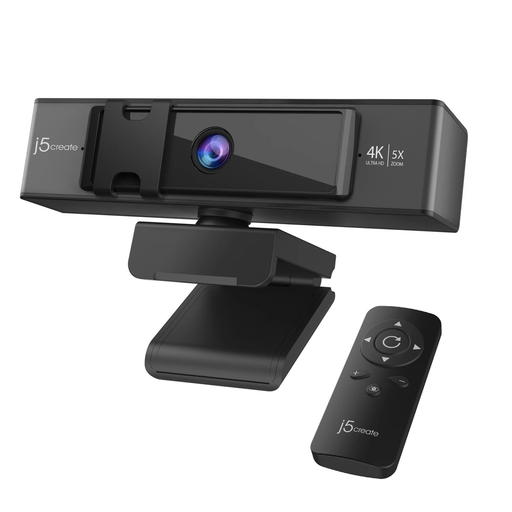
j5create JVCU435 USB 4K Webcam with 5x Digital Zoom
Consider a separate webcam when camera placement or framing is the main limitation during calls. This model’s title specifies 4K, 5x digital zoom and a remote control.
Check its connection and video modes against your computer and meeting needs; digital zoom does not change the camera’s position.
View on Joybuy
 No image available
Baseus Metal Gleam Series II 10-in-1 USB-C Hub, Cosmic Black
Consider this hub when you need several desk connections alongside HDMI outputs. The product title specifies two HDMI ports, USB-A and USB-C ports, RJ45 and SD/TF slots; its HDMI ratings are listed as 4K at 120Hz and 4K at 60Hz.
Check host video support and the display modes you intend to use together. Confirm laptop charging requirements separately rather than treating a hub’s power input as its charging output.
View on Joybuy
 No image available
MOVESPEED DK5A1 10-in-1 USB-C Docking Station
Consider this for a setup needing an HDMI connection and additional peripheral ports. Its title specifies HDMI at 4K and 60Hz, USB-C at 10Gbps, USB-A connections, SD/TF slots and 3.5mm audio.
Check that your host supports USB-C video for the intended HDMI use. If laptop charging matters, confirm that requirement separately before choosing this dock.
View on Joybuy
Common questions
Does every home worker need an external monitor under Great Britain DSE rules?
No. The Health and Safety Executive says display screen equipment rules can apply to permanent, long-term and hybrid home workers, with workstation assessments required for covered workers who use a screen daily for continuous periods of an hour or more. The assessment should address the individual setup; it does not mandate an external monitor for everyone.
Who arranges equipment identified by a Great Britain DSE assessment?
For workers covered by the display screen equipment rules, the Health and Safety Executive says they cannot be charged when a workstation assessment identifies action needed, such as providing equipment. Ask your employer how its assessment and purchasing process works rather than assuming that a particular model has been approved.
Will any USB-C dock charge my laptop and connect a monitor?
No. StarTech.com explains that the host port, cable and connected device must support the technologies required for charging and USB-C video. Check your laptop’s documented Power Delivery and video capabilities against the exact dock and cable.
Can a laptop stand take the place of an external monitor?
A stand may address screen height when one display is enough and portability matters. For prolonged laptop use, the Health and Safety Executive advises separating the keyboard and mouse so the screen can be raised; consider an external monitor if screen area or a permanently positioned display remains the issue.


