Choose a fixed monitor if you work mainly at one desk and need room to position the screen; a portable second screen makes more sense when you regularly move between workspaces. A USB-C monitor or dock can simplify a laptop setup, but only if the laptop, cable and display support the video, charging and screen configuration you need. For an employer-managed workstation, follow any applicable display screen equipment assessment rather than assuming a particular monitor is required.
Who is each setup for?
Fixed-desk home workers
If you work at the same desk for long stretches, consider how the screen fits your documents, application windows and available space. Stand adjustment and useful ports can matter as much as panel size; Which? highlights both when assessing monitors for work.
Laptop-based hybrid workers
A portable second screen can travel between temporary workspaces. Check how it will be powered and positioned at each location: Expert Reviews notes that portable models often draw power from the connected device and offer little stand adjustment.
Single-cable setup buyers
A USB-C monitor or dock is worth considering if you want to connect a laptop and peripherals at a regular desk. Check the laptop's video output and charging requirements first; the USB-C connector alone does not establish either capability.
What should you check before buying?
Fixed desk monitor
Choose it when: You usually work at one desk and can leave a screen set up there.
Trade-off: It takes up permanent desk space, though an adjustable stand can offer more positioning options than a portable kickstand.
Portable second screen
Choose it when: You need to carry an additional display between home, hot desks or travel locations.
Trade-off: Expert Reviews notes that portable displays often draw power from the connected device and typically have little stand adjustment.
| Priority |
What to check |
Your needs |
| Screen position |
Check the stand's height, tilt, swivel and pivot options against your desk and seating position. A portable kickstand is not the same as a height-adjustable stand. |
I work at one desk for long periods and want to place the screen where it suits my workstation. If an employer-managed display screen equipment assessment applies, its outcome should guide the equipment choice. |
| Screen space |
Compare the stated size and resolution with your desk space and the detail your tasks require. Check that your computer supports the intended display mode. |
Documents, spreadsheets or several windows may call for a different screen arrangement from a small reference display I carry between locations. |
| Laptop connection |
Confirm video output on the exact laptop port, the monitor input and the cable. Which? explains that USB-C carries DisplayPort video only when the connection supports it. |
I want to connect my laptop without discovering that its USB-C port cannot send a picture to the screen. |
| Charging and docks |
Compare a monitor's stated USB-C power delivery with the laptop's charging requirements. For multiple displays, check the laptop and dock limits at the desired resolutions and refresh rates; Microsoft says these depend on the connection and number of displays. |
A single desk connection would be useful, but I need to know whether it will charge my laptop and run every intended display. |
| Moving between desks |
Check the portable screen's weight, stand, video inputs and power source, then consider how you would position it at each workspace. |
If I carry a second screen regularly, portability may matter more than the size and stand flexibility of a permanent desk monitor. |
Common buying mistakes
-
Assuming every USB-C port provides video and charging
A USB-C connection may not support the display function, and a monitor's power-delivery rating does not establish that it meets a particular laptop's requirements.
Check the exact laptop model's video-output and charging specifications, then compare the monitor or dock inputs, power delivery and required cable.
If the intended connection needs one, a compatible adapter, cable or separate dock adds equipment to the setup.
-
Treating a portable screen like an adjustable desk monitor
Expert Reviews notes that portable screens commonly use kickstands or folio covers with little adjustment. That limits how readily you can position one for a regular fixed-desk setup.
Choose portability when you need to move the screen; for sustained work at one desk, compare the available positioning with an adjustable fixed monitor.
-
Choosing a dock from the monitor specification alone
A monitor's maximum resolution does not establish what a laptop and dock can deliver with several screens connected. Microsoft documents limits that vary with the connection and number of displays.
List the displays and target resolution and refresh rate for each, then check the laptop and dock documentation for that configuration.
-
Replacing a workstation assessment with a product recommendation
For an applicable employer-managed display screen equipment assessment, the Health and Safety Executive says the whole workstation, the work and individual requirements need consideration.
Follow the assessment outcome and raise changes to the workstation or working pattern with your employer.
Relevant brand references
These examples show how features differ between specific monitors; a brand name alone does not establish the ports, stand or charging capability of another model.
Dell
Dell UK lists the Pro 24 Plus P2425HE as a 23.8-inch Full HD IPS USB-C hub monitor for a fixed desk.
- The P2425HE has listed height and pivot adjustments, relevant when screen position needs flexibility.
- Check the exact laptop and cable before relying on the model's USB-C video or charging features; they are not brand-wide specifications.
LG
LG UK lists the 27U730A-B as a 27-inch 3840 × 2160 IPS desk monitor with USB-C power delivery up to 90W.
- Its stated size and resolution offer a route to a larger, higher-resolution fixed display.
- Confirm that your laptop supports the intended 4K display mode and that its charging requirements suit the connection.
ASUS
ASUS UK lists the ZenScreen MB169CK as a portable second screen with two USB-C DP Alt Mode ports and mini-HDMI.
- At a stated 0.78 kg, this particular model is relevant when the display must be carried between locations.
- ASUS lists no height adjustment for the MB169CK; check how you would position it during longer desk sessions.
Fixed-desk monitors on Joybuy
These models are options for a regular desk setup, ranging from compact document-work screens to larger 4K displays. Compare their stated connections and stand features with your laptop and workstation; this selection is not a portable-monitor comparison.
 No image available
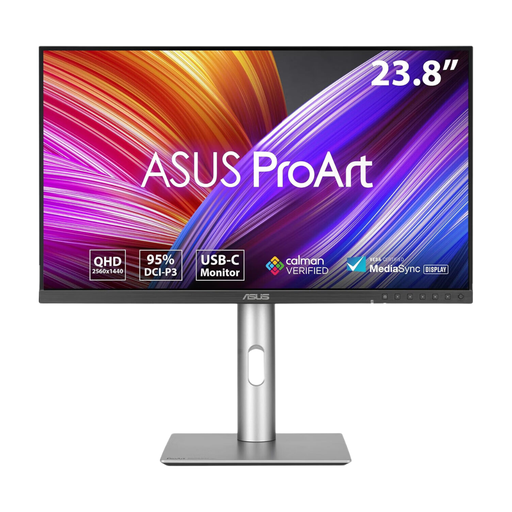
ASUS ProArt PA24ACRV IPS QHD monitor
Consider this QHD model for a fixed desk where screen positioning and a laptop connection matter. Check its stated stand adjustments against your workstation, and confirm USB-C video and charging compatibility with your laptop and cable before relying on a single connection.
View on Joybuy
 No image available
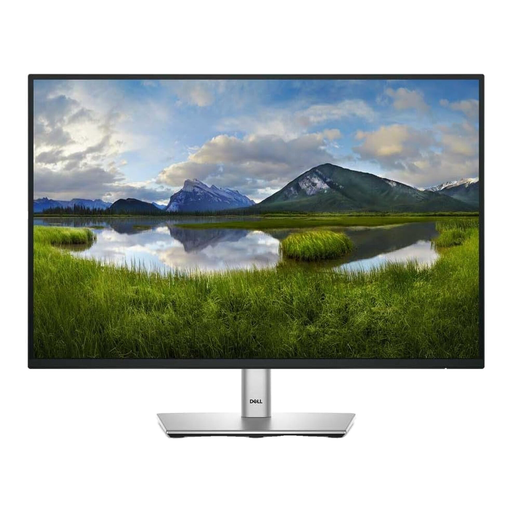
Dell 24 Monitor P2425
This 24-inch model is a fixed-desk option for document or spreadsheet work where screen position matters. Confirm the refresh rate before ordering: the description says 100Hz, while the technical details say 60Hz. Also check the exact ports if USB-C video or charging is important to your setup.
View on Joybuy
 No image available
BenQ MA270UP 27-inch 4K USB-C Mac monitor
This height-adjustable 27-inch 4K display is worth considering for a Mac-based fixed desk needing a larger screen. Its name specifies a Nano Glossy IPS panel, HDR and P3; check whether those features matter to your work. Confirm your exact computer's video output and charging requirements before relying on USB-C.
View on Joybuy
 No image available
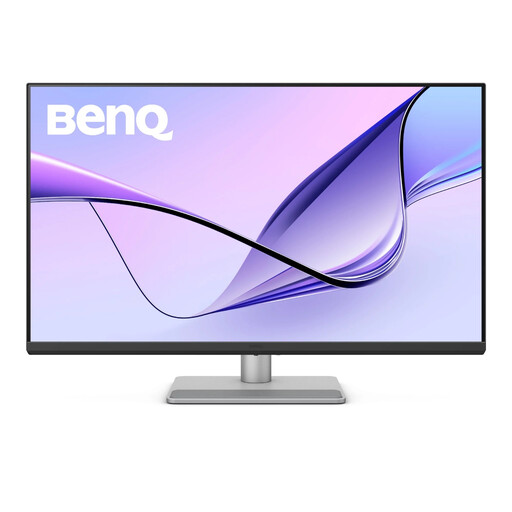
BenQ MA320UP 32-inch 4K USB-C Mac monitor
Consider this height-adjustable model if you want a large display at a Mac-based desk. Its name specifies a Nano Glossy IPS panel, HDR and P3. Measure the space available for a 32-inch screen, then check the exact computer's video and charging compatibility before planning a USB-C setup.
View on Joybuy
 No image available
LG 27UP650K 27-inch 4K IPS monitor
This fixed-desk model lists a 27-inch 4K IPS screen, 60Hz refresh rate, HDMI and DisplayPort. Check that your computer and cable support the display mode you want. If laptop charging through the monitor is important, confirm the connection options rather than assuming it from the 4K specification.
View on Joybuy
Frequently asked questions
Does every UK home or hybrid worker need an external monitor?
No. The Health and Safety Executive says an applicable employer-managed display screen equipment assessment should consider the whole workstation, the work and individual requirements when deciding whether additional equipment is needed. It does not impose a universal external-monitor requirement.
Can an employer charge for equipment identified by a DSE assessment?
No. The Health and Safety Executive states that, where an employer's display screen equipment workstation assessment indicates action is needed, workers cannot be charged for equipment provided as a result.
Will any USB-C laptop work with a USB-C monitor?
No. Which? explains that USB-C carries DisplayPort video only when the connection supports it, and ASUS advises checking the laptop port's display function. Confirm the exact laptop specification, monitor input and cable; check charging requirements separately if you want one cable for both tasks.
What should I check before connecting two displays through a dock?
Check the laptop's supported external-display configuration, the dock's output limits, the ports and cables, and the target resolution and refresh rate of each screen. Microsoft notes that the available display modes can vary with the number of connected displays and how they are connected.


