What to check before buying
Start with the workstation arrangement if you spend sustained periods at the screen. Then check laptop compatibility for anything that connects to it, and choose meeting accessories around problems you encounter on calls.
| Concern |
What to check |
Who this matters to |
| Sustained desk work |
Use your workstation assessment to identify any screen-position or input-device issue; check the available desk space before selecting equipment. |
When I work at my laptop for long stretches, I want to address the part of my desk arrangement that makes sustained use difficult. Around 34% of consumers would put this workstation need first. |
| Laptop connections and charging |
Check your laptop model, required charging power and supported display modes against the dock, monitors and cables. |
Reconnecting my laptop at home should not leave a display unusable or require an unexpected change to how I charge it; for around 33% of consumers, connection and charging compatibility comes first. |
| Meeting video and audio |
Identify whether the recurring problem is camera position, lighting, microphone pickup or private listening; confirm device and platform compatibility. |
If colleagues struggle to see or hear me, I would tackle that particular call problem before changing other equipment. Meeting clarity is the primary concern for around 20% of consumers. |
| Limited or shared desk space |
Measure the usable surface and check device footprint, connection method and how easily the arrangement can be moved. |
When I have to clear a shared table or move between workplaces, equipment that fits and reconnects easily matters most; around 13% of consumers would prioritise a compact, movable setup. |
Joybuy products for home-work needs
These choices cover separate parts of a home-work setup: an external display, a laptop dock, a webcam, a pointing device and wired call audio. Choose the part that addresses your own desk, connection or meeting need.
 Image unavailable
Samsung S40GD LS22D400GAUXXU 22-inch Full HD Monitor
Consider a separate display if your workstation assessment identifies a screen-position need and your desk can accommodate it.
- 22-inch Full HD monitor.
- Confirm that your computer and the cables you plan to use support the intended display connection.
View on Joybuy
 Image unavailable
Targus USB-C Universal Dual HDMI 4K Docking Station, 100 W Power Delivery Pass-Through
This dock is worth considering if you repeatedly reconnect a laptop to desk displays and peripherals, provided the complete setup is compatible.
- Dual HDMI outputs and up to 100 W Power Delivery pass-through are stated in the product name; actual operation depends on the host laptop and power arrangement.
- Check your laptop's video and charging capabilities, desired display modes and whether a suitable external power adapter is included.
View on Joybuy
 Image unavailable
Targus 2K Webcam with Auto Focus
Consider a separate webcam if camera focus or positioning is a recurring problem on home calls.
- The product name says 2K, while its technical description states 1080p; confirm the video resolution you need before ordering.
- Check your computer connection and meeting-platform compatibility.
View on Joybuy
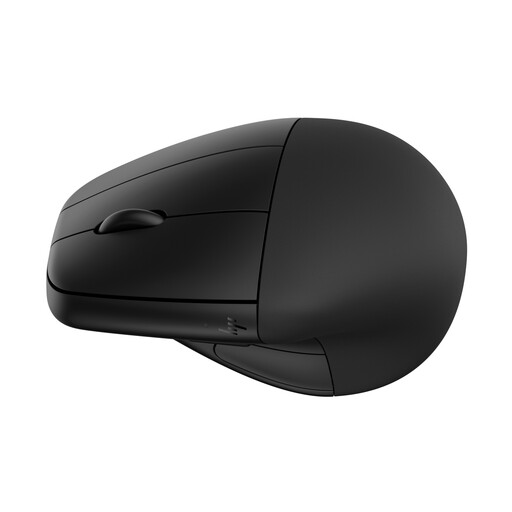 Image unavailable
HP 920 Wireless Mouse (Black) with Detachable Wrist Rest
This is a different pointing-device arrangement to consider if your workstation assessment identifies an input-position issue; its shape will not suit everyone.
- Wireless mouse with a detachable wrist rest.
- Check hand fit, computer compatibility and whether any customisation you need works with your setup.
View on Joybuy
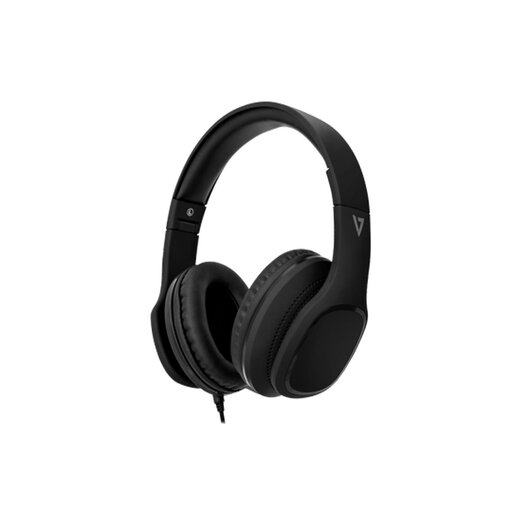 Image unavailable
V7 HA701-3EP Wired Over-Ear Headphones with Inline MEMS Mic
Consider these for private listening and a wired microphone on calls if your computer has a compatible audio connection.
- Wired over-ear headphones with 40 mm drivers and an inline MEMS microphone.
- Check the required 3.5 mm connection or adapter. Passive noise isolation is not active noise cancellation.
View on Joybuy
Frequently asked questions
Does every hybrid worker need a monitor or separate keyboard at home?
No. The Health and Safety Executive and the Health and Safety Executive for Northern Ireland advise that an individual assessment can be needed for relevant long-term home or hybrid display-screen work, but extra equipment depends on the person's workstation and working pattern. A generic accessory list cannot determine what your home desk needs.
When should hybrid work be covered by a display-screen-equipment assessment?
An assessment may be required when a worker routinely splits time between home and another workplace, or works at home long term, and uses display screen equipment daily for continuous periods of an hour or more. The Health and Safety Executive gives this guidance for Great Britain; the Health and Safety Executive for Northern Ireland addresses the corresponding duties under Northern Ireland's separate regulations. These are employer duties, not a requirement for every worker to buy an accessory.
Will any USB-C dock charge my laptop and run two monitors?
No. Confirm your exact laptop's charging and video capabilities, then compare the dock's host power output and supported display configurations with your monitors, power supply and cables. USB Implementers Forum cable power markings identify certified cable ratings, not whether the whole laptop-to-monitor arrangement will work.
Which webcam feature matters for regular home meetings?
Choose a feature that addresses a recurring problem with your picture, such as camera position or room lighting, rather than resolution alone. Logitech describes its Brio 305 as offering automatic light correction and lists certification for Microsoft Teams, Zoom and Google Meet, but you should still check your own computer, platform and room arrangement.
Is a trackball a better choice than a mouse for a small desk?
A stationary trackball can reduce the movement space needed on a small desk, but it is not automatically more comfortable for your tasks. Check hand fit, handedness and connection requirements; if discomfort is driving the decision, use the individual workstation assessment to guide it.


