What to check before buying
Choose the screen and input positions that fit your desk, then decide whether a direct display connection, a dock or a USB-C hub monitor meets your connection needs.
Directly connected monitor
Consider it when: You need to position an external screen independently and can make room for a separate keyboard and mouse.
Allow for: The monitor connection alone does not provide the extra ports or laptop charging you might want at a permanent desk.
Monitor with a dock
Consider it when: Several desk devices need to connect through one laptop connection and the laptop supports the dock’s required protocol.
Allow for: Display output and charging depend on the laptop, dock and connected equipment, not just the shape of the USB-C port.
USB-C hub monitor
Consider it when: One external screen and the monitor’s built-in connections cover your desk needs.
Allow for: Confirm that the laptop accepts the monitor’s video connection and available charging power before relying on one cable.
| Concern |
What to check |
Who this matters to |
| Screen and input position |
Check desk depth and screen placement. Plan a separate keyboard and mouse if you raise the laptop screen or use an external display. |
If I work at this desk for sustained periods, I need to place the screen and input devices without fixing both to the laptop’s position. About 36% of consumers put that daily positioning need first. |
| Laptop and work-device compatibility |
Check the exact laptop’s video protocol and charging needs against the intended dock or monitor; confirm any employer IT requirements. |
Before connecting a work laptop to a dock or another screen, I need to know the connection will support my intended setup. Compatibility is the primary concern for about 29% of consumers. |
| Desk space and connections |
Check monitor footprint, cable reach and which peripherals will stay connected; decide whether one-cable connection changes your daily routine. |
With limited room and several devices on the desk, I want the equipment to fit without repeatedly rearranging cables. Roughly 21% of consumers prioritise space and simpler connections. |
| Calls and communication |
Check whether existing camera and audio meet your needs, and whether a proposed accessory has an available, permitted connection. |
If calls are a regular part of my work, I may need a different camera or audio arrangement once the core desk is set up. That is the main need for about 14% of consumers. |
Products for a fixed laptop desk
These Joybuy selections cover external monitors, a separate keyboard-and-mouse set and a USB-C adapter for a fixed laptop workstation. Choose the connection arrangement around the laptop and devices you actually use.
 Image unavailable
ASUS ProArt PA278CV IPS WQHD monitor
Consider this external screen if you want to position a display separately from your laptop’s keyboard at a fixed desk. The product name identifies an IPS WQHD display; check the laptop’s video connection and any charging requirement before planning a one-cable setup.
View on Joybuy
 Image unavailable
iiyama ProLite XUB2792UHSU-B6 27-inch 4K UHD monitor
Consider this external display if a 27-inch screen fits your desk and 4K UHD resolution is among your requirements. Check its physical fit and the exact laptop connection you intend to use, particularly if you also expect the monitor to charge the laptop.
View on Joybuy
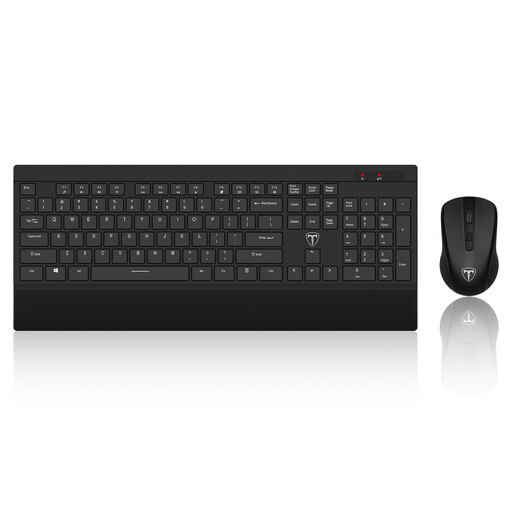 Image unavailable
ET 2.4 GHz wireless keyboard and mouse, US layout
This set provides separate input devices for a desk where the laptop screen is raised or an external monitor is in use. Its keyboard has a US layout; check whether that layout and the wireless connection suit your work device. Confirm the battery requirements if they affect your choice.
View on Joybuy
 Image unavailable
Dahua 32-inch 4K 165 Hz curved OLED monitor
Consider the curved screen only if its size and shape suit your fixed desk and work. The product name lists 4K resolution, a 165 Hz refresh rate, a USB hub and Type-C 65 W; check the laptop’s video and charging compatibility rather than relying on the Type-C label alone.
View on Joybuy
 Image unavailable
V7 V7UC-U3CRJ45HDVG-BLK USB-C adapter
Consider this adapter if your fixed desk needs display and wired connections without choosing a larger dock. Its product name lists 4K HDMI, VGA, Gigabit Ethernet, two USB 3.0 ports and 100 W power delivery. Check your laptop’s required video protocol, charging arrangement and intended display configuration before buying.
View on Joybuy
Common questions
Does regular home laptop work mean I need an external monitor?
Not automatically. For applicable workers in Great Britain who use display-screen equipment daily for continuous periods of an hour or more, the Health and Safety Executive says the workstation assessment should consider individual circumstances; particular office-type equipment may not always be needed. Use your screen position, input arrangement and assessment outcome to decide what to add.
Should I buy work equipment before an employer assessment?
Check the employer’s process first if your home display-screen work falls within the applicable requirements in Great Britain. The Health and Safety Executive says workers cannot be charged where the assessment identifies a need to provide equipment; that does not mean an employer must fund any monitor or dock you choose independently.
What should I check before buying a USB-C dock for a work laptop?
Check the exact laptop model, its port’s video capabilities, charging needs and the display configuration you intend to run, then confirm any employer IT restrictions. Lenovo and HP specify host requirements for their USB-C docks, while Microsoft Support notes that external-display capability also depends on the device and connection path.
Will a USB-C dock charge my laptop and run two displays?
The USB-C connector alone cannot establish either result. Microsoft Support says the host’s accepted power can limit charging, and its Surface Dock guidance identifies limits on display resolution and refresh rate through a dock. Check the exact laptop, dock, cables and two-display arrangement before relying on those functions.
When should I add a webcam or headset?
Add one when regular calls reveal a specific camera, microphone or listening need that your existing setup does not meet. Check the available connection and, for a managed laptop, whether the accessory and any required software are permitted by your organisation.


