What should you check first?
Decide whether screen placement, desktop connections or input space is driving the purchase. A webcam is a separate decision when regular calls reveal a need.
| Concern |
What to check |
Who this matters to |
| Screen position and workspace |
Decide whether you need more display area, a different screen height or both. Check desk depth, stand adjustment and the laptop’s supported video output. |
When my laptop screen sits too low for a long desk session, I want to move the display without moving my keyboard with it. About 34% of consumers put screen position and usable workspace first. |
| Display, charging and port compatibility |
Match the exact laptop model’s video protocol and display limits to the monitor or dock. Check whether its delivered power meets the laptop’s charging requirement. |
If I connect several desk devices each day, I want to know whether one cable can carry the connections I need. Connection and charging compatibility is the primary concern for about 33% of consumers. |
| Input placement and desk space |
Check keyboard layout and width, pointing-device space and whether the required wired or wireless connection is available. |
On a shallow desk, I need room to place a separate keyboard and pointing device before adding more equipment. About 20% of consumers primarily need a workable input arrangement within limited space. |
| Video calls and managed devices |
Check whether the built-in camera meets your calling needs. For an employer-managed laptop, confirm permitted devices and software before adding a webcam. |
If regular calls make my built-in camera’s position unsuitable, I need to choose a camera I can use with my work setup. Video-call readiness is the main need for about 13% of consumers. |
Joybuy products for these setups
These products cover separate monitors, a USB-C dock and a keyboard-and-mouse set for regular laptop work at a desk. Choose the equipment that addresses your own placement or connection need, then confirm compatibility with your laptop.
 No image available
iiyama ProLite XUB2792UHSU-B6 27-inch 4K monitor
Consider this separate display when screen positioning is the main issue at a fixed desk. The listed stand has 150 mm height adjustment, and the monitor includes a USB hub. Check the laptop’s video output before choosing a connection; do not rely on USB-C for laptop charging without confirming the required power and supported connection.
View on Joybuy
 No image available
Targus USB-C Universal Dual HDMI 4K Dock, 100W pass-through
This dock is for a desk where connecting displays and other devices is the priority. It has dual HDMI outputs and a stated 100W power-delivery pass-through capacity; that figure does not establish how much power your laptop will receive. Check USB-C Alt Mode and the intended display configuration against your laptop, and account for the external 100W+ adapter specified for the setup.
View on Joybuy
 No image available
ASUS ProArt PA278CV 27-inch IPS WQHD monitor
This separate screen is another option when you need to position a display independently of the laptop keyboard. Its listed adjustments include height, tilt, swivel and pivot, and it has a USB hub. If you plan to use USB-C for video and charging, confirm the laptop’s compatible video mode and required charging power.
View on Joybuy
 No image available
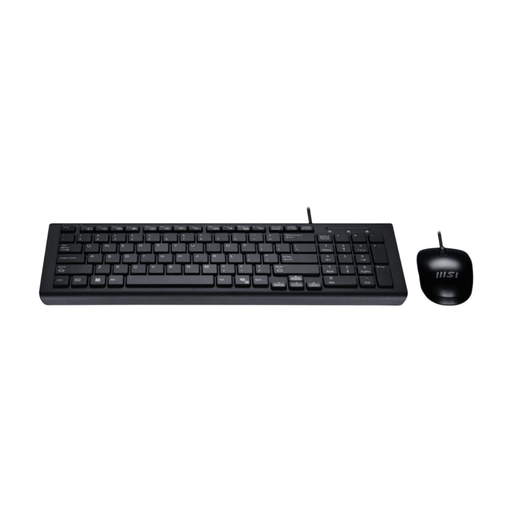
MSI GK-701 Office keyboard and mouse set, UK layout
A separate keyboard and mouse let you raise the laptop screen without keeping its built-in input devices in the same position. This is a wired USB set with a full-size UK keyboard and numeric keypad. Check that your laptop or existing dock has suitable available USB-A ports, and allow desk space for the full-size layout.
View on Joybuy
 No image available
Dahua 32-inch 4K 165Hz curved OLED monitor, Type-C 65W
Consider this separate screen only if its curved, approximately 31.5-inch display fits your desk and viewing arrangement. The listing states 3840 × 2160 resolution, 165Hz and Type-C 65W, but those figures do not establish what your laptop can output or receive. Check the laptop’s video connection and charging requirement before planning to use Type-C.
View on Joybuy
Frequently asked questions
Does regular home laptop work call for a workstation assessment?
For Great Britain, the Health and Safety Executive says employers must assess workstations when workers use display screen equipment daily as part of normal work for continuous periods of an hour or more. Ask your employer how its assessment applies to your home setup before deciding which work equipment to purchase.
Can I buy a monitor or dock and expect my employer to reimburse me?
Do not assume a personal purchase will be reimbursed. Check your employer’s assessment, purchasing approval and ownership arrangements first. GOV.UK discusses employer-provided homeworking equipment in its expenses guidance, but that guidance does not by itself promise reimbursement for an employee’s earlier purchase.
Is any USB-C laptop port enough for a dock or USB-C monitor?
No: the connector alone does not establish video output, charging or a particular display configuration. Check the exact laptop specification alongside the accessory’s requirements. Lenovo identifies USB-C Alt Mode, DisplayLink or Thunderbolt prerequisites for its documented docks, while Dell describes different WD22TB4 operation with Thunderbolt 4 and DisplayPort-over-USB-C hosts.
Do I need an external monitor to work from a laptop at home?
Not necessarily. For prolonged laptop use, the Health and Safety Executive identifies a separate keyboard and mouse with the laptop screen raised as one setup option; a separate display is another. Choose based on whether you need more screen area, a different screen position or both.
When should I add an external webcam?
Add one when regular video calls reveal a specific problem with the built-in camera’s placement or capability, rather than treating it as part of every desk setup. If the laptop is employer managed, confirm the approved device and software arrangements before connecting a new camera.


