Document-heavy home workers
If you often need documents and reference material visible together at a fixed desk, consider whether an extra display fits your workspace and connects to your laptop.


A monitor suits a fixed desk where you need more visible space; a laptop riser changes screen position but may call for a separate keyboard and mouse, while a dock is useful only if your laptop supports its video, display and charging requirements. For an applicable Great Britain DSE assessment that identifies action such as providing equipment, the Health and Safety Executive (HSE) says the worker cannot be charged for that action; discuss optional upgrades with your employer before paying.
If you often need documents and reference material visible together at a fixed desk, consider whether an extra display fits your workspace and connects to your laptop.
If your work surface is limited or needs to be cleared, compare the footprint of a monitor with a riser or other accessories that can fit your setup.
If you move your laptop between work locations, check what its USB-C port supports before choosing accessories for displays, controls or charging.
Start with the constraint that most affects your home or hybrid laptop work: visible space, screen and control positioning, reliable connections or a work surface that needs to be cleared.
Choose when: A fixed desk needs more visible room for documents or reference material.
Trade-off: A monitor takes desk space, and the laptop must support the display connection and number of screens you need.
Choose when: Your laptop screen is sufficient but needs to be repositioned, or you want an accessory suited to a changing workspace.
Trade-off: The built-in keyboard and trackpad rise with the screen, so separate controls may be needed.
Choose when: You want to position your controls separately from a raised laptop or an external display.
Trade-off: They use desk space and do not add display area or video connections.
Choose when: You need a display connection or regularly reconnect several devices at a desk.
Trade-off: Video mode, display count and charging depend on the laptop and accessory. Plugable notes that macOS does not use MST for extended displays in the same way as supported Windows or ChromeOS systems.
These options can be combined rather than treated as mutually exclusive. A riser and separate keyboard, for example, address different parts of the same setup.
| Concern | What to check when buying | Who this matters to |
|---|---|---|
| Visible workspace | Check which tasks need to be visible together, the display size and resolution, available desk area and the laptop’s video output. | If I need documents or reference material open together, I prioritise useful screen space that fits my desk. Around 31% of consumers put visible workspace first. |
| Screen and control positioning | Check whether the screen can sit where you need it while a separate keyboard and mouse remain accessible, with room for both. | When I raise my laptop screen, I also need to decide where its built-in controls will go. Around 31% of consumers prioritise positioning the screen and controls independently. |
| Laptop connections | Check the exact laptop’s video mode and external-display limit against the accessory’s outputs, driver requirements and charging arrangement. | If I reconnect my laptop at different desks, I want its display and other connections to work as expected. Around 23% of consumers prioritise reliable connections. |
| Limited or shared space | Check the space available with the laptop, controls and proposed display or riser in place, and whether an accessory folds away. | Where I share a desk or need to clear it after work, I want a setup that fits the available surface. Around 15% of consumers prioritise fitting a limited or shared workspace. |
The connector alone does not establish which video mode, display arrangement or charging setup a laptop supports.
Check the exact laptop specification and required display count against the accessory’s video method, outputs and charging requirements.
A suitable cable, adapter, charger or different dock may also be needed, depending on the setup.
Raising the laptop raises its attached keyboard and trackpad too, which can change where you can use them.
Plan the screen, keyboard and mouse positions together, and allow space for separate controls if your arrangement needs them.
For an applicable Great Britain DSE assessment, HSE says a worker cannot be charged for action the assessment indicates the employer needs to take, such as providing equipment.
Check the assessment outcome and employer purchasing process before buying. An optional personal upgrade is not automatically an assessment-identified measure; discuss other home-working costs with your employer.
Consider Dell’s USB-C hub monitors when a fixed desk needs a display with connections built in; compare the exact model.
Consider its compact keyboard line if separately positioned input devices would suit your laptop layout.
Consider a laptop riser when you need to reposition the screen or clear the work surface.
Consider a USB-C hub when a compatible laptop needs several connections at one workstation.
Consider its multiport adapters when one compatible laptop connection needs HDMI and additional peripheral ports.
These Joybuy listings relate to adding a display, repositioning a laptop, using a separate keyboard or adding USB-C connections to a home or hybrid laptop setup. Check the exact laptop’s compatibility before choosing a display or adapter.
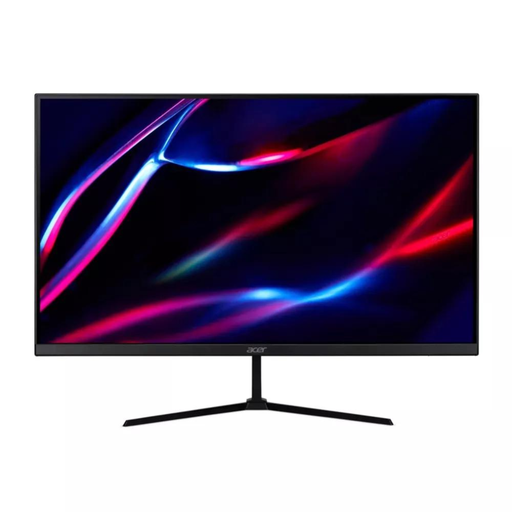 No image available
A separate display for a desk-based laptop setup; check desk space and confirm that your laptop supports the intended connection.
QHD IPS; 180Hz; 350 nits; 2 × HDMI and DisplayPort; HDR400; FreeSync Premium.
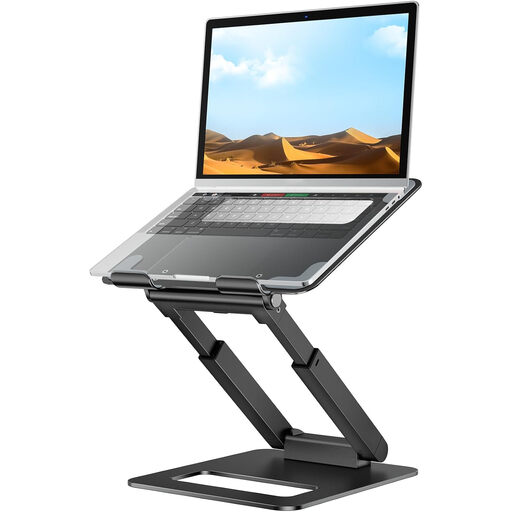 No image available
For repositioning a laptop screen at a desk; plan for the built-in keyboard and trackpad to rise with it.
The product name describes an adjustable, telescopic design with a pull-out feature. Allow for separately positioned controls if needed.
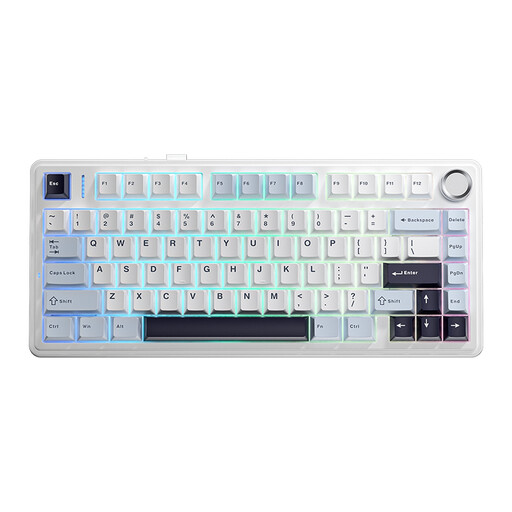 No image available
A separate keyboard for a laptop setup where you want to position the screen and controls independently.
75% layout; wired, Bluetooth and 2.4G connectivity; RGB backlighting; PBT keycaps. The listed layout is US QWERTY.
 No image available
For adding connections at a desk; confirm the laptop supports USB-C video and that the adapter’s output and power arrangements suit your setup.
HDTV output stated as 4K@30Hz; up to 60W PD input; USB 3.0 and USB 2.0 ports; SD and TF card slots.
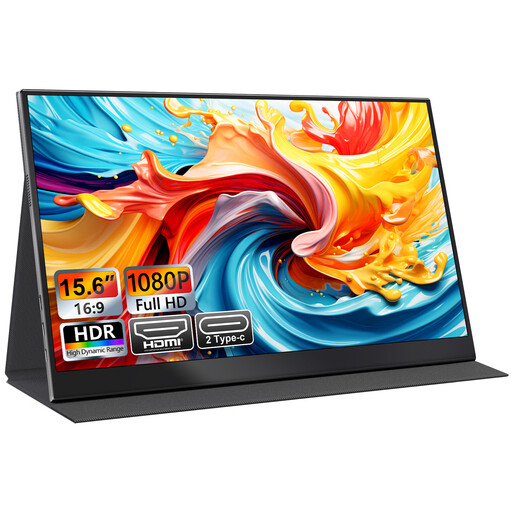 No image available
An additional display option for laptop work or travel; check that your laptop supports the required connection.
15.6-inch FHD 1080P IPS; USB-C and HDMI inputs; VESA mountable. The product description says the cover doubles as a stand.
Not necessarily; check the exact laptop’s external-display limit and whether the dock uses native video, MST or driver-based DisplayLink. Plugable explains that MST can provide extended displays on supported Windows and ChromeOS setups but does not provide the same extended-display behaviour on macOS. A driver-based route also requires the relevant software.
A stand changes the screen position, not the position of the attached keyboard and trackpad. If raising the screen makes those controls impractical to use, allow space for a separately positioned keyboard and mouse; consider your actual desk arrangement.
For workers covered by the Great Britain DSE requirements, HSE says that when an assessment indicates employer action is needed, such as providing DSE equipment, the worker cannot be charged for that action. An optional personal upgrade is not automatically an assessment-identified need, so discuss it and any relevant expenses with your employer before purchasing.
Not simply because they work in a hybrid arrangement. HSE says the DSE regulations can apply to permanent or long-term home workers and people routinely splitting work between home and a workplace when they use DSE daily for continuous periods of an hour or more; they do not apply to occasional or short-period home DSE use. Where the requirements apply, the employer should assess the individual arrangement, including home and office use.