Start with your workstation assessment, daily tasks, desk space and exact laptop model rather than assuming you need a second screen or a dock. For sustained work with a raised laptop screen, the Health and Safety Executive advises using a separate keyboard and mouse; if you want a dock, check the laptop’s video, display and charging capabilities against the connection you plan to use.
Who this setup is for
Home workers checking an assessment
If you regularly use a laptop at home, establish what your workstation assessment calls for before choosing extra equipment. Health and Safety Executive guidance says existing home equipment may be suitable, or an assessment may identify changes.
People working across several windows
If documents, messages and calls compete for screen space, consider whether a separate display fits your tasks and desk. A repeatable dock connection is a separate decision that depends on your laptop’s capabilities.
Laptop users with limited ports or screen placement
If you need to raise the laptop or connect several devices, check space for separate input devices and confirm the laptop’s video, display and charging support before selecting a hub or dock.
What to check before buying
Decide what needs to change in your assessed setup, then check desk placement and laptop compatibility before choosing equipment. Each concern below reflects a different primary need; the same person may still need to make checks in other rows.
| Concern |
What to check |
Who this matters to |
| Assessed workstation needs |
Review the home workstation assessment and what equipment your employer has specified or supplied. If the laptop screen will be raised for sustained work, allow for a separate keyboard and mouse. |
I want to know which change my workstation actually needs before buying a bundle. Around 31% of consumers would put that assessment-led decision first. |
| Screen space |
Map out the documents and calls you need visible, the space available for a monitor and a compatible laptop-to-display connection. |
When I move between documents and communications, keeping the working area visible matters more to me than adding ports. Around 31% of consumers would make screen space their primary concern. |
| Connections and charging |
Check the exact laptop model’s video output, external-display limits and charging support against the dock, operating system and intended monitors. |
I need a desk connection that works with my laptop and peripherals without assuming its USB-C port does everything. For around 23% of consumers, compatibility would be the main priority. |
| Input and calls |
Confirm that separate input devices fit the desk; for call equipment, check connection type and work-device policy. |
I mainly need to type with the laptop screen raised or make calls with equipment positioned for my tasks. Around 15% of consumers would prioritise input or calls over display expansion. |
Common setup mistakes
-
Buying a complete desk kit before checking the assessment
Health and Safety Executive guidance does not prescribe the same home equipment for everyone: an assessment may find existing equipment suitable or identify a specific change.
Check the assessment and your employer’s equipment and purchasing process first. In Great Britain, HSE says workers cannot be charged for DSE equipment an employer must provide following an assessment.
-
Assuming every USB-C port supports monitors and charging
Plugable Technologies explains that video output depends on support from both the host USB-C port and the connected device. Display count and charging introduce further laptop and dock conditions.
Use the exact laptop model’s specifications to check video mode, external-display limits and USB Power Delivery before matching a dock to your monitors.
A mismatch can also mean time spent troubleshooting or changing cables and adapters.
-
Raising the laptop but relying on its built-in controls
For prolonged laptop use, the Health and Safety Executive describes an elevated screen paired with a separate keyboard and mouse, or the use of a separate display.
If you plan to raise the laptop screen, make room and provide connections for separate input devices as part of the setup.
-
Reading a multi-monitor claim as a promise for every laptop
Host display limits and operating-system behaviour affect the result. Plugable Technologies says its UD-ULTCDL requires DisplayLink Manager on macOS for multiple displays and does not support protected HDCP content playback.
Check your laptop model, operating system, required extended displays and workplace software permissions before choosing an MST or DisplayLink dock.
Brands to consider for specific setup needs
Dell
The Dell Pro Dock WD25TB4 is a reference point when comparing a Thunderbolt-capable laptop’s power and display requirements.
- Dell specifies Thunderbolt 4 and power delivery of up to 130W for Dell systems or 96W for non-Dell systems on this model.
- Those model specifications do not establish the display modes or charging result for every laptop; check the host’s limits.
Kensington
The SD4842P EQ is relevant when comparing a dock with defined display and power-delivery conditions.
- Kensington specifies up to three external Full HD monitors and up to 100W Power Delivery for the SD4842P EQ under its stated connection conditions.
- Kensington makes its maximum-resolution result conditional on DSC support across the equipment in the display connection.
Plugable
Plugable’s docking guidance is relevant when native video and driver-based display options need to be compared.
- Plugable distinguishes dock choices by host computer, operating system, display count and resolution requirements.
- Its UD-ULTCDL requires DisplayLink Manager on macOS for multiple displays and does not support protected HDCP content playback.
Logitech
Logitech offers separate keyboards, pointing devices, webcams and headsets to consider when input positioning or calls are the assessed need.
- Its ERGO K860, MX Vertical, C920s and H600 illustrate separate input and call-equipment options.
- Choose devices against the workstation assessment and work-device connections rather than treating the brand’s comfort or call-quality claims as an assessed outcome.
Joybuy product choices
These docks and hubs, separate monitors, and input devices address different parts of an assessed home laptop setup. Choose the equipment that fits the task, desk and laptop connection rather than treating the group as a single kit.
 No image available
Targus USB-C Universal Dual HDMI 4K Docking Station, 100W Power Delivery Pass-Thru
Consider this dock if your assessed desk setup calls for two external HDMI connections and a repeatable laptop connection.
The product name specifies dual HDMI 4K and 100W Power Delivery pass-through. Check the laptop’s supported video outputs, external-display count and charging arrangement before buying.
Joybuy
 No image available
Baseus Metal Gleam Series II 10-in-1 USB-C Hub, Cosmic Black
Consider this hub when the assessed setup needs HDMI displays and several wired desk connections.
The product name lists two HDMI outputs with stated maxima of 4K at 120Hz and 4K at 60Hz, USB-A and USB-C data connections, RJ45, SD/TF and USB-C PD input. The intended video setup requires a compatible laptop USB-C video output; the listed maxima do not establish simultaneous performance on your laptop.
Joybuy
 No image available
AOC Q32V4 31.5-inch IPS Monitor with Built-in Speakers
This separate display is an option when document or multi-window work calls for more screen space and the desk can accommodate a 31.5-inch monitor.
The product name specifies a 2K IPS screen and built-in speakers. Check the available space and the laptop or dock connection needed for the intended display mode.
Joybuy
 No image available
ASUS ZenScreen MB166C 15.6-inch Full HD Portable USB-C Monitor
This portable separate screen is an option if your work calls for another display and its placement suits the assessed setup.
The product name specifies a 15.6-inch Full HD IPS panel and USB Type-C connection. Check that the exact laptop port supports the video and power arrangement the monitor requires.
Joybuy
 No image available
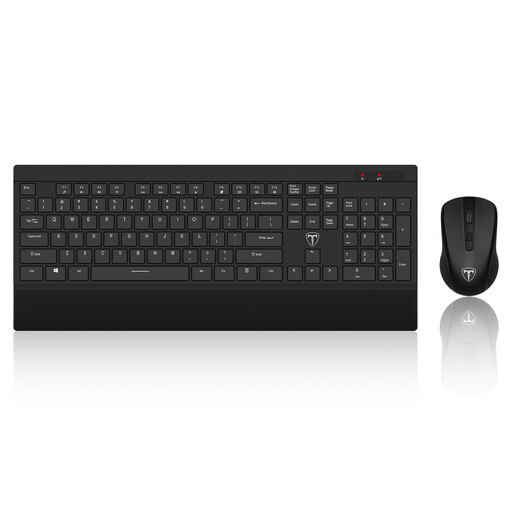
ET Silent 2.4GHz Wireless Keyboard and Mouse Set, US Layout
A separate keyboard and mouse can form part of a sustained-work setup when the laptop screen is raised.
The product name specifies a 2.4GHz wireless set with a US keyboard layout. Check that the layout suits your work and that the work device permits the required wireless connection.
Joybuy
Questions about home laptop setups
Do I automatically need a second monitor for hybrid work?
No. The Health and Safety Executive says home workers may be able to use existing equipment, while an individual assessment may identify a need for something different. Decide from your tasks, screen placement, desk space and laptop connection rather than assuming two screens are required.
When does a home worker need a display screen equipment assessment?
In Great Britain, the Health and Safety Executive says employers must assess workers who use display screen equipment daily as part of normal work for continuous periods of an hour or more, including applicable home and hybrid working arrangements. The Health and Safety Executive for Northern Ireland also identifies regular home-based users as covered by workstation assessment requirements.
Can my employer charge me for equipment required by the assessment?
Not for equipment the employer must provide following a DSE assessment under the Great Britain Health and Safety Executive guidance. Check your employer’s supply and purchasing process before ordering it yourself.
Will any USB-C dock connect a monitor and charge my laptop?
No. As Plugable Technologies explains, the USB-C connector alone does not establish video support; charging and external-display operation also depend on the laptop and dock. Check the exact laptop model’s video modes, display limits and USB Power Delivery requirements against the dock and intended monitor.


