Families checking eligibility first
For households deciding whether the young person can use the intended platform’s live feature, what adult involvement is needed and which account controls to review before choosing equipment.


Check the young person’s eligibility for the intended live feature and agree on adult oversight and interaction settings before buying equipment; a camera or microphone cannot take the place of those steps. If a supervised stream is permitted, start with an existing phone or computer where practical, then consider a webcam, microphone or light for a specific need. A dedicated camera adds connection and software requirements that make it a later-stage choice for most first setups.
For households deciding whether the young person can use the intended platform’s live feature, what adult involvement is needed and which account controls to review before choosing equipment.
For a family considering an occasional stream from home and wanting to try an existing phone, tablet or computer before adding separate equipment.
For a home setup where understandable speech, repeatable camera placement and the recording area matter more than portability.
Choose the platform and check the account first. That determines whether a simple mobile stream, a computer-based setup or a more involved camera workflow is worth considering.
Consider it when: A supervised first stream is permitted on the chosen service and the family wants to try an existing device.
Trade-off: Separate camera placement and audio controls can be more limited than in a computer-based setup.
Consider it when: The stream will come from a fixed desk and the family wants more control over framing or voice capture.
Trade-off: A webcam, microphone and streaming application must work with the computer’s ports and the chosen platform route.
Consider it when: A family has a specific camera requirement that a webcam does not meet.
Trade-off: Camera output, capture hardware and encoder software may all need to work together before the stream can begin.
| Concern | What to check | Who this matters to |
|---|---|---|
| Eligibility and interaction | Check the young person’s age and account against the service’s live-feature rules; agree who will supervise and manage chat or messages. | If the live feature is unavailable or public interaction cannot be managed, a new camera will not solve the problem. Around 42% of consumers would put eligibility and oversight first. |
| Simple, compatible setup | Choose the mobile app, browser or encoder route; check device connections and upload stability before adding peripherals. | When an existing device could handle a first stream, I would want to avoid buying equipment that cannot connect to it. Around 33% of consumers would make a workable setup their primary concern. |
| Voice and framing | For a desk setup, compare microphone connection and mute control, camera placement and what the light will reveal in the background. | From a fixed room, I would want my voice to be understandable and the camera position easy to repeat. Clear audio and framing would come first for around 25% of consumers. |
YouTube Help says creators must be at least 16 to livestream, while TikTok Help Center sets its LIVE minimum at 18. Twitch states that users must be at least 13 and that minors need parent or guardian supervision. Check the current rules for the intended account rather than treating a technically compatible device as permission to stream.
For audio, a headset may suit a setup where listening without speaker-to-microphone feedback matters; a desktop microphone gives a separate position and may call for more attention to room noise. Neither choice removes the need to check the host device and streaming application.
A suitable camera does not make an ineligible account able to livestream. YouTube Help states a 16-year minimum for livestreaming, TikTok Help Center states an 18-year minimum for LIVE, and Twitch has age and supervision conditions.
Check the young person’s age, intended service and account status first. If that route is unavailable, reconsider or postpone the stream rather than buying more hardware.
Live video also depends on the upload connection and the device doing the broadcasting. Twitch advises favouring a stable stream over video settings the connection or hardware cannot sustain.
Test the intended device and home connection before upgrading the camera, then choose stream settings the setup can maintain.
Livestreaming can expose a young person to unwanted interaction and reveal details in the room. Ofcom’s research on children who livestream highlights the importance of treating the real-time setting with care; platform controls do not replace adult judgement.
Before any permitted test stream, agree on the audience, chat and message settings, who will moderate, what stays out of frame and when to stop.
A desktop microphone can capture household and desk noise as well as speech. Mute and monitoring controls vary by model and do not remove the need to listen to a test recording.
Choose a workable position, check how mute is indicated and confirm the exact microphone connects to the intended device and application.
A reference point for computer-based webcams, including the StreamCam and C922 lines.
A reference point for a USB desktop microphone with on-device controls.
A reference point for a compact, PC-oriented USB microphone.
These choices cover microphones and webcams for computer-based streams, plus a phone mount and a wireless microphone to consider for a mobile route. Choose a device and permitted platform workflow first, then check each accessory against that combination.
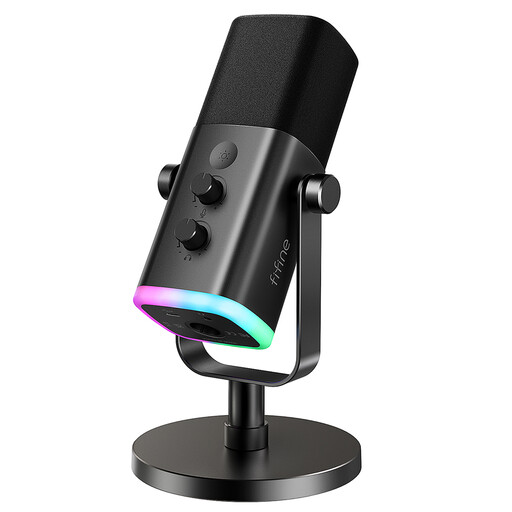 Image unavailable
Consider this for a fixed computer setup where a separate voice microphone and accessible mute control would be useful.
The named variant has USB/XLR connections, a headphone jack and a desktop stand. Check that the intended computer and streaming app can use the chosen connection; XLR use calls for additional equipment.
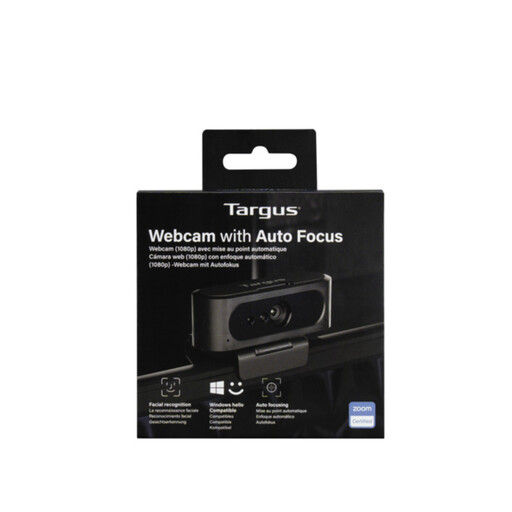 Image unavailable
Consider this for a computer-based desk stream where an external webcam would allow a separate camera position.
The title says 2K, while the technical details state 1080p at 30 fps. Confirm the actual capture resolution, computer connection and streaming-app compatibility before choosing it.
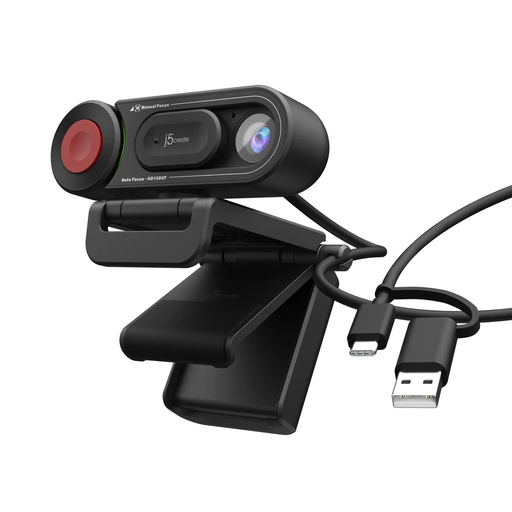 Image unavailable
Consider this when adding an external camera to a laptop or monitor-based stream.
The named variant has an auto and manual focus switch. Check whether its listed 720p video suits the intended stream, and confirm the computer connection and app compatibility.
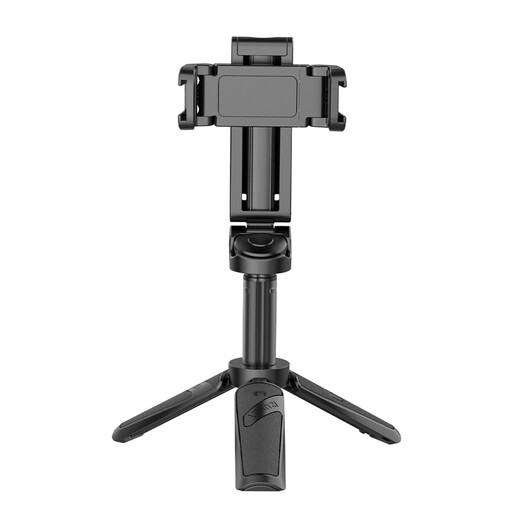 Image unavailable
Consider this to position a phone hands-free during a permitted mobile stream.
The named variant includes a Bluetooth remote and two cold shoes. Check that the holder fits the phone and that the tripod remains stable on the intended surface.
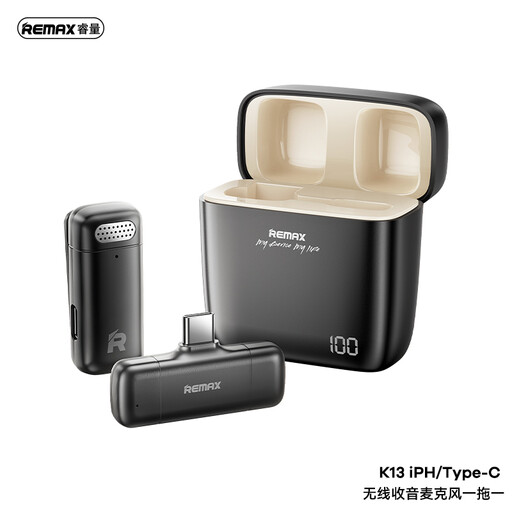 Image unavailable
Consider a clip-on microphone when a mobile setup calls for voice capture away from the device.
This variant uses a USB-C receiver. Confirm that the intended phone or camera accepts it and that the livestreaming app can select its audio input.
YouTube Help says creators must be at least 16 to livestream. Check the young person’s account eligibility and review privacy and chat settings before planning a stream; an adult appearing on camera should not be treated as a general way around the age requirement.
Twitch states that users must be at least 13 and that minors may use the service only under a parent or legal guardian’s supervision. For linked teen accounts aged 13–17, Twitch Family Center provides controls covering livestreaming, direct messages and other settings; check the intended account before choosing equipment.
No: TikTok Help Center states that creators must be at least 18 to use LIVE. A different camera, microphone or account setting does not remove that live-feature age requirement.
Choose the permitted streaming route and host device first, then check its ports, operating-system and application support, and whether the app can select the camera or microphone. Test the upload connection too: Twitch advises balancing video and encoding settings against connection and computer capability.
No. Twitch’s family and moderation controls can help manage access and chat, but they do not remove interaction or privacy risks. Agree on adult oversight, what the camera may show and when to end a stream before using any permitted live feature.