Start with your computer’s display outputs and the space available on your desk, then choose a monitor and support that suit the work you do. For a one-cable laptop setup, check USB-C video support and charging power separately; for multiple screens, confirm that your computer supports the intended display arrangement.
Who is a home-workspace monitor for?
Laptop users looking to simplify desk connections
If you want fewer separate display and charging leads, check that your computer’s USB-C port supports video and that the monitor’s power delivery meets your laptop’s needs. Dell Support and KTC explain why the connector alone does not establish either capability.
People working at a small or shared desk
If you need more screen space without giving up useful desk surface, consider the monitor’s full dimensions, stand position and adjustment together. Which? covers displays for limited spaces, while the Health and Safety Executive recommends considering the workstation as a whole.
People who work across several documents or apps
If you regularly keep documents, spreadsheets, browsers or calls open together, compare single-screen resolution with the option of multiple displays. Check that your computer supports the screen arrangement you have in mind; BenQ and LG list different display capabilities on their respective models.
What should you consider when buying a home monitor?
For a fixed home desk, check your computer’s display outputs and the available desk space before deciding how much screen area and adjustment you need.
| Concern |
What to check when buying |
Who this matters to |
| Connection and laptop charging |
Check the computer’s display output and monitor input. For USB-C, confirm video support and compare power delivery with the laptop’s charging needs. |
If I want one cable for my laptop, I need both video and suitable charging to work; around 28% of consumers put connection compatibility and charging first. |
| Desk fit and support |
Compare the monitor’s full dimensions and stand position with your desk. For an arm, check the mounting interface and attachment surface. |
On a small or shared desk, I want to check the whole stand footprint before choosing by screen diagonal; around 22% of consumers prioritise desk fit. |
| Working area for documents |
Check native resolution and text scaling, as well as the number of independent displays your computer supports. |
When I keep documents and calls open together, useful working area matters more than screen size alone; around 22% of consumers put multitasking space first. |
| Screen positioning |
Check height, tilt and swivel adjustment, and whether pivot is useful for portrait documents. |
For regular desk work, I want to position the screen to suit my setup rather than rely on comfort claims; around 17% of consumers prioritise screen positioning. |
| Complete setup and returns |
Check which cables and supports are included, whether you need an adapter or mount, and the seller’s return terms. |
When comparing the full setup, I want to account for any extra connection or mounting equipment; around 11% of consumers put total cost and after-sales terms first. |
Buying pitfalls to avoid
-
Assuming every USB-C port carries video and charges a laptop
USB-C video support and Power Delivery are separate requirements, so a monitor may display an image without replacing the laptop charger.
Check the capabilities of the specific computer port and compare the monitor’s stated power output with your laptop’s charging requirements.
-
Choosing by screen diagonal alone
A screen’s diagonal does not tell you its resolution or how much desk space its stand occupies.
Compare resolution, full dimensions and adjustment with the desk and the work you want to do.
-
Assuming a daisy-chain setup works with every computer
Multi-Stream Transport (MST) support and the computer’s platform affect whether multiple screens can operate as intended.
Check the exact computer, monitor and dock arrangement before buying for a multi-display setup. BenQ’s GW2486TC guidance notes platform limitations for its MST arrangement.
-
Buying a monitor arm before checking the desk
An arm needs a compatible monitor mounting interface and secure attachment to the desk.
Check the selected arm’s instructions and whether your desk suits its clamp or grommet installation.
Relevant monitor and mounting brands to consider
Dell
The P2425HE is a compact USB-C hub-monitor option for a laptop-based desk.
- Dell UK lists a 23.8-inch Full HD display, up to 90W Power Delivery and an adjustable stand for this model.
- Check the stated power output against your laptop’s requirements; the USB-C label alone does not establish charging suitability.
BenQ
The GW2486TC combines a home-office display with adjustable positioning and audio facilities.
- BenQ lists a microphone, speakers and height, tilt, swivel and pivot adjustment for this model.
- Check the intended computer and connection arrangement before relying on its MST daisy-chain option, particularly with a Mac.
LG
The 27U631A-B is a 27-inch QHD option when resolution is a priority.
- LG UK lists a 2560 × 1440 display, USB-C Power Delivery of 15W and a tilt-adjustable stand for this model.
- A 15W USB-C output does not by itself establish that the monitor can replace your laptop charger; check your computer’s requirements.
Ergotron
Ergotron offers monitor arms and freestanding stands for workstations where the supplied support does not suit the layout.
- The range includes single- and multi-monitor support options.
- Check the exact monitor mount, desk construction and attachment method for the selected support; range-level information does not establish fit for a particular setup.
Joybuy monitor options for a home workspace
The products below are external displays relevant to a fixed home workspace. Compare their stated screen details with your desk and check computer compatibility before choosing a connection or multi-screen setup.
 No image available
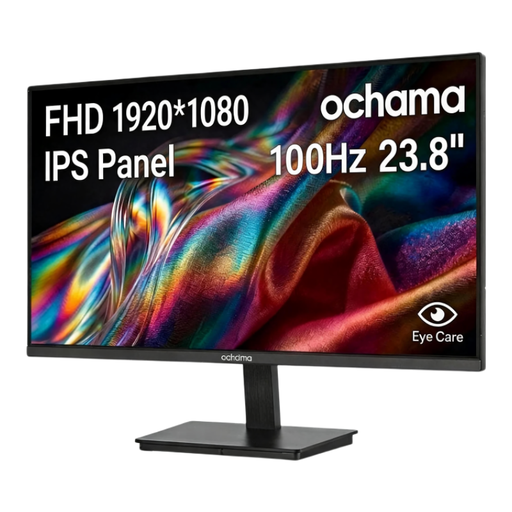
ochama Office Monitor, 23.8-inch
Consider it if you want an office monitor for a fixed desk and are comparing compact screen sizes.
The product title lists a 23.8-inch screen, 1080p resolution and a 100Hz refresh rate.
View on Joybuy
 No image available
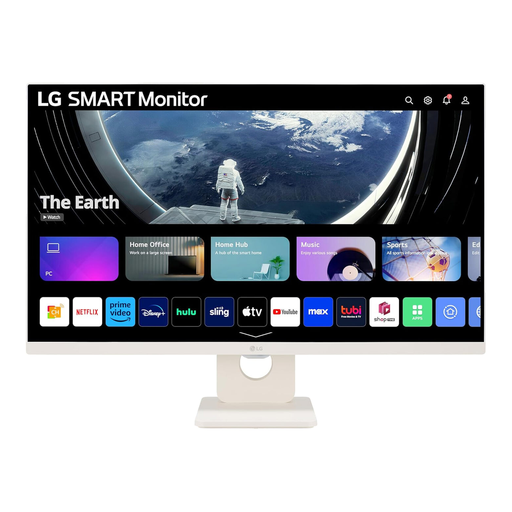
LG Smart Monitor 27U511SA-W, 27-inch
Consider it if you want a larger screen for home-office tasks and also want the smart features named in the product title.
The title lists a 27-inch Full HD IPS display, 100Hz refresh rate and HDMI connectivity.
View on Joybuy
 No image available
LG UHD Monitor 27UP650K, 27-inch
Consider it if detailed single-screen work is a priority and your computer can support the display you intend to use.
The product title lists a 27-inch 4K IPS display and a 60Hz refresh rate.
View on Joybuy
 No image available
ASUS ZenScreen MB166CR FHD
Consider it as an additional screen when the computer and connection you plan to use are compatible.
The product title identifies it as an FHD monitor; check the exact port requirements for your computer before purchase.
View on Joybuy
 No image available
ASUS ZenScreen MB166C Portable USB Monitor
Consider it if you want a 15.6-inch additional display and your computer supports the connection you intend to use.
The product title lists a Full HD IPS display and USB Type-C connectivity.
View on Joybuy
Home monitor buying FAQs
How can I tell whether my laptop’s USB-C port can run a monitor?
Check whether that specific port supports DisplayPort Alt Mode or an appropriate Thunderbolt display connection. A port that supports only data or power will not provide USB-C video; if necessary, check for another supported display output.
Will a USB-C monitor replace my laptop charger?
Only if the laptop accepts charging through that connection and the monitor supplies enough power for your needs. Compare the laptop’s charging requirements with the monitor’s stated Power Delivery output, and keep the normal charger available if the monitor’s output is insufficient.
Can I daisy-chain two monitors from a Mac?
Do not assume that an MST connection will provide the display arrangement you want on a Mac. BenQ’s GW2486TC guidance distinguishes its MST arrangement from Thunderbolt setups for Macs, so check the exact computer’s display limits and the proposed connection or dock.
Can a monitor arm be fitted to any desk?
No; the desk and monitor must suit the selected arm’s attachment method and mounting interface. Check the arm’s installation instructions and whether your desk can accommodate its clamp or grommet fitting.


