What should you prioritise when choosing a home monitor setup?
Start with the work you need to see at once, then check whether your screen can be positioned comfortably and connected to your exact laptop. Before buying equipment to address a workplace risk, establish what an applicable workstation assessment identifies.
| Concern |
What to check when buying |
Who this matters to |
| Space for simultaneous work |
Compare the screen dimensions and resolution with the windows you use together and the desk depth available. |
If I need documents and reference material visible together, I want enough usable display area without crowding my desk. About 33% of consumers put simultaneous-work space first. |
| Screen and input-device position |
Check the height and angle you can achieve; for an arm, confirm the monitor’s mount, weight and desk attachment. |
If my screen is difficult to position at my desk, I want to improve its placement rather than assume a larger display will solve it. About 25% of consumers prioritise screen and input-device positioning. |
| Laptop connection compatibility |
Check the exact laptop’s video output and display limit against the monitor input and the number of screens you plan to use. |
If I move my laptop between workspaces or plan to add a screen, I need the proposed connection to work with that particular device. About 25% of consumers put connection compatibility first. |
| Responsibility for required equipment |
If DSE requirements apply, ask how the home workstation will be assessed and what action the assessment identifies. |
If I am considering equipment to address a workplace risk, I want to know whether it is an assessed requirement before treating it as a personal upgrade. About 17% of consumers prioritise establishing who is responsible for required equipment. |
Joybuy monitor options for a home workstation
These Joybuy listings are external monitors for expanding a home laptop workstation. Compare the display details and adjustment features stated for each model, then check that its connections work with your laptop.
 No image available
BenQ MA270UP 27-inch Mac Monitor
Consider it if you want a separate screen for a Mac laptop workstation and screen-height adjustment matters.
27-inch 4K UHD display; USB-C; height-adjustable stand.
Joybuy
 No image available
AOC Q32V4 31.5-inch 2K Ultra HD Monitor
Consider this larger-screen option if you want a separate display for keeping work windows in view and have room for it on your desk.
31.5-inch 2K Ultra HD IPS LED display; 4 ms; Adaptive Sync; built-in speakers.
Joybuy
 No image available
MSI MD272UPSW 27-inch 4K UHD Smart Monitor
Consider it if you want a separate 27-inch screen and the listed smart-monitor features suit your workstation needs.
4K UHD IPS display; Google TV; USB-C 65W; Dolby Audio.
Check the exact laptop and monitor specifications to confirm the required video and charging functions.
Joybuy
 No image available
ASUS ProArt PA278CV IPS WQHD Monitor
Consider it if a separate WQHD display suits the way you arrange documents and reference material at your desk.
IPS panel; WQHD resolution.
Joybuy
 No image available
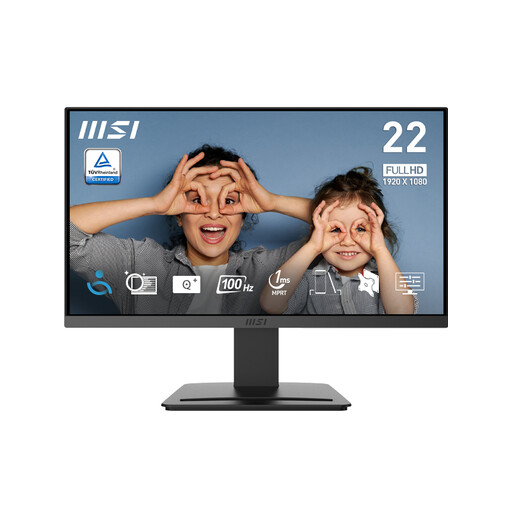
MSI PRO MP223 E2 21.45-inch Full HD Monitor
Consider this smaller separate-screen option if its display size suits your desk and work layout.
21.45-inch Full HD (1920 × 1080); 100 Hz; HDMI 1.4b and DisplayPort 1.2a; tilt adjustment; 75 mm VESA mounting.
Joybuy
Frequently asked questions
Do you need a dock to use one external monitor?
Not necessarily. A suitable cable or adapter may be enough if the laptop’s video output and the monitor’s input are compatible. Consider a dock if you also need its supported charging or peripheral connections, and check that the exact laptop port carries the video signal you need.
Will a dock automatically let a MacBook Air run two external monitors?
No; a hub or daisy chain does not raise the external-display limit for a particular MacBook Air model, according to Apple Support. Apple’s guidance specifies different arrangements for different models: its M3 guidance requires the lid to be closed for two external displays, while its M4 guidance allows up to two external displays alongside the built-in display under stated conditions. Check the guidance for your exact model.
How should you set up a raised laptop for prolonged work?
The Health and Safety Executive advises pairing an elevated laptop screen with a separate keyboard and mouse, or using a separate display. Position the screen and input devices together as part of the workstation rather than raising the laptop and continuing to type on its attached keyboard.
Who pays if a home DSE assessment identifies extra equipment?
Where the DSE rules apply to a worker in Great Britain, the employer must assess the home workstation and act on identified risks; the Health and Safety Executive says workers cannot be charged for action identified by the assessment, such as supplying DSE equipment. Northern Ireland has separate DSE guidance and legislation, so check the requirements that apply there. An assessment does not automatically mean every worker needs a particular monitor.
Do DSE requirements mean you must buy a monitor?
No universal monitor-purchase requirement follows from the cited guidance. The Health and Safety Executive says an assessment should consider the home workstation, and additional furniture or equipment may not be needed if the existing arrangement is suitable.


