Households preserving important records
If financial, property, medical or family records would be difficult to recreate, plan how you would restore them from a separate backup as well as how you would store them on the NAS.


For scanned household documents, choose a two-bay NAS around the way you will recover files and back up your workstation, not just its drive capacity. Drive redundancy and snapshots can help with particular failures or unwanted changes, but keep a separate backup copy and check that the NAS works with your workstation before buying. A 2.5GbE connection matters chiefly if the rest of your local network can use it.
If financial, property, medical or family records would be difficult to recreate, plan how you would restore them from a separate backup as well as how you would store them on the NAS.
If most scans come from one home PC or Mac, straightforward file access and a workable workstation backup routine may matter more to you than features intended for heavier multi-user workloads.
If you move larger batches of files and are building a 2.5GbE local network, check the connection from the workstation through to the NAS before choosing one for its Ethernet port.
Decide how you will restore a lost scan, then check everyday access from your workstation; consider faster networking only if it addresses your actual file-transfer needs.
| Concern | What to check | Who this matters to |
|---|---|---|
| Recovering documents | Check the backup destination and how you would restore a file. If you want snapshots or drive redundancy, confirm how they are configured. | If my scanned records are hard to replace, I need a way back after deletion or a drive failure that does not depend on the NAS alone. Around 50% of consumers put recovery first. |
| Simple local filing | Check workstation compatibility and the file-access method, then confirm whether the enclosure comes with drives. | When I file scans from one home computer, I want to reach them easily and keep the routine manageable. For around 30% of consumers, straightforward filing is the primary concern. |
| Local transfer speed | Check the Ethernet capability of the workstation and the network path; treat manufacturer throughput figures as conditional. | If I regularly move large batches of files, I want to know whether my network can use a faster NAS connection. Faster local transfers come first for around 20% of consumers. |
Drive redundancy addresses a drive failure, while snapshots can help with unwanted file changes; neither is an independently stored copy. The National Cyber Security Centre warns that on-premises and cloud backups are not ransomware-resistant by default.
Set up a separate backup destination, protect access to it and practise restoring a scanned file.
A separate backup destination also needs setting up, and restoration takes time to test.
A 2.5GbE port on the NAS cannot provide end-to-end 2.5GbE transfers through a Gigabit-only connection. ASUSTOR says its published transfer results were obtained under optimised lab conditions.
Check the workstation connection, switch or router ports and cabling before making network speed a deciding factor.
Using 2.5GbE may require additional compatible network equipment.
The contents of a NAS bundle affect whether you can start storing scans or configure two-drive redundancy when it arrives.
Check the exact listing for included drives, then confirm compatible drive types and capacities for the configuration you intend to use.
The DiskStation DS224+ is a reference point for a two-bay setup focused on workstation backups and document recovery.
QNAP positions the two-bay TS-233 for beginners and home NAS users who want central file access.
The Drivestor 2 Pro Gen2 (AS3302T v2) is relevant when a home workstation has a compatible 2.5GbE network path.
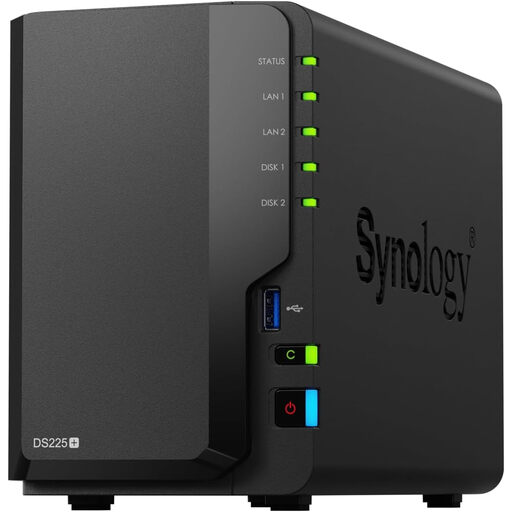
This diskless two-bay NAS is a choice for centralising scans at home. Confirm its workstation backup workflow and arrange drives and a separate backup destination to suit your setup.
 No image available
Consider this model if you want a central place for scans and are prepared to set up a separate backup. It is a two-bay diskless enclosure, so check compatible drives, whether your workstation can use the backup workflow you need, and how you will test a restore.
No: a supported two-drive redundancy configuration can help if one drive fails, but it is not a separate backup. Keep another copy of important scans and practise restoring it; the National Cyber Security Centre advises regular backups of important documents.
Not usually for routine document filing. Consider it if you move large batches and can use a compatible connection across the workstation and network path; a Gigabit-only link will limit end-to-end transfer speed.
Yes. Keep their operating systems and relevant apps updated, and check whether automatic updates are available as part of maintaining the devices you use for your scans.
The Information Commissioner's Office says processing carried out purely for personal or household activity, with no professional or commercial connection, falls outside the UK GDPR's scope. If you also use the scans for work or business, do not assume that household distinction applies to that use.