Choose the accessory that addresses your main difficulty on home-working days: limited screen space, repeated desk connections, typing position or calls. Before buying a monitor or dock, check what your work laptop can support; for calls, match the equipment to your meeting platform and whether others can hear the room.
Who needs which setup?
Workers short of screen space
If documents, spreadsheets or several windows make the laptop screen restrictive, check the laptop’s video output and supported display count before choosing a monitor. Consider its position as part of the home workstation too; the Health and Safety Executive advises a comfortable, sustainable posture for home display-screen work.
People reconnecting a home desk
If you connect several desk devices each time you work from home, a dock may reduce repeated cable changes. Check the exact laptop port, display support and charging requirements rather than relying on the USB-C connector’s shape; Microsoft Support and dock manufacturers identify compatibility as device-dependent.
Workers with frequent video calls
Camera placement, household noise, call privacy and the meeting platform can change which webcam or audio device makes sense. Check the features of the exact model and choose a headset instead of room audio when other people must not hear the call.
What should you check before buying?
Start with the task that is hardest at home, then check the proposed accessory against your laptop and working space before adding other equipment.
| Concern |
What to check |
Who this matters to |
| Screen space and posture |
Check video output, the number of independent displays supported and the matching cable. Consider whether the screen can be positioned comfortably. |
If I spend long periods working across documents, I need enough usable screen space without compromising my workstation position. Around 33% of consumers put screen space and posture first. |
| Desk connections and charging |
Compare the laptop port’s capabilities with the dock’s display and power requirements; check the cable and any driver requirement. |
When I reconnect several devices on each home day, I want a repeatable connection that can serve the equipment I use. For around 27% of consumers, desk connectivity and charging are the primary need. |
| Calls and privacy |
Check whether room audio is suitable, which connection the computer accepts and whether the exact device variant supports your meeting platform. |
If calls happen in a shared room, I need to hear and speak without making the conversation audible to everyone nearby. Call quality and privacy come first for around 20% of consumers. |
| Input across locations |
Check keyboard layout, portability and whether an employer-managed computer permits the proposed Bluetooth or USB-receiver connection. |
Moving between home and work, I need typing and navigation devices I can use with my permitted computer setup. Around 20% of consumers primarily value repeatable input across locations. |
Mistakes to avoid
-
Assuming every USB-C port supports a full dock
A USB-C connector alone does not establish which video, charging or higher-speed functions the laptop and cable support. Microsoft Support notes that hardware and software combinations can limit USB-C functionality.
Find the laptop’s exact model and port specifications, then compare them with the dock’s host, cable, display and power requirements.
-
Expecting an HDMI splitter to add an independent desktop
Microsoft Support explains that a splitter duplicates a display signal rather than creating two independently extended Windows displays.
If you need separate desktops, check the laptop’s supported display count and use a dock or adapter documented for independent extension with that operating system.
-
Buying work-related workstation equipment before checking the assessment
The Health and Safety Executive says an employer must assess a workstation when a worker uses display-screen equipment daily, continuously for an hour or more as part of normal work. Where that assessment identifies equipment as necessary, workers cannot be charged for it.
Ask your employer about the assessment and equipment process before personally buying an accessory to address an identified workstation issue.
-
Using a speakerphone where calls need privacy
A speakerphone plays meeting audio into the room; microphone noise-reduction features do not prevent others nearby from hearing the conversation.
Consider a headset for shared spaces or confidential calls. Reserve a speakerphone for a room where its audio can be heard without a privacy problem.
Relevant brands to consider
Dell
Dell offers business-oriented docks for connecting a laptop to desk equipment.
- Dell UK lists power delivery of up to 130W for Dell systems and 96W for non-Dell systems on its Pro Thunderbolt 4 Smart Dock SD25TB4.
- Those figures and its display modes are specific to that dock and its stated conditions. Check the exact laptop and dock combination before relying on them.
Anker
Anker offers docks using different USB-C, DisplayLink and Thunderbolt connection approaches.
- Its dock range includes options intended to connect desk peripherals through a hub.
- Anker says compatibility depends on the laptop port, operating system, power needs and display support. Check the exact model and any driver requirement.
Logitech
Logitech makes webcams and input devices for desk work and video meetings.
- Logitech lists a privacy shutter and certification for Microsoft Teams, Google Meet and Zoom on its Brio 505 webcam.
- Logitech says Brio 505 auto-framing requires Logi Tune and is not supported on ARM-processor computers.
Jabra
Jabra offers headsets and speakerphones with platform-specific variants for work calls.
- Jabra distinguishes Microsoft Teams and universal-communications variants, making the exact version relevant to workplace platform support.
- A speakerphone, including Jabra’s Speak2 55, plays call audio into the room and may not suit a shared space or a private conversation.
Joybuy products for a home desk
These choices address different parts of a hybrid worker’s home desk: display space, laptop connections, separate input and video calls. Match the item to your main need, then check compatibility with your computer and workspace.
 No image available
Targus USB-C Universal Dual HDMI 4K Docking Station, 100W Power Delivery Pass-Thru
Consider this dock if you regularly reconnect a laptop to a home desk. Its named features include dual HDMI connections and 100W power-delivery pass-through, but check your laptop’s video modes, USB-C capability and charging requirement before relying on either; also confirm whether the required power adapter is included.
View on Joybuy
 No image available
Targus 2K Webcam with Auto Focus
Consider a separate webcam if camera placement matters on regular calls. This model is named with auto focus; check its actual supported output resolution before buying, as the resolution descriptions for this product conflict. Confirm your computer’s USB connection and operating-system compatibility as well.
View on Joybuy
 No image available
HP 680 CFT Dual-Mode Keyboard and Mouse Combo
This keyboard-and-mouse set is an option if you need separate input devices at your desk. Check whether your work computer permits its Bluetooth or USB-receiver connection. The stated keyboard layout is US, so make sure it suits your typing needs.
View on Joybuy
 No image available
AOC Q32V4 31.5-inch IPS Monitor with Built-in Speakers
Consider this 31.5-inch display when laptop screen space limits your desk work. Check that your laptop has a compatible video output and cable, that the screen fits your desk and that its positioning works for you. Confirm the stated resolution for this exact model before choosing it for a particular display requirement.
View on Joybuy
 No image available
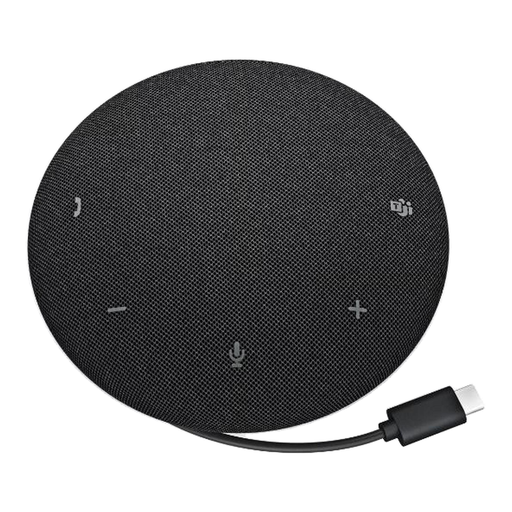
Dell Pro Wired Speakerphone SP325
A wired speakerphone may suit hands-free calls in a private room. This model will play meeting audio into the room, so consider a headset instead for shared spaces or confidential conversations. Check its connection and conferencing setup against your work computer.
View on Joybuy
Common questions
Do I automatically need a monitor and dock to work from home?
No: the right equipment depends on your tasks and workstation. The Health and Safety Executive says that when someone uses display-screen equipment daily, continuously for an hour or more as part of normal work, the employer must assess the workstation; for work at home and in the office, the assessment should cover both settings.
Will any USB-C dock charge my laptop and run two separate monitors?
No. Microsoft Support cautions that USB-C functions depend on the hardware and software combination, and a display splitter duplicates rather than independently extends a Windows desktop. Check your laptop’s port, supported display count and charging requirement alongside the dock and cable specifications.
What should I check before connecting multiple monitors to a Mac?
Check the exact Mac model’s supported number of external displays and its available ports first. Apple Support also advises matching the cables or adapters to the Mac and the displays; a dock cannot establish support for an extra display on its own.
Should I buy the Microsoft Teams version of a call device?
Choose a Teams-certified variant if your workplace uses Teams and you need the functions offered by that exact model. Jabra distinguishes Teams-specific integration from its universal-communications variants, so check the version and your employer’s meeting platform rather than assuming the variants behave identically.


