Start with the limitation you notice during sustained laptop work: screen position or space, control placement, or too few usable connections. A raised laptop or separate monitor usually calls for a separately positioned keyboard and mouse; choose an adapter or dock only after checking your laptop, cable, display and charging requirements, and make sure the whole setup fits your desk and can be powered safely.
Who these accessories are for
Laptop-screen workers
If you work for long periods on a laptop display, decide whether changing its position or adding a separate screen better suits your tasks and available desk space. The Health and Safety Executive’s guidance on display-screen equipment discusses raising a laptop screen while using a separate keyboard and mouse.
Limited-desk workers
If your desk is small, consider the space needed for the display, keyboard, mouse and cables together. Electrical Safety First advises avoiding overloaded extension leads and daisy-chained leads.
Multi-connection workers
If you regularly connect a display and other peripherals, check what your specific laptop, cable and any workplace rules allow before choosing an adapter or dock. StarTech.com’s USB-C guidance and Lenovo’s dock guidance both emphasise compatibility checks.
What to check before buying
| Concern |
What to check when buying |
Who this matters to |
| Screen position and display area |
Check the screen position and available footprint. For a monitor, confirm the laptop’s video output and the monitor’s input. |
If the built-in screen feels poorly positioned or too limited for your work, you may be weighing a stand against a separate display. About 29% of consumers put screen position or display area first. |
| Separate keyboard and mouse |
Check the combined desk space, keyboard layout and permitted Bluetooth or receiver connections. |
If you want to raise the laptop screen, consider where a separate keyboard and mouse will sit. About 23% of consumers prioritise placing their typing and pointing controls independently. |
| Desk fit and cable safety |
Measure the complete setup and plan cable routes; check socket access and extension-lead ratings. Do not daisy-chain extension leads. |
If desk space is tight, the stand, controls and cables all need to fit without crowding the work surface. Around 18% of consumers focus first on fitting the setup safely. |
| Display, dock and peripheral compatibility |
Check the exact laptop model, video support, cable, display arrangement, charging needs and any workplace restrictions. |
If you repeatedly connect several devices, you need to know that your laptop and the connection path support the functions you intend to use. About 18% of consumers put dependable, permitted connections first. |
| Avoiding duplicate purchases |
List the equipment you already have and, where relevant, ask your employer about approved or assessed equipment. |
If you may already have access to suitable equipment, check what is available before buying a bundle. Roughly 12% of consumers prioritise avoiding duplicate spending or clarifying what their employer supplies. |
Buying pitfalls to avoid
-
Assuming every USB-C port supports video
A USB-C connector’s shape alone does not establish that it can carry video. DisplayPort Alternate Mode video depends on support from the laptop port, cable and connected device.
Check the exact laptop port and the complete connection path before buying an adapter or dock.
Choosing without checking may mean buying an adapter, dock or replacement cable that does not solve the connection you need.
-
Buying a tall stand without room for separate controls
Raising a laptop screen while continuing to type on its raised built-in keyboard may undermine the intended separation of screen and controls.
Measure the desk with the stand, keyboard and mouse laid out together before choosing a stand.
You may also need a separate keyboard and mouse, which take up additional desk space.
-
Choosing a dock by its advertised maximum charging figure
Charging depends on the laptop and the exact dock configuration. Lenovo’s UK information for its ThinkPad Universal USB-C Dock includes differing charging figures, so a headline maximum should not be treated as a guarantee for your setup.
Confirm the dock variant, supplied power adapter and laptop charging requirement against the relevant manufacturer information.
A separate compatible charger or a different dock may be needed if the chosen configuration does not meet your requirements.
-
Adding devices by daisy-chaining extension leads
Electrical Safety First warns that overloaded or daisy-chained extension leads can overheat and cause a fire.
Plan socket access and cable routes before adding powered accessories. Do not plug one extension lead into another.
Relevant brands to consider
Dell
The Dell Pro 24 Plus USB-C Hub Monitor P2425HE combines a separate display with USB-C connectivity.
- Dell specifies a 23.8-inch Full HD display, an adjustable stand and up to 90 W power delivery for this model.
- USB-C video and charging depend on the laptop and cable. Check compatibility rather than assuming that a USB-C port supports both.
Logitech
The Pebble 2 Combo for Mac and MX Keys Mini illustrate compact keyboard-and-mouse and keyboard-only options.
- Logitech describes the Pebble 2 Combo for Mac as compact and lists compatibility with specified Apple operating systems. Its UK MX Keys Mini page describes a space-saving keyboard.
- Check the operating system and keyboard layout you need. A full-size number-pad version is offered separately; manufacturer descriptions do not establish personal comfort or productivity.
Twelve South
The Curve Flex is an adjustable, folding stand for keeping a laptop screen in use.
- Twelve South specifies a width of 264 mm, a depth of 224 mm and compatibility with laptops at least 8.66 inches wide and weighing up to 7 pounds.
- Check your laptop’s width and weight and measure the stand’s footprint against your desk before choosing it.
Lenovo
The ThinkPad Universal USB-C Dock is an example of a multi-port route for regularly connecting a laptop to a display and peripherals.
- Lenovo describes the dock as providing multiple ports and charging.
- Check system compatibility and display configuration for your laptop. Lenovo-specific management features may not work with other laptop brands; confirm the exact dock variant and supplied adapter before relying on a charging figure.
StarTech.com
The DKT30ICHPD multiport adapter represents a smaller connection-expansion option where a full dock may not be needed.
- StarTech specifies HDMI, USB ports and USB-C power-delivery pass-through for this model, with 8 W reserved for the adapter.
- For USB-C video using DisplayPort Alternate Mode, check support across the host laptop, cable and connected device; advertised adapter outputs alone do not establish compatibility.
Joybuy product choices
These Joybuy options cover laptop positioning, a separate keyboard and USB-C connection expansion. Check each product’s fit, layout and compatibility against your laptop and desk.
 No image available
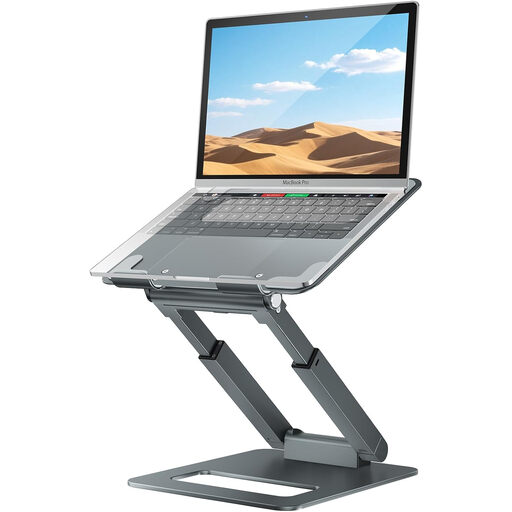
Adjustable Telescopic Laptop Stand, Grey
Consider this stand if you want to position a laptop screen separately from the desk surface; check the footprint against the space available for separate controls.
The listing describes adjustable height and angle and a telescopic pull-out design.
Joybuy
 No image available
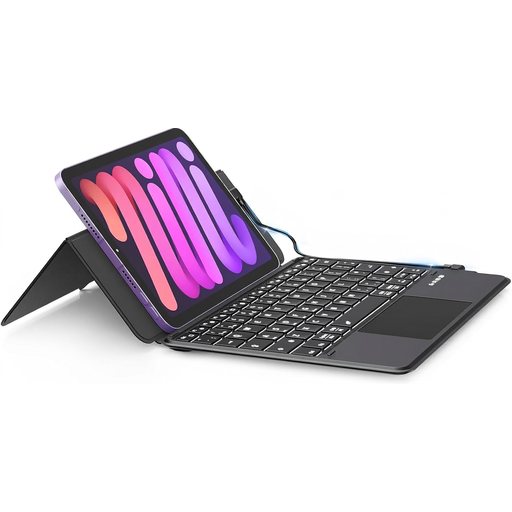
Doohoeek Universal Keyboard with Trackpad
Consider it if you want a separate typing input with pointing controls built into the keyboard; check that its connections and listed device compatibility suit your setup.
The listing specifies dual Bluetooth pairing, wired USB-C mode, a built-in multi-touch trackpad and backlighting. It lists compatibility with Windows, macOS, iOS and Android.
Joybuy
 No image available
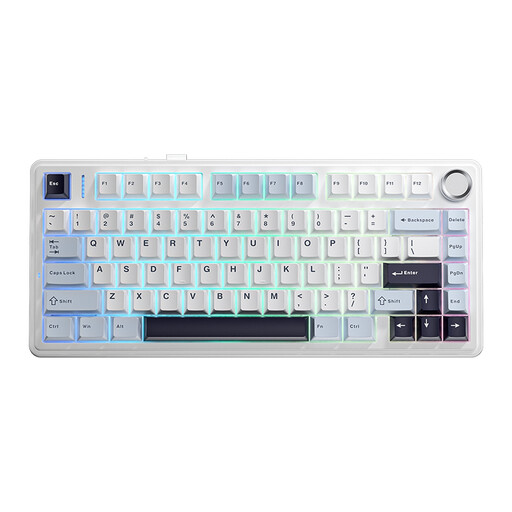
AULA F75 75% Wireless Keyboard, US QWERTY
Consider this compact-layout keyboard if you want a separate keyboard and have checked that the US QWERTY layout includes the keys you need.
The title specifies a 75% layout and wired, Bluetooth and 2.4G connection modes. It also lists a mechanical design, RGB backlighting and PBT keycaps.
Joybuy
 No image available
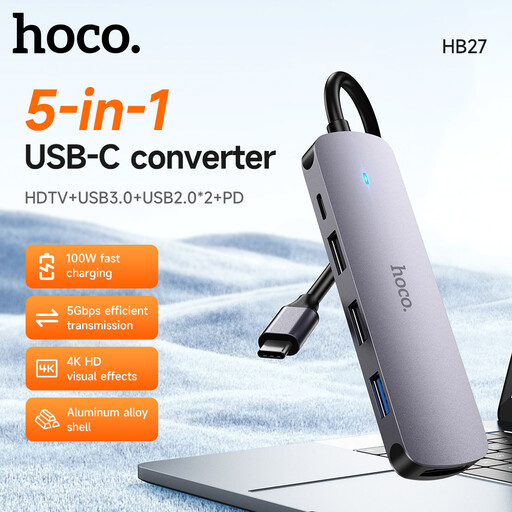
HOCO HB27 USB-C Hub, Metal Grey
Consider this hub if you need to add display and USB connections; confirm that your laptop supports the video connection you plan to use.
The listing specifies HDMI output up to 4K at 30 Hz, USB 3.0, two USB 2.0 ports and up to 60 W power delivery. HDMI video requires host support for DisplayPort Alternate Mode.
Joybuy
 No image available
HOCO HB28 USB-C Multi-Function Converter, Metal Grey
Consider this converter if you need to add a display connection, USB ports or card-reader slots; check that its connections match your laptop and peripherals.
The listing specifies 4K at 30 Hz output, USB 3.0 and USB 2.0, SD and TF slots, and up to 60 W power-delivery input. SD and TF cards cannot be read at the same time.
Joybuy
Laptop-work accessory FAQs
Can I assume a USB-C dock will send video to my monitor?
No. For video using DisplayPort Alternate Mode, check support across the laptop’s port, the cable and the connected device. Then confirm the exact dock and laptop specifications for the display arrangement you intend to use.
If I raise my laptop screen, what else should I arrange?
The Health and Safety Executive’s display-screen guidance shows a separate keyboard and mouse when a laptop screen is elevated for prolonged use. Plan space for both controls as well as the stand.
Do I need to buy home-workstation equipment myself if I am an employee?
Not necessarily. The Health and Safety Executive says that where display-screen equipment rules apply, an employer should assess the home workstation; if the assessment indicates that equipment needs to be provided, the worker cannot be charged for it. Whether this applies to your work and what equipment is needed depend on the assessment.
How should I manage power and cables after adding a monitor or dock?
Plan the setup to avoid trailing cables and overloaded extension leads. Electrical Safety First advises checking extension-lead ratings and not plugging one extension lead into another; where possible, arrange equipment closer to a suitable socket.
What UK return rights matter if an online accessory does not fit my setup?
For a covered distance purchase, GOV.UK says customers generally have 14 days after receiving goods to notify the seller that they wish to cancel, followed by another 14 days to return them. Faulty or misdescribed goods have separate remedies; check applicable exceptions and the seller’s terms rather than assuming every opened product can be returned in any condition.


