What matters when choosing?
Start with the workstation issue identified at each place you work, then check laptop compatibility before choosing connections or extra screens. The concerns below distinguish consumers by the need they put first; the percentages are approximate, not a reason to buy an accessory you do not need.
| Concern |
What to check |
Who this matters to |
| Fixed-desk setup |
Use workstation assessment findings to decide whether screen positioning or separate input devices need attention. Check desk space and the laptop’s monitor connection if adding a screen. |
If I work at one desk for long sessions, I want to address the screen and input arrangement that makes laptop-only work difficult. Around 36% of consumers put this fixed-desk need first. |
| Displays and connections |
Check the laptop’s USB-C video support, the intended display layout under its operating system, and the dock’s delivered charging output. |
Several displays and peripherals need to connect without guessing what my laptop port can do; for around 29% of consumers, this is the primary need. |
| Moving between desks |
Compare the connections needed at each location with a portable hub’s ports, display support and charging requirements. |
When I move between home, office and hot desks, I need a setup I can carry and reconnect without assuming every desk is equipped alike. That portability comes first for around 21% of consumers. |
| Calls in shared spaces |
Check the exact headset’s connection method, microphone features and any meeting-platform requirements set by your organisation. |
If calls are the main difficulty in a shared space, I care more about a suitable headset than another display. Around 14% of consumers prioritise that call-focused need. |
Joybuy product choices
These products cover a separate screen, a mouse, USB-C connection equipment and a headset for calls. Choose the part that matches your workstation or work-location need; check laptop and workplace requirements before selecting a display or adapter.
 No image available
Samsung 22" S40GD LS22D400GAUXXU Full HD Monitor
Consider a separate screen if your regular-desk assessment identifies the display arrangement as a priority. This 22" Full HD monitor still needs a connection that works with your laptop; a screen alone does not address input devices or the wider workstation.
View on Joybuy
 No image available
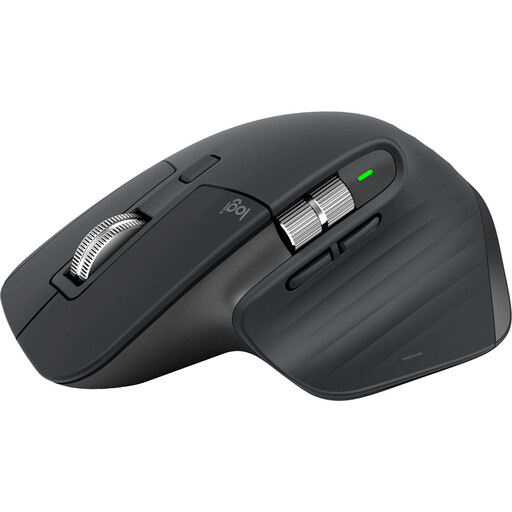
Logitech MX Master 3S Black Mouse
A separate mouse is worth considering when you need to position your pointing device independently of a laptop. Check that your computer supports the connection method you intend to use; this mouse does not take the place of a separate keyboard.
View on Joybuy
 No image available
Targus USB-C Universal Dual HDMI 4K Docking Station, 100W Power Delivery Pass-Thru, Retail Packaging
Consider this dock when your planned desk setup calls for two HDMI display connections and USB-C power pass-through. Its title specifies dual HDMI 4K and 100W Power Delivery pass-through; confirm the laptop’s video and charging support, the intended display layout and the external power-adapter arrangement.
View on Joybuy
 No image available
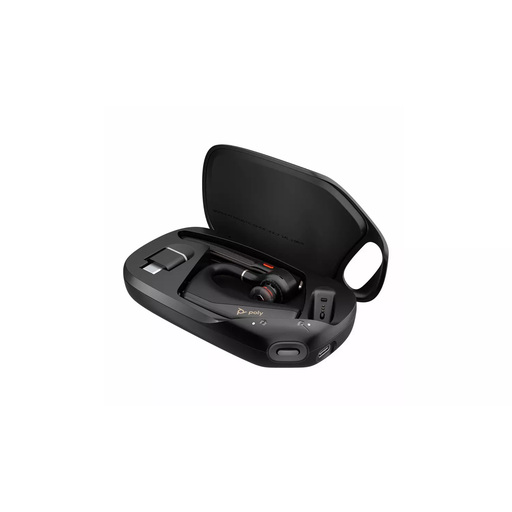
HP Poly Voyager Legend 50-M UC Bluetooth Headset, Black
A Bluetooth headset is relevant when calls are your main accessory need, particularly if you work away from a fixed desk. Check its connection and your organisation’s meeting-platform requirements before choosing it for work calls.
View on Joybuy
 No image available
V7 V7UC-U3CRJ45HDVG-BLK USB-C Adapter with 4K HDMI, VGA, Gigabit Ethernet, 100W Power Delivery and Dual USB 3.0
Consider this adapter for a portable setup needing a display connection alongside network and USB connections. The title specifies 4K HDMI, VGA, Gigabit Ethernet, 100W Power Delivery and dual USB 3.0; check your laptop’s video and charging capabilities, and do not assume the HDMI and VGA connections provide a simultaneous two-display layout.
View on Joybuy
Frequently asked questions
Do I automatically need extra equipment for regular laptop work at home?
No: the right changes depend on the workstation, not a standard bundle. The Health and Safety Executive says home workers may not need additional equipment if they can achieve a comfortable, sustainable posture; where the display screen equipment rules apply, use the assessment findings to decide what to change.
When should I ask about my employer’s display screen equipment process?
Ask if you use display screen equipment daily for continuous periods of an hour or more as part of your normal work. The Health and Safety Executive says assessments for workers who use it at home and in the office should cover both situations.
Should I pay for equipment identified by a workstation assessment?
Check your employer’s equipment process before buying it yourself. For workers covered by the display screen equipment rules, the Health and Safety Executive says workers cannot be charged for DSE equipment indicated by a workstation assessment.
Will any USB-C dock run my monitor and charge my laptop?
No: a USB-C connector does not guarantee video output or laptop charging. Check the laptop’s documented DisplayPort Alt Mode or relevant Thunderbolt or USB4 video support and Power Delivery capability, then compare the exact dock’s display ports and delivered charging output.
Can accessories replace breaks and workstation adjustments?
No: accessories address particular parts of a display screen workstation. The Health and Safety Executive also advises breaks or changes of activity and considers posture, desk space and screen arrangement, so include those factors when planning regular laptop work.


