What should you check first?
Start with how you position the laptop screen and input devices. Then decide whether desk space, extra connections or calls create a separate need.
| Concern |
What to check |
Who this matters to |
| Laptop screen and input position |
Check riser fit and stability, plus room for a separate keyboard and mouse. |
If I work mainly on a laptop, I want to raise its screen without raising the keys I type on. Around 36% of consumers put that separation first. |
| Usable desk space |
Measure the desk and check any arm’s load rating, mounting pattern and clamp clearance. |
When the desk is shared or compact, keeping enough surface free is my main concern; roughly 29% of consumers prioritise usable desk space. |
| Displays and connections |
Compare the laptop’s video and charging capabilities with the exact dock or monitor configuration. |
I reconnect displays and peripherals often and want the intended setup to work with my laptop. For around 21% of consumers, connection compatibility comes first. |
| Video calls |
Check camera placement, headset connection, microphone controls and any privacy feature you need. |
If a raised or closed laptop leaves its camera poorly placed for frequent calls, I may need separate call equipment; about 14% of consumers make calls their primary accessory concern. |
Joybuy products for the desk
These choices cover docks, external monitors and a separate keyboard-and-mouse set for regular laptop work. Choose by the connection or display need you are addressing, and check the fit with your laptop and desk.
 No image available
Targus USB-C Universal Dual HDMI 4K Docking Station, 100W Power Delivery Pass-Thru
Consider this dock if you want to connect a laptop to desk displays through one station. Its title specifies dual HDMI 4K connections and 100W power-delivery pass-through; check your laptop’s video capabilities and whether the required external adapter is included.
View on Joybuy
 No image available
Baseus Metal Gleam Series II 10-in-1 USB-C Hub, Cosmic Black
This hub is a choice for a desk that needs display and peripheral connections from a laptop. The title lists two HDMI connections, marked 4K120Hz and 4K60Hz, alongside USB, RJ45 and card-reader connections; confirm the laptop supports the intended display modes and check its charging requirements separately.
View on Joybuy
 No image available
AOC Q32V4 31.5-inch 2K IPS Monitor
Choose a separate monitor when screen area and independent positioning matter more than keeping the desk compact. This 31.5-inch model is identified as a 2K IPS monitor; measure the available space and check the laptop’s video output and required cable.
View on Joybuy
 No image available
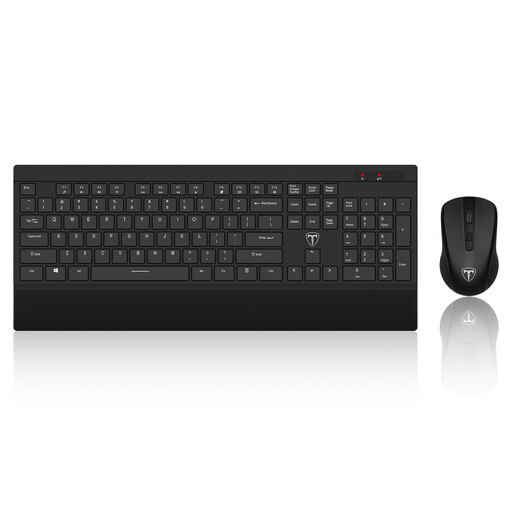
ET Silent 2.4GHz Wireless Keyboard and Mouse Set, US Layout
A separate keyboard and mouse let you position input devices independently if you raise a laptop screen. This set is identified as wireless with a US-layout keyboard; check whether that key layout suits you and confirm the package contents before setup.
View on Joybuy
 No image available
UPERFECT 14-inch 60Hz Portable Touchscreen Monitor
Consider this smaller second screen if you need a display you can reposition or carry with a laptop. Its title specifies a stand and VESA mounting; check your device’s video and touch compatibility, and whether the necessary cable or separate power supply is included.
View on Joybuy
Questions about home-office accessories
Should I start with a laptop stand or an external monitor?
Start with a laptop stand and separate keyboard and mouse if the immediate problem is screen height during prolonged laptop work and you do not need more screen area. Choose an external monitor if you need a larger display that can be positioned separately, provided it fits the desk and your laptop can connect to it.
Will any USB-C laptop work with any USB-C dock?
No: the USB-C connector alone does not guarantee the video, data or charging capabilities a dock requires. Check the exact laptop’s specifications and compare its supported display output and charging arrangement with the dock’s stated configuration.
Should I check with my employer before ordering equipment for home work?
Yes, if the equipment is for employed work, check the applicable display screen equipment assessment and workplace equipment process first. The Health and Safety Executive’s guidance for Great Britain addresses action identified by an assessment, while Acas advises agreeing arrangements for equipment, support and repairs.
Is Northern Ireland covered by the same display screen equipment guidance as Great Britain?
Northern Ireland has separate guidance from the Health and Safety Executive for Northern Ireland, which says display screen equipment rules can also apply to permanent or long-term home workers. Use the relevant workplace assessment process when deciding what equipment is needed.
Who handles support if my work dock or headset develops a problem?
Agree the support and repair arrangements with your employer or IT team, particularly for employer-provided equipment. Acas advises employers and staff to establish how equipment problems are reported and what support is available; for setup or firmware steps, follow the manufacturer’s instructions for the exact model.


